Plugin Update Guide
Plugin Update Guide
Important: Version 0.3.5 also introduced support for Local LLMs.
How to Update the Plugin (if you previously installed it)
Do I need to follow this if I never installed the plugin before?
Answer: NO. Stick to the main docs.
Step 1: Remove Old Plugin Version
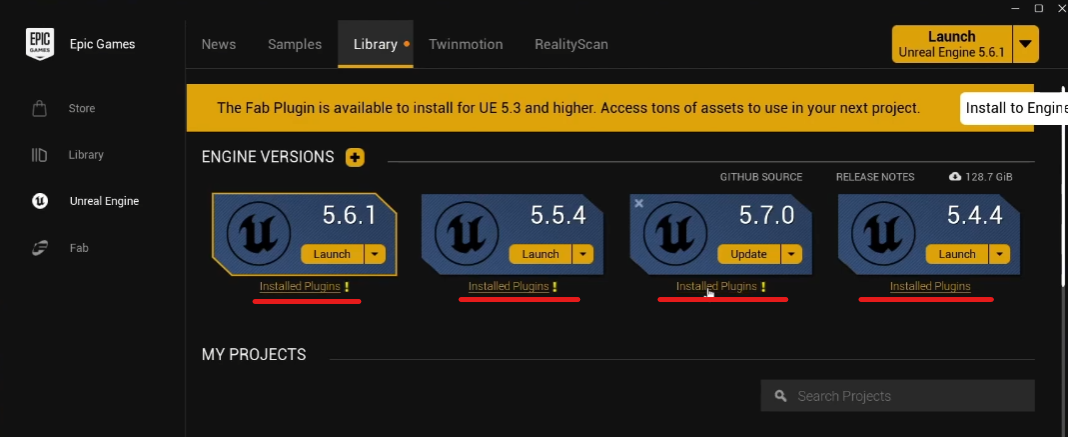
Open up the Epic Games Launcher, find your engine installation and click on Installed Plugins (for whichever Unreal version you previously installed the plugin).
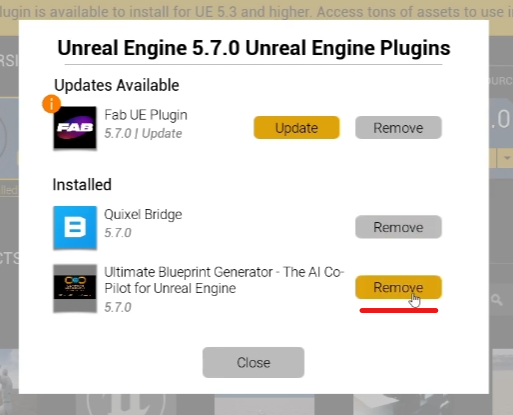
Find the UBG plugin and “REMOVE” it.
If you previously added modifications to the plugin’s files or to the python related files make sure to create a Zip archive so you can reference the custom changes you’ve done and bring them over to the new plugin version if you want.
Step 2: Reinstall the Plugin
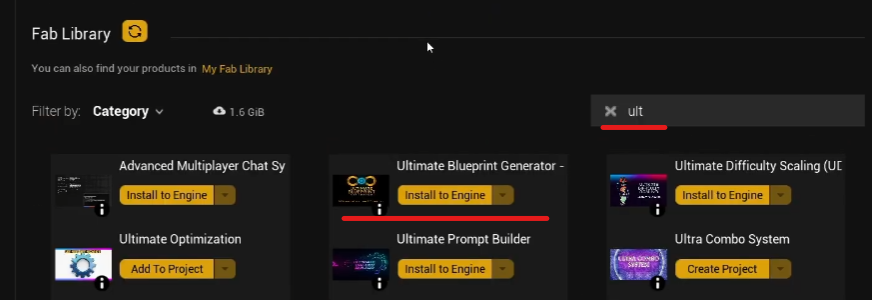
After removing it we need to reinstall it. In your library look for the plugin and “Install to Engine”
Step 3: Verify Installation
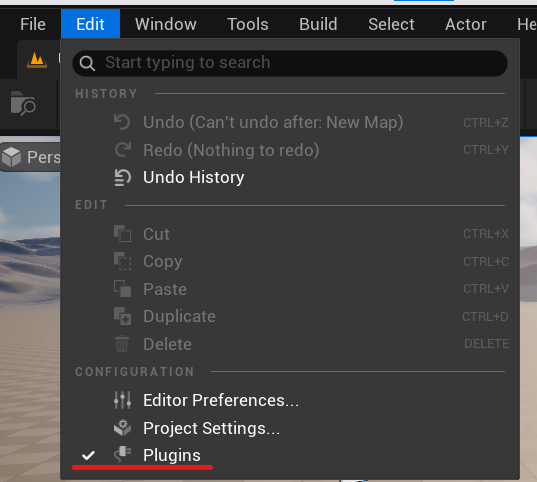
That’s it, you can use the plugin right away but continue to read. You can double check inside your project to see if the version is indeed the latest one (0.3.5).
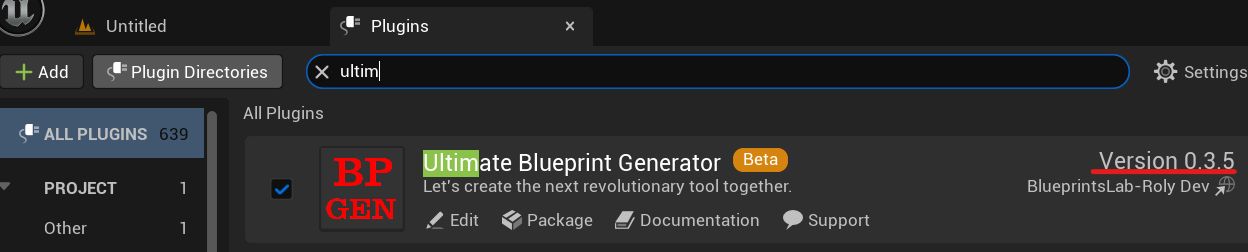
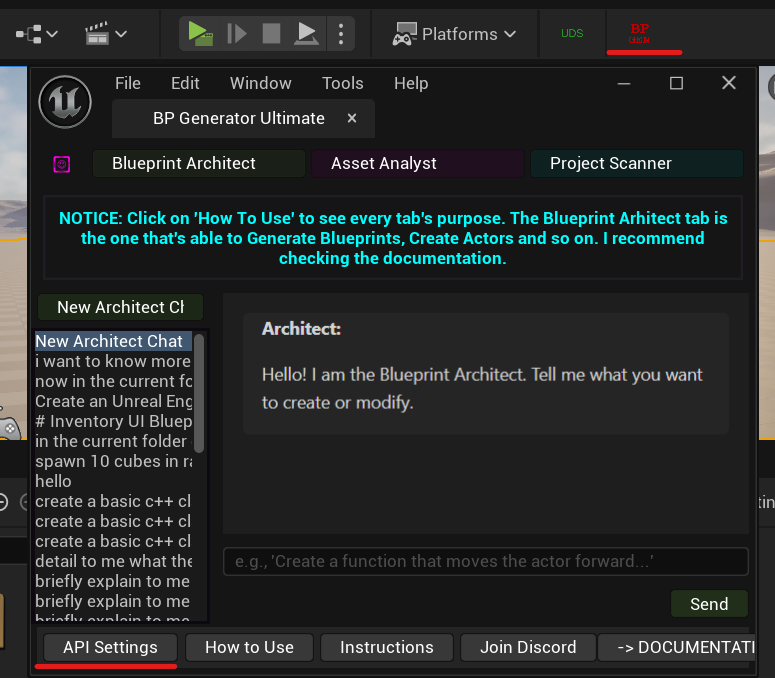
API Key Information
The plugin by default has ~100k tokens free usage through an API key I’ve added. Once those ~100k tokens run out you’ll have to bring your own api key. You can use pretty much any provider and also you can connect the plugin to a local LLM if your machine is powerful enough.
Gemini offers a free api key. More details about Api Keys in the API KEYS section.
Claude Desktop Update Guide
If you haven’t followed the Claude Setup Guide first then go ahead and follow the steps for it like installing Python and the MCP package. This guide is for those of you that already followed the Claude Desktop Setup. You can find it inside the documentation.
Follow the Plugin Update steps explained above this section so you can get the newest Claude Extensions.
Open Claude Desktop once you reinstall the plugin.
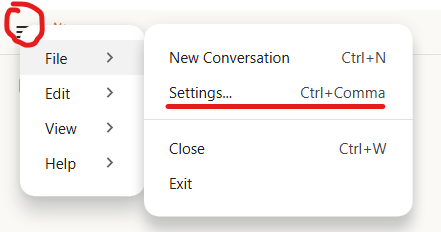
Go to Settings.
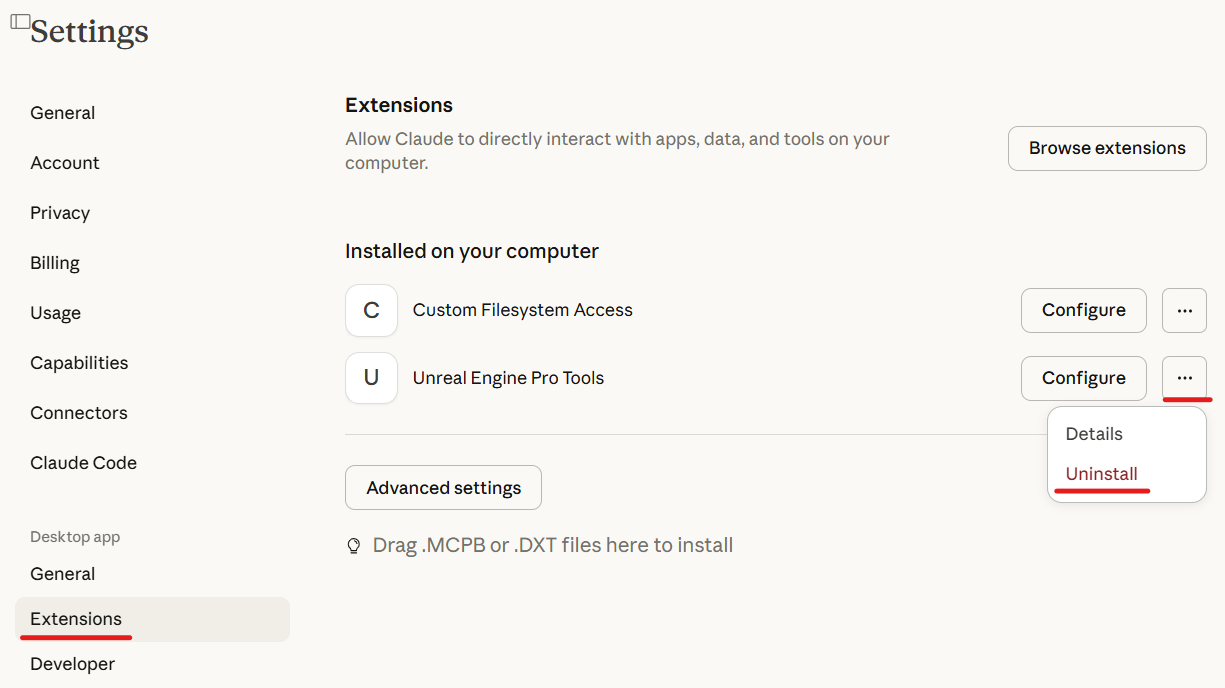
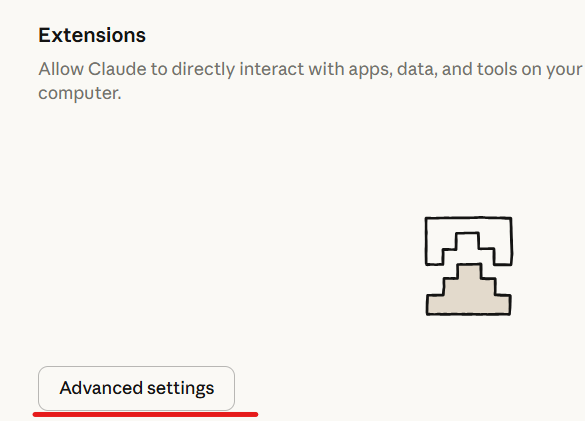
Extensions - And uninstall the previously installed Extensions related to my plugin.
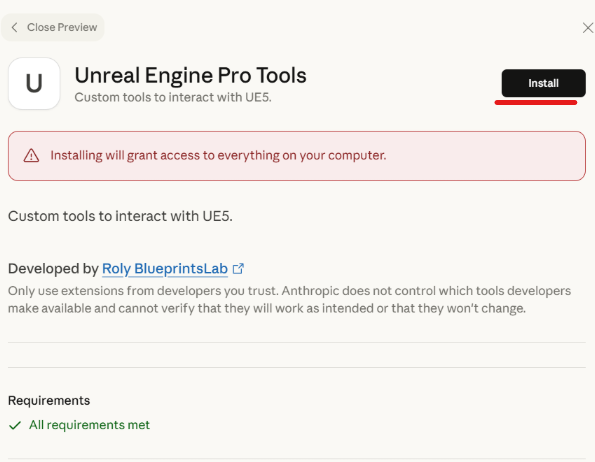
Advanced settings → Install Extension
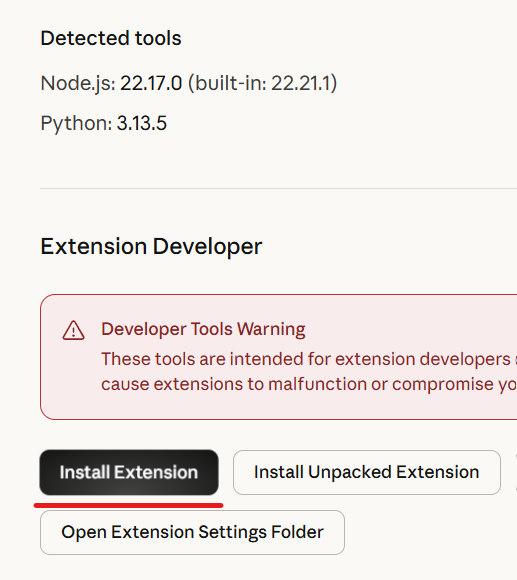
And go wherever the new version of the plugin is installed on your computer. (example: C:/Program Files/Epic Games/UE_5.7/Engine/Plugins/Marketplace/Ultimate3867945fbc2aV39/Content/Python/Extensions). And add them 1 by 1:
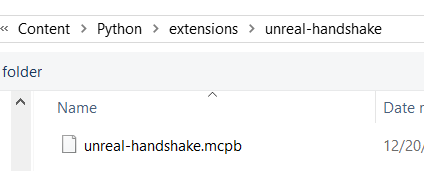
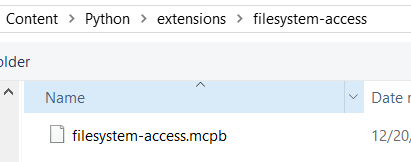
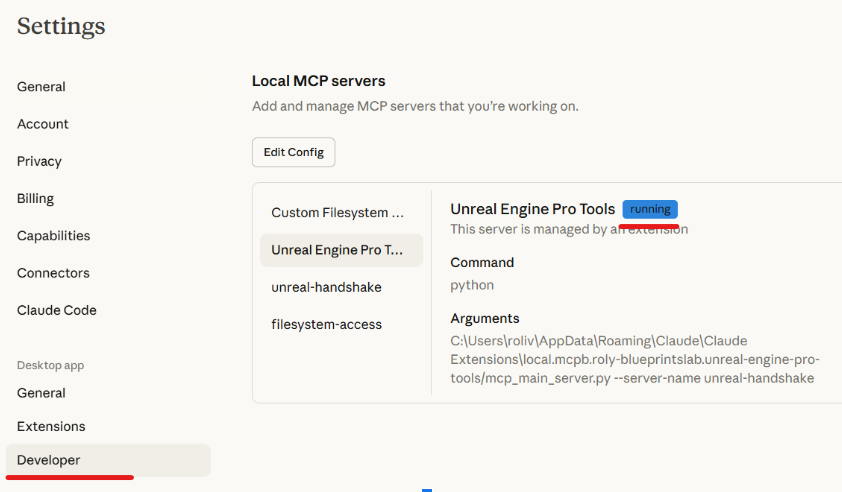
Once installed both you should see them running in the Developer tab.
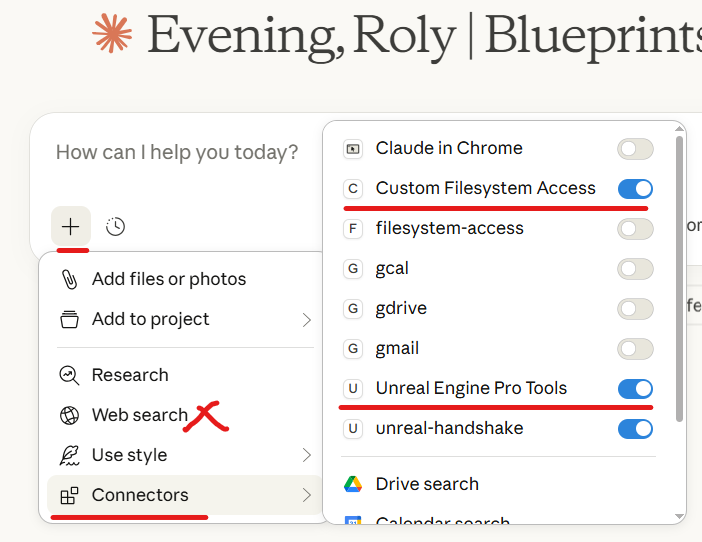
Prime Claude by saying “how to use the connected tools?” while your project is open and the Plugin has been previously enabled.
Third Party Desktop Apps Update Guide (Cursor, Claude Code, Google Antigravity etc)
Skip this if you use Claude Desktop and follow only the above steps for it.
If you followed the update steps in the first section you’ll now have a new name for the Plugin (Epic does this).
And this Update guide also assumes you previously followed the steps to install Python and the MCP package. Check the documentation to see how to do that if you haven’t already.
You need to update your config file in the desktop app you use to point to the correct new path.
This is the default MCP config file but you need to change the path to point to wherever Epic installed the new version of the plugin:
{
  "mcpServers": {
    "unreal-handshake": {
      "command": "python",
      "args": [
        "C:/Program Files/Epic Games/UE_5.7/Engine/Plugins/Marketplace/Ultimate3867945fbc2aV39/Content/Python/mcp_main_server.py",
        "--server-name",
        "unreal-handshake"
      ],
      "env": {
        "UNREAL_HOST": "localhost",
        "UNREAL_PORT": "9877"
      }
    },
    "filesystem-access": {
      "command": "python",
      "args": [
        "C:/Program Files/Epic Games/UE_5.7/Engine/Plugins/Marketplace/Ultimate3867945fbc2aV39/Content/Python/mcp_main_server.py",
        "--server-name",
        "filesystem-access"
      ]
    }
  }
}
Need Help?
If you encounter any issues during the update process:
- Join our Discord Server for support
- Check the Version History & Updates for what’s new
- Review the Extended Features List for all capabilities
Last Updated: January 2026