Getting Started
Getting Started
Installation
- Purchase the plugin from FAB Marketplace
- In the Epic Games Launcher, go to your Library and install the plugin to your Unreal Engine version (5.5, 5.6, or 5.7)
- Open your UE project, go to Edit > Plugins, search for “Ultimate Engine Copilot” and enable it
- Restart the editor when prompted
License Activation
On first launch, a welcome/activation window appears. You have two activation paths:
FAB Marketplace Purchase
- Select the “FAB Marketplace” tab
- Enter the email associated with your FAB account
- Enter your FAB Order ID (starts with “A” followed by 16 digits, found in your FAB purchase confirmation email)
- Click “Submit Order”
- Wait for verification (usually under 5 minutes). The plugin checks automatically
License Key
- Select the “Website Purchase” tab
- Enter your license key (format: XXXXX-XXXXX-XXXXX-XXXXX)
- Click “Activate License”
Once activated, the plugin is tied to your machine. The activation persists across projects and editor restarts.
First Launch
After activation, the plugin window opens from Window > Ultimate Engine Copilot (or the toolbar icon).
The main interface has several views accessible from the left sidebar:
- Blueprint Architect - The main AI chat for generating and modifying Blueprints and assets
- Project Scanner - Index and analyze your entire project with AI
- Learn - Skill tree, courses, achievements, and tutorials
- Settings - AI provider configuration, appearance, voice, and more
Quick Start
- The plugin ships with free AI usage out of the box. No API key needed to get started.
- Open the Blueprint Architect view
- Type a prompt like “Create a third person character with movement and a health system”
- The AI will execute tools to create the Blueprint, add components, variables, and wire logic
Supported Engine Versions
- Unreal Engine 5.5
- Unreal Engine 5.6
- Unreal Engine 5.7
Supported Platforms
- Windows
- macOS
- Linux
The plugin is Editor-only and does not ship with packaged builds.
Plugin Updates
Engine Updates (New Plugin Versions)
- Open the Epic Games Launcher
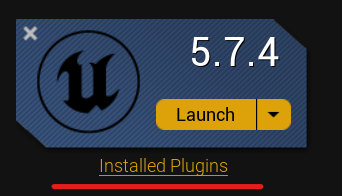
- Go to your Library > click Installed Plugins under your engine version
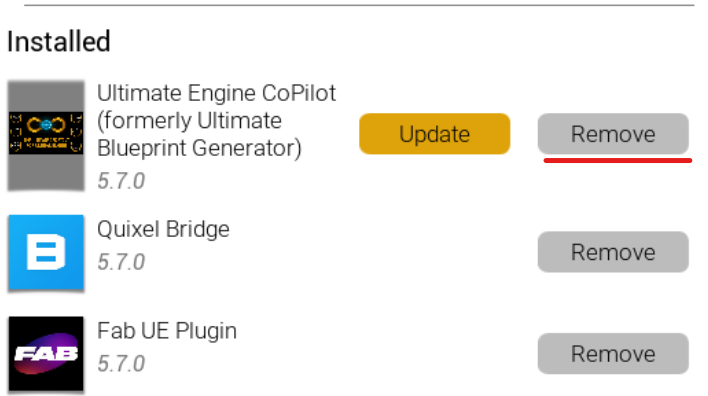
- If an update is available, you’ll see an Update button next to the plugin
- Click Update and wait for it to install
- Restart the Unreal Editor
Cloud Content Updates
AI prompt files, tool documentation, and provider configurations update automatically from the cloud. You don’t need to reinstall the plugin to get these updates — they sync in the background when the plugin loads.
You can see your current plugin version in Settings > Updates. This tab also shows the status of cloud asset updates.
Uninstall and Reinstall the Plugin
If you need to remove or reinstall the plugin (for example, to repair a corrupted installation or switch engine version):
Step 1: Remove from Engine
- Open the Epic Games Launcher
- Go to Library > Installed Plugins
- Find the plugin and click Remove
Step 2: Clean Leftover Files
After removal, manually delete any leftover plugin files. Navigate to your engine’s plugins folder:
C:\Program Files\Epic Games\UE_5.X\Engine\Plugins\Marketplace\UltimateBlueprintGenerator
Delete the entire UltimateBlueprintGenerator folder if it still exists.
Step 3: Reinstall
After removal, go back to your FAB Library, find the plugin and click Install to Engine to reinstall a clean copy. Select the engine version you want to install it on.