Unreal Engine Boss Health Bar: Build a Boss Bar With Phases Using AI
How to build an Unreal Engine boss health bar: a wide bottom bar that drains from green to orange to red with Phase 2 and Phase 3 labels and a Defeated end, built by an AI.

A boss health bar with phases in Unreal Engine is three ideas: a health value turned into a percentage, a bar that follows it smoothly, and phases, which are just thresholds on that percentage. Below two thirds something changes, and below a third it changes again. The easiest way to build one is to give an AI the thresholds, the colors and the damage in a single request.
In this walkthrough, Ultimate Engine CoPilot builds a Frost Warden boss and a wide bar at the bottom of the screen that drains from green to orange to red, with Phase 2 and Phase 3 labels and a Defeated end. You get the exact prompt, a material problem the AI found by looking at the screen and a plain explanation of how a boss bar with phases works.
What the finished boss bar does
A big green boss stands in the snow: a tall block with a round head and two horns. At the bottom of the screen, above the ability bar, a wide health bar shows the name Frost Warden. You press G and the bar drains. When the boss falls below two thirds, the bar turns orange, the boss turns orange too and the label says Phase 2. Below a third, both turn red and the label says Phase 3. At zero the label says Defeated and the boss falls over.
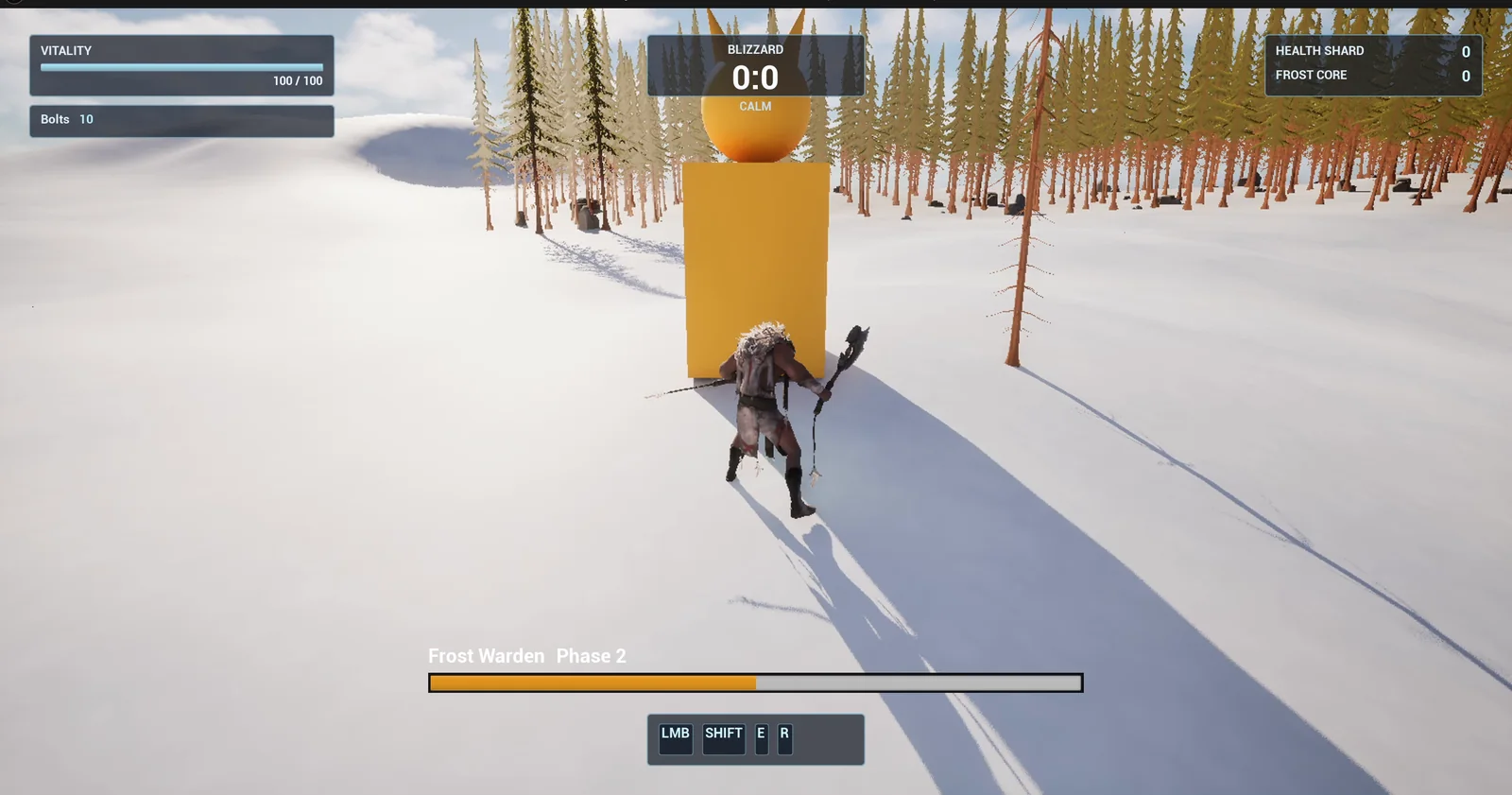
Phase 2: the boss and the bar are orange, and the label reads Frost Warden Phase 2.
The prompt
Copy this, change the phases or the damage, and see what the AI builds:
Make a boss health bar with phases. Create BP_BossDummy in /Game/Series/EP60_BossBar, a big boss made from a cube body 200 units wide, a sphere head and two cone horns, with 300 health, a MaxHealth variable and a BossName variable set to Frost Warden. Create WBP_BossBar in the same folder, a bar 900 pixels wide and 28 high at the bottom of the screen with its bottom edge at y 940, above the ability bar, with a dark frame, the name in white above it and the health as a fill. The fill is green above 66 percent, orange from 66 down to 33 percent and red below 33 percent, and the boss takes the same colour. Create BP_BossController in the same folder, an actor that I place once in the level, that listens for the G key: G hits the nearest boss within 800 units for 25 damage, flashes it white for 0.1 seconds and moves the bar smoothly over 0.3 seconds. The bar appears on the first hit, shows Phase 2 or Phase 3 beside the name when a threshold is crossed, and shows Defeated at 0 while the boss falls over and is destroyed after 2 seconds. Keep the damage and thresholds as variables. Place one boss on the open snow about 700 units east of the player start. Then play test it: teleport the player next to the boss, press G once and check green and 275 health, press G until orange and check Phase 2, until red and check Phase 3, then check Defeated, and fix anything that does not work.Look at how the phases are described: not as events but as percentages, 66 and 33. That is how many boss bars work, a number line cut in three. And the boss takes the color of the bar, so the player can read the fight from the boss itself and not only from the corner of the screen.
How the AI builds it
The AI starts by reading the HUD of an earlier episode, so the bar sits above the ability bar in the same way. Then the assets appear in the Content Browser: the boss, the bar widget, the controller and, later, a small material. The thresholds, the damage, the flash and the delay are variables.
The boss subtracts the damage, refreshes its phase and flashes. The controller creates the bar on the first hit and moves it with a timeline. The AI also met a build error in the boss graph and fixed it by restructuring the logic.
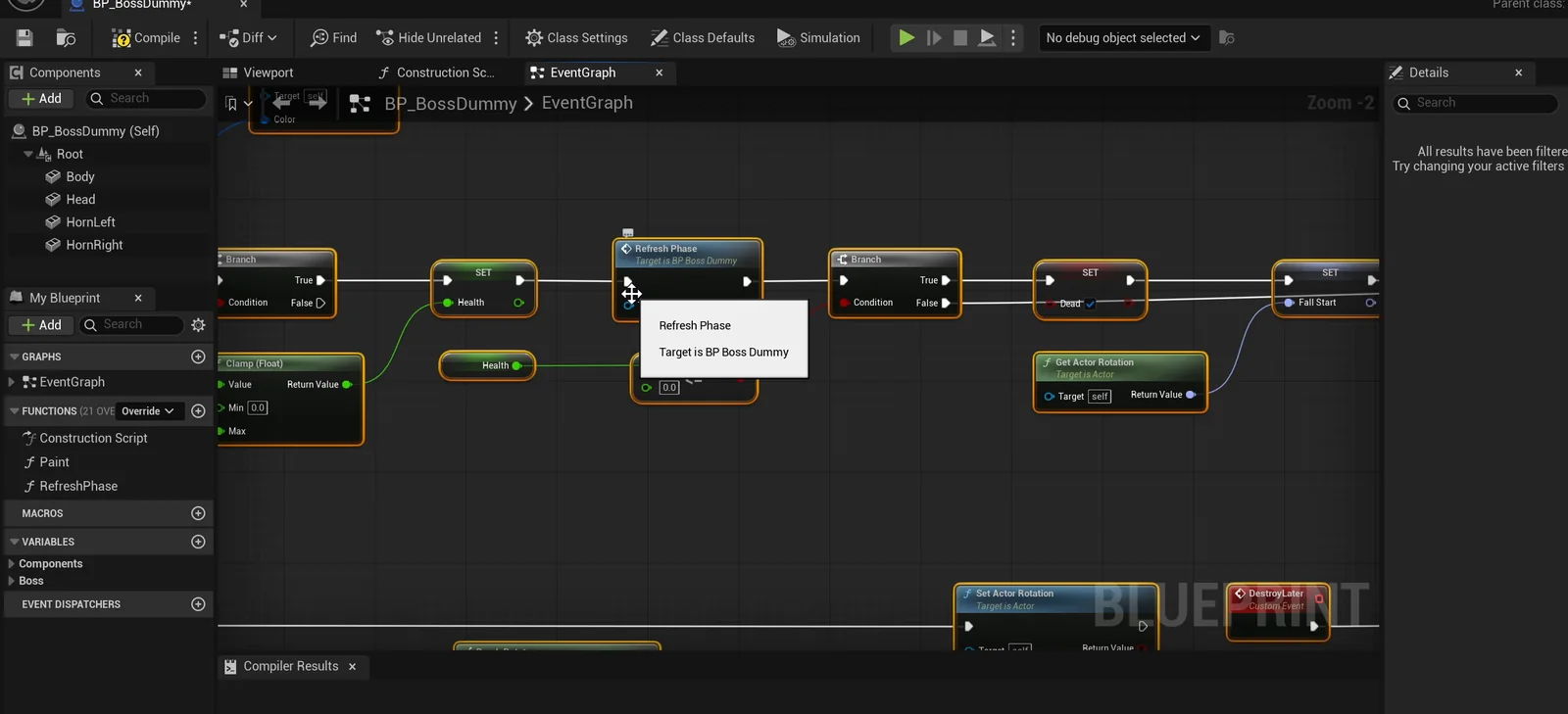
The boss graph: take damage, refresh the phase, flash and fall over at zero.
A bug found by looking at the screen
The play test finds a real bug. The health, the phases and the bar all worked, but the boss itself stayed grey. The default shape material ignores the color parameter. So the AI made its own material, M_BossBody, with a Color parameter, applied it in the boss’s construction script and tested again. This time the boss showed green, orange and red like the bar.
The play test
The checks pass phase by phase:
- After one hit the boss has 275 health and is green, and the bar appears with the name.
- After four hits it has 200 and is still green.
- After five hits it is orange and the label says Phase 2.
- After nine hits it has 75, is red and shows Phase 3, with the bar at 25 percent.
- After twelve hits it is at zero, the label says Defeated and the bar is empty.
- The boss falls over, halfway at about 0.5 seconds and flat by about 1 second, and is destroyed about 2 seconds after the last hit.
The report
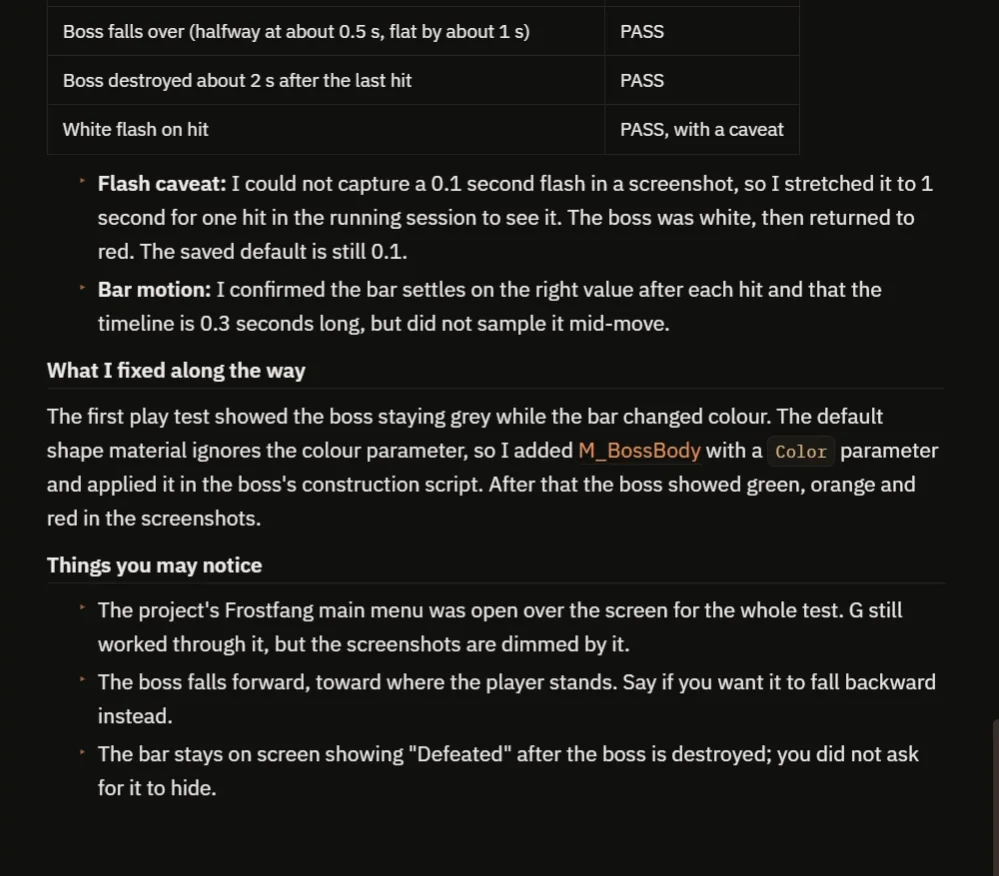
The caveats: the flash, the bar motion, the menu and the bar that stays.
The report is honest about what it could not see:
- The white flash lasts 0.1 seconds, too short for a screenshot. The AI stretched it to 1 second for one hit to see it: the boss was white, then returned to red. The saved default is still 0.1.
- The bar motion was confirmed at the end of each hit, and the timeline is 0.3 seconds long, but it was not sampled in the middle of a move.
- The Frostfang main menu was open over the screen for the whole test. G still worked through it, but the screenshots are dimmed.
- The boss falls forward, toward where the player stands. Say if you want it to fall backward.
- The bar stays on screen showing Defeated after the boss is destroyed, because the prompt did not ask for it to hide.
That is why the video also shows a real run: the green boss, the bar draining, orange with Phase 2, red with Phase 3 and the end.
How a boss bar with phases works, in plain words
When you press G, the controller finds the boss in range and calls take damage with 25. The boss subtracts it from its health and divides by the maximum to get a percentage, from 1 down to 0. Then a function, Refresh Phase, compares the percentage. Above 66 percent it is green. Above 33 percent it is orange and the label says Phase 2. Below that it is red and the label says Phase 3. The bar and the body both take that color. At zero the label says Defeated and a timeline tips the boss over.
Because the thresholds and the damage are variables, you can make the boss tougher or weaker, or move the phase thresholds, with a few numbers.
Ideas to extend it
- A boss that gets faster in Phase 3.
- A bar that hides when the boss is gone.
- A slow white bar behind the red one that shows the recent damage.
Four tips for boss bar prompts
- Give the phase thresholds as percentages.
- Say where the bar sits, clear of the other widgets.
- Say what each phase changes.
- Ask the AI to test every phase and the end.
Frequently asked questions
How do I make a boss health bar in Unreal Engine 5?
Keep the boss’s health as a percentage, show it in a wide widget at the bottom of the screen and move the fill smoothly with a timeline. Compare the percentage with thresholds, such as 66 and 33, to pick the color and the phase label.
How do I add phases to a boss fight?
Treat a phase as a threshold on the health percentage. When the value crosses one, change what you want to change: the color, the label, the speed or the attacks. A function that compares the percentage after every hit keeps it all in one place.
Why did the boss stay grey while the bar changed color?
The default shape material ignores the color parameter. The AI made its own material with a Color parameter and applied it in the boss’s construction script.
Try it in your project
See what Ultimate Engine CoPilot can build on the product page, or get it on Fab. See how the AI Blueprint generator works.
More builds from this series: the Unreal Engine enemy health bar, the Unreal Engine damage numbers and the Unreal Engine wave spawner.