Unreal Engine Enemy Health Bar: Build Floating Bars Over Golems With AI
How to build an Unreal Engine enemy health bar: a world space widget over snow golems that shrinks and turns green, yellow and red, built and tested by an AI from one request.

A floating health bar in Unreal Engine is three ideas: a widget with a bar, which is the part you see; a widget component on the enemy, which puts the widget in the world instead of on the screen; and one small function that takes the health as a percentage and sets the fill and the color. Everything else is the game reacting to damage. The easiest way to build one is to ask an AI for the widget, the enemy and the damage in a single request.
In this walkthrough, Ultimate Engine CoPilot builds snow golems with a world space health bar that shrinks and changes from green to yellow to red. You get the exact prompt, two things that looked like failures and were not, and a plain explanation of how a floating health bar works.
What the finished bars do
Three little snow golems stand in the snow, and above each one is a floating health bar, green and full. You press H and every golem in range loses a bit of health. The bar shrinks smoothly and the golem flashes white for a moment. Two more hits and the bar turns yellow. Then red. On the last hit the golem sinks into the snow and disappears. The bars always face the camera and follow every golem.
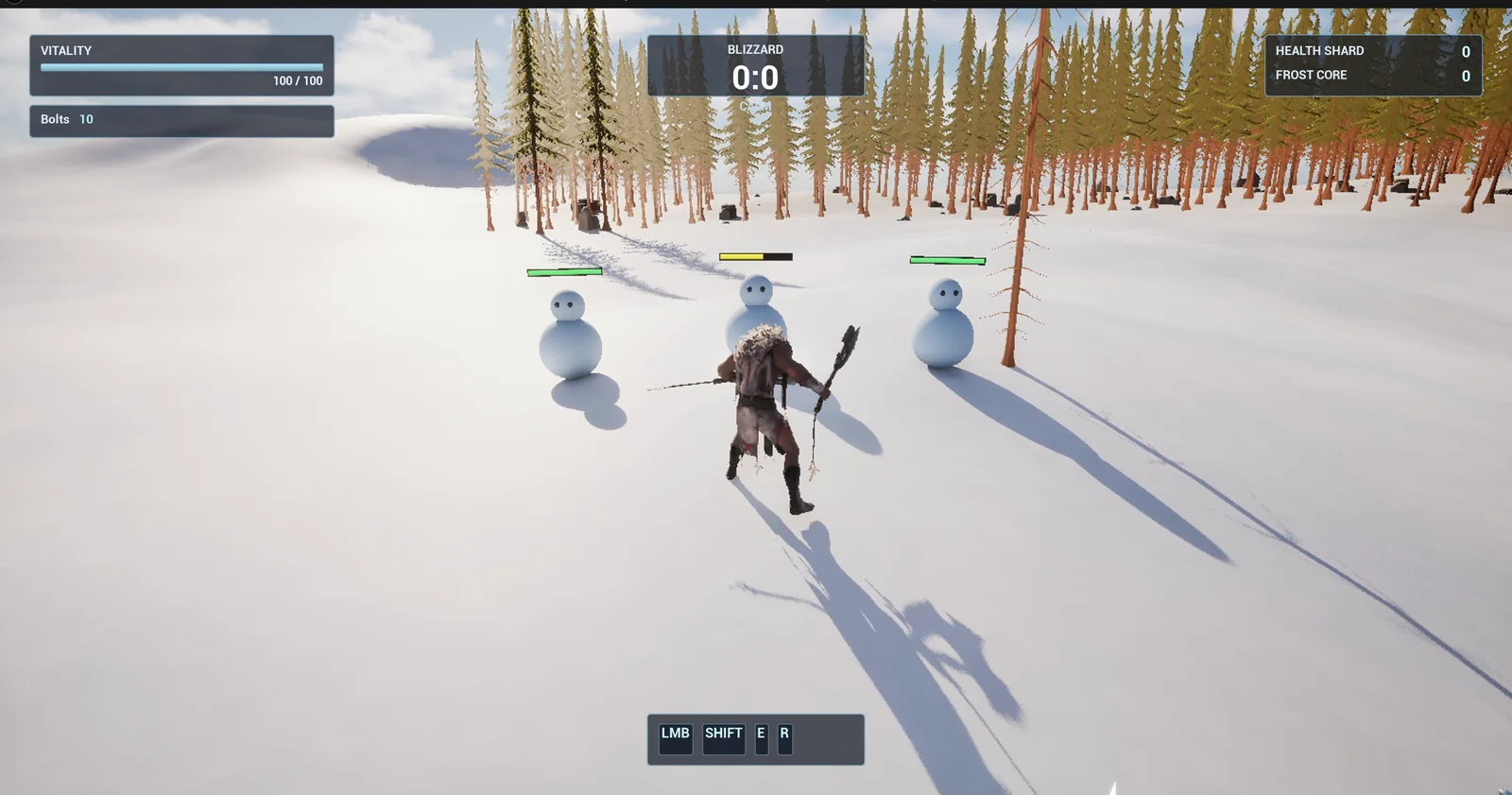
Three golems at full health, each with its own bar.
The prompt
Copy this, change the enemy or the colors, and see what the AI builds:
Make enemies with floating health bars. In /Game/Series/EP51_EnemyBars create WBP_EnemyBar, a bar 160 pixels wide and 16 pixels high with a dark background and a fill that is green above 60 percent, yellow from 30 to 60 percent and red below 30 percent. Create BP_SnowGolem, an enemy made from a big sphere body, a smaller sphere head and two dark eye spheres, with variables Health and MaxHealth set to 100, and a widget component using WBP_EnemyBar in World space, placed 170 units above the golem and always turned toward the camera. When the golem takes damage the bar fill shrinks smoothly over 0.3 seconds and the body flashes white for 0.15 seconds. Create BP_HitController, an actor that I place once in the level, that on the H key deals 20 damage to every golem within 500 units of the player. At 0 health the golem sinks into the snow over 1 second and is destroyed. Keep the damage, the range and the colour thresholds as variables. Place three golems on open snow 700 units east of the player start, 300 units apart. Then play test it: stand near them, press H five times, check the bars shrink and change colour at each threshold, check the golems are gone at 0, and fix anything that does not work.Look at the numbers for the colors: 60 and 30 percent. Without them, a health bar is just a bar. With them, it tells the player the story of a fight. And look at how the bar is described: “World space” and “always turned toward the camera”. That one phrase decides whether you build a billboard or a bar stuck to the screen.
How the AI builds it
The AI starts by reading the project, and then builds the widget and two materials, one for the icy body that can flash and one for the eyes. The assets appear in the Content Browser: the bar widget, the golem, the hit controller and the two materials. The thresholds, the damage, the range and the flash time are all variables.
When the golem takes damage, it subtracts the damage from its health and calls the update function of the bar. A short timeline shrinks the fill. Another flashes the body. When the health reaches zero, a third timeline sinks the golem, and then it destroys itself. On every tick, the bar turns toward the camera.
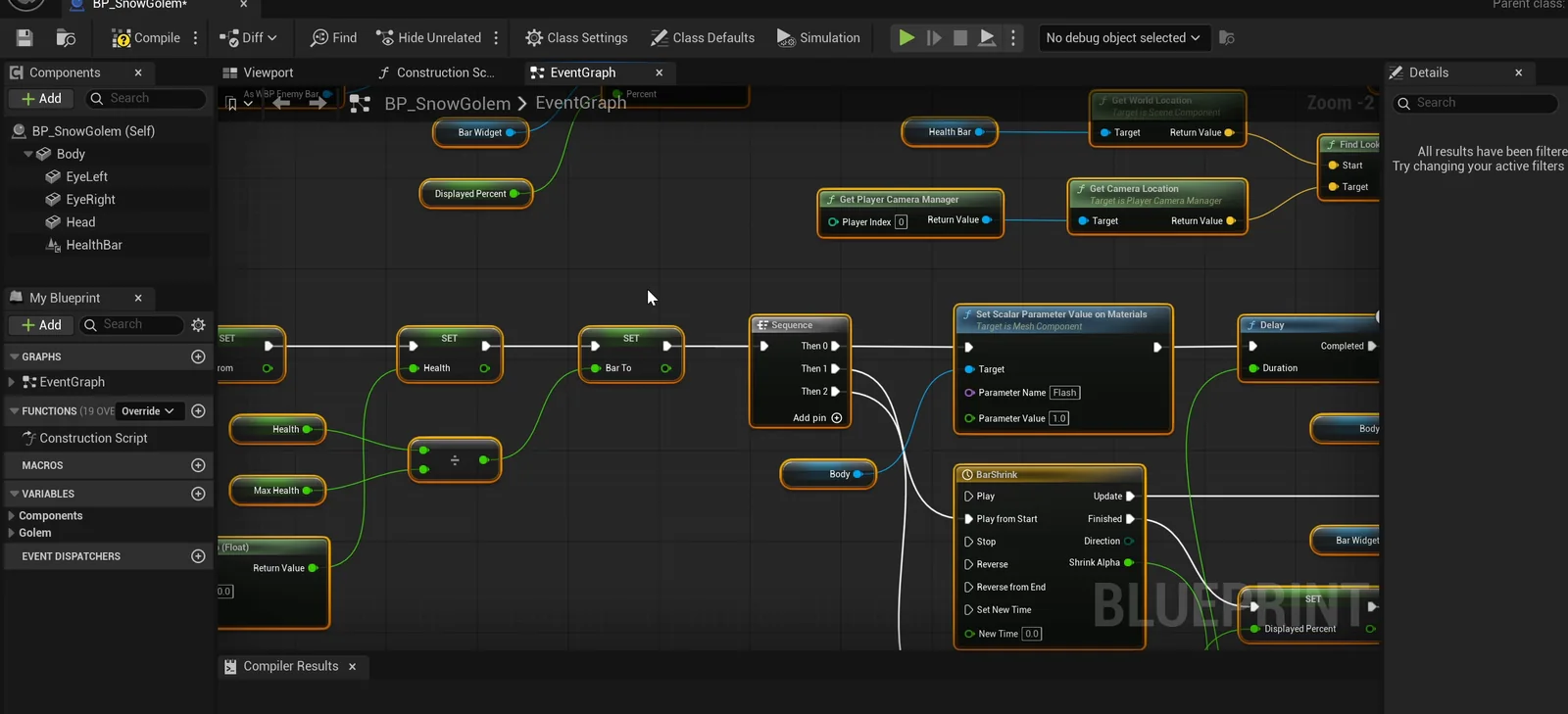
The golem graph: damage, the bar update, the flash and the sink.
The play test
Five presses of H, and the health goes down by 20 each time. The bar shrinks smoothly, and it settles at 80, 60, 40 and 20 percent. In the screenshots, the bar is green at full health and at 80, yellow at 60 and red at 20. The golems sink at zero, gradually, 171 units down after half a second, and at the end no golem is left.
The report
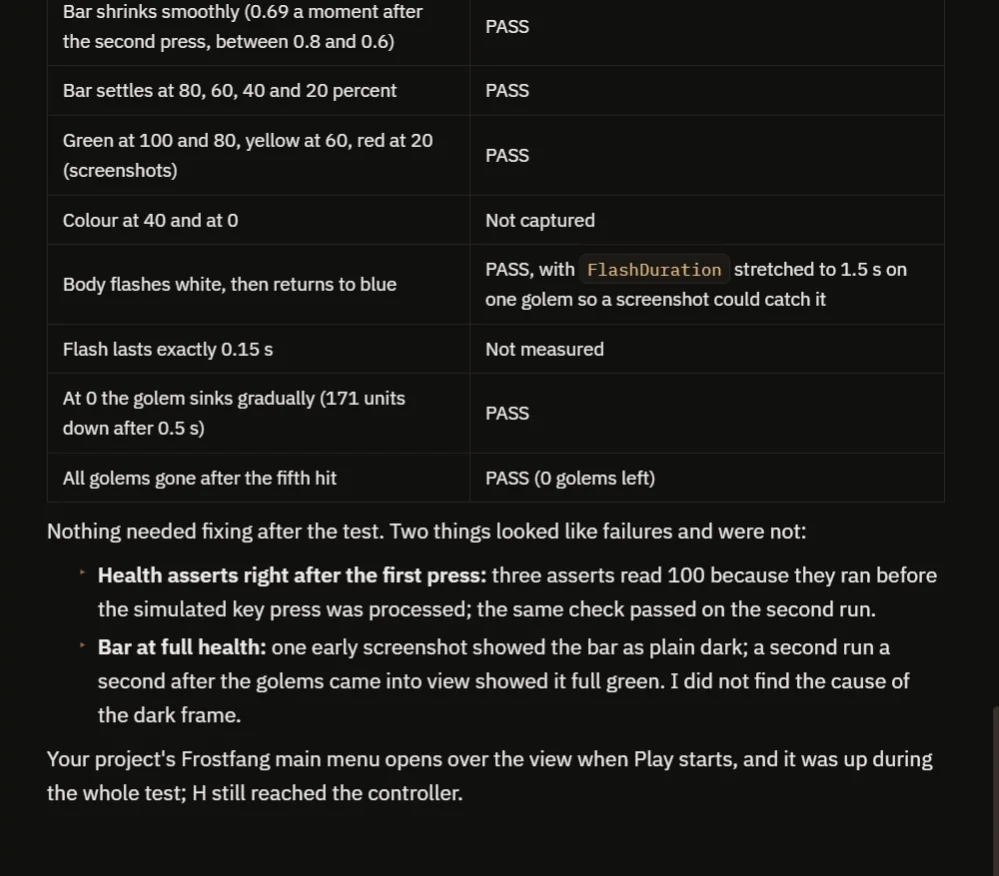
The checks, with the two things that looked like failures and were not.
The AI says nothing needed fixing after the test, and it is honest about two things that looked like failures:
- Three health reads showed 100, but only because they ran before the simulated key press was processed. The same check passed on the second run.
- One early screenshot showed the bar dark, while a second one, a second later, showed it full and green. The AI did not find the cause of that single dark frame.
It also says what it did not capture: the colors at 40 percent and at zero, and the exact length of the flash, were not measured. The flash was stretched to 1.5 seconds on one golem so a screenshot could catch it. The Frostfang main menu was open over the view during the whole test, and H still reached the controller.
How a floating health bar works, in plain words
The widget component has a widget class and a draw size, and it is set to world space. That makes the engine draw the widget in the 3D world, at the position of the component, like a sign on a stick. Every tick, the golem rotates the component to face the camera, so you always see the bar from the front.
When the golem takes damage, it subtracts from the health, divides by the maximum to get a percentage and calls update on the widget. The function sets the fill amount and picks the color: green above 60 percent, yellow above 30 and red below. Because the thresholds, the colors and the damage are variables, you can make a gentle bar or a brutal one in seconds.
Ideas to extend it
- A delayed white bar behind the red one, the way many games show recent damage.
- A bar that hides when the golem is at full health.
- A damage number that floats up with every hit. See the Unreal Engine damage numbers article.
Four tips for health bar prompts
- Say world space, and facing the camera.
- Give the color thresholds as percentages.
- Say how the bar moves, and for how long.
- Ask the AI to test every color, not only the first.
Frequently asked questions
How do I make a floating health bar in Unreal Engine 5?
Add a widget component to the enemy, set it to world space and point it at a bar widget. Turn it to face the camera each tick and update the fill and color from the health percentage.
How do I change the bar color by health?
In the update function, pick green above 60 percent, yellow from 30 to 60 and red below 30. Keep the thresholds as variables.
Why did two checks look like failures?
Three health reads ran before the simulated key press was processed, and one early screenshot caught a single dark frame. The same checks passed on the next run.
Try it in your project
See what Ultimate Engine CoPilot can build on the product page, or get it on Fab. See how the AI Blueprint generator works.
More builds from this series: the Unreal Engine damage numbers, the Unreal Engine melee combat and the Unreal Engine radar.