Unreal Engine Casting Explained: See a Cast Succeed and Fail
Unreal Engine casting explained with a demo: a pad casts whatever touches it to the player class, turning green for the player and red for a rolling cube, built by an AI from one request.

Casting in Unreal Engine answers one question: when something touches this actor, what is it? The overlap event only gives you a plain actor. A cast node tries to treat that actor as a specific class. If it is that class, the cast succeeds and you get a typed reference you can use. If it is not, the cast fails and you take the other path. The easiest way to understand a cast is to watch one succeed and fail.
In this walkthrough, Ultimate Engine CoPilot builds a pad that casts whatever touches it to the player class. It turns green for the player and red for a rolling cube. You get the exact prompt, a material problem the AI found and fixed and a plain explanation of what a cast really does.
What the finished demo does
You walk onto a round pad with the keys, and it turns green with the text “Cast succeeded: this is the player”. You step off and it goes back to grey. Then a cube rolls in, and the moment it touches the pad, the pad turns red and the text says “Cast failed: this is BP_RollingCube”. Same pad, two different answers.
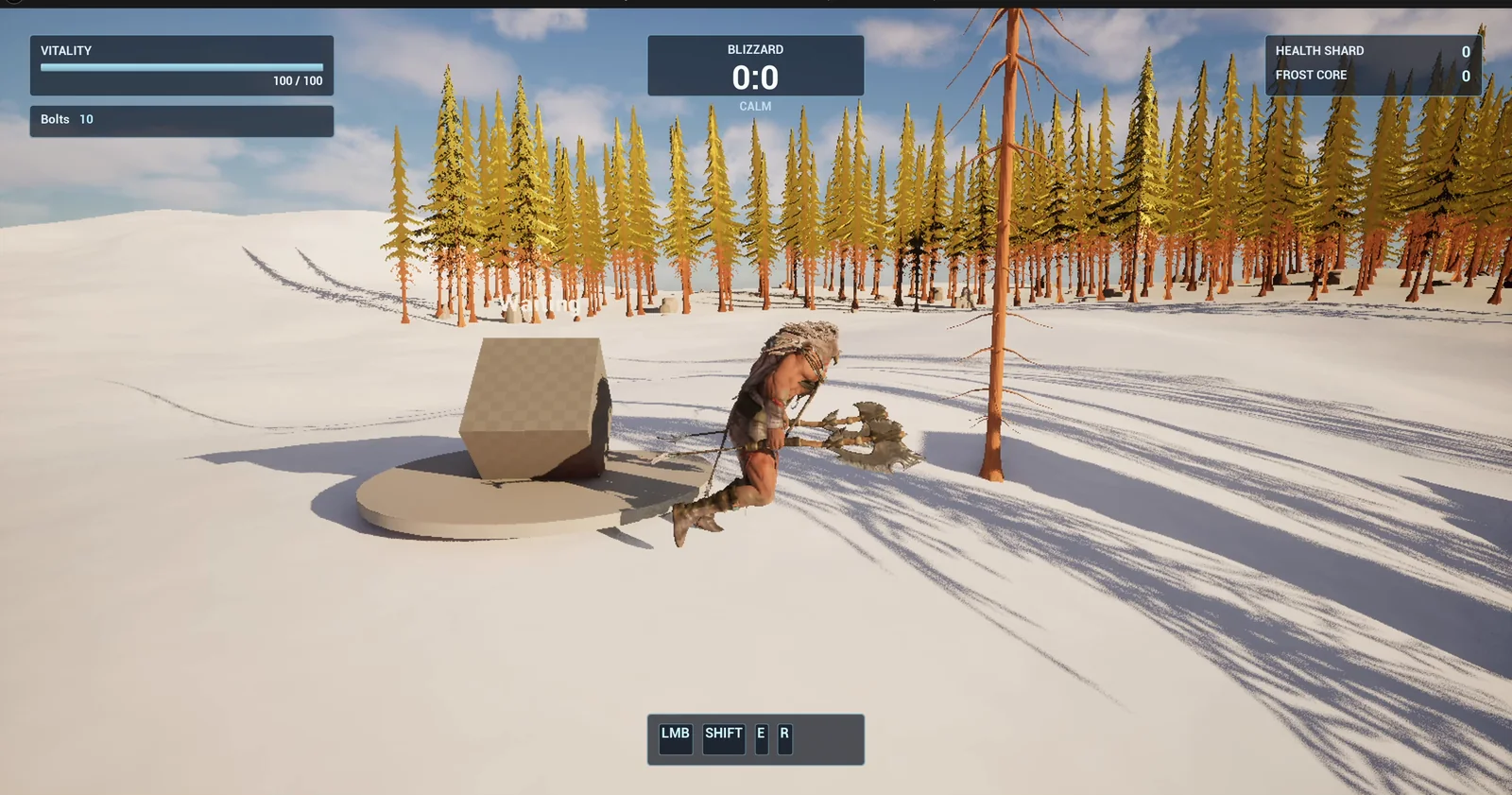
The pad and the rolling cube. The cube is what lets you see the failure case.
What a cast does
When any actor overlaps the trigger, the engine only gives you a plain actor. It does not know whether it is the player, a cube or a door. Think of it as a sealed box with a label that says “something”. The cast node tries to open the box as a specific type. If the thing really is a player character, the cast succeeds, and the output pin is a player character, so you can read its health, its inventory, anything. If it is a cube, the cast fails and the failed pin runs instead.
Casting is not free, so you do not cast every tick, only when something happens, like an overlap.
The prompt
Copy this, change the class or the colors, and see what the AI builds:
Make a casting demo that shows what a cast does. Create BP_CastPad in /Game/Series/EP44_Casting, a flat round pad 300 units across and 10 units high with a text render above it that reads Waiting. When any actor overlaps the pad, it casts that overlapping actor to KhaimeraPlayerCharacter. If the cast succeeds, the pad turns green and the text reads Cast succeeded: this is the player. If the cast fails, the pad turns red and the text reads Cast failed: this is BP_RollingCube. After 2 seconds the pad goes back to its grey Waiting state. Create BP_RollingCube in the same folder, a 100 unit cube that waits 2 seconds after BeginPlay and then rolls toward the pad at 250 units per second, turning as it moves, and stops when it reaches the pad centre. Keep the pad size, the reset time and the roll speed as variables. Place the pad in the open snow 700 units east of the player start, and the cube 900 units east of the pad. Then play test it: teleport the player onto the pad and check it turns green with the success text, step off and check it returns to grey after 2 seconds, wait for the cube to roll onto the pad and check it turns red with the failure text, and fix anything that does not work.Two sentences matter: “If the cast succeeds” and “If the cast fails”. A cast has two exits, and a good test checks both. The cube is a smart idea too. Without a second actor, the failure case would never happen and you would never see it.
How the AI builds it
The AI starts by finding the player class in the project and looking for a material it can color. Then the assets appear in the Content Browser: the pad, the rolling cube and, later, a small material. The pad size and the reset time become variables.
The pad has the overlap event, the cast and two branches, one for success and one for failure, each setting a color and a text. The cube just finds the pad, waits and rolls to it. The AI reads the graphs back to check them before it places anything.
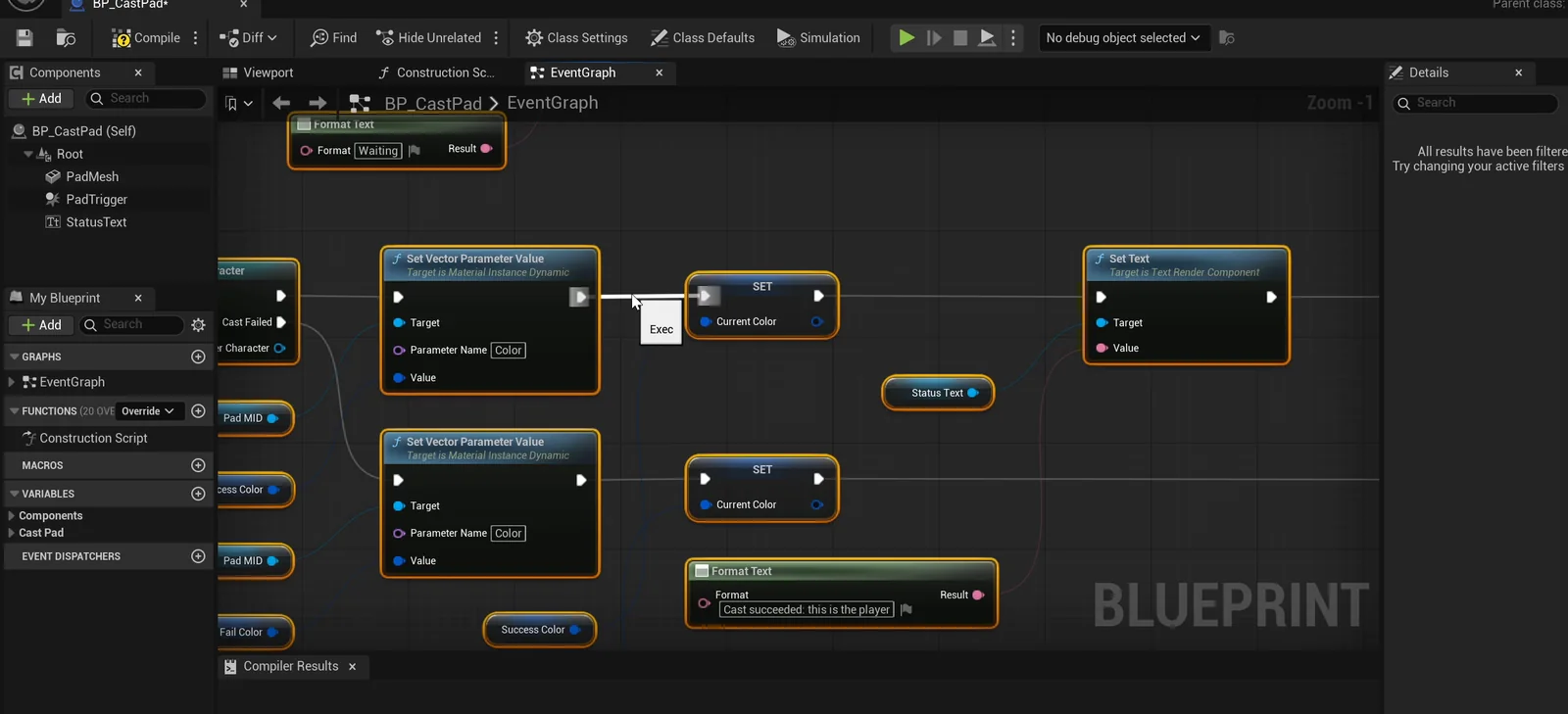
The pad graph: the overlap, the cast and the two exits.
Two problems the AI solved
- The cube had already stopped. The player case passes, green with the success text. But the placed cube had already finished rolling before the AI checked, so it missed the failure case. It did not guess. It spawned a fresh cube and tested again, and the red state passed too.
- The pad color could not be confirmed. The engine material gave no parameter name it could trust. So the AI made its own small material with a color parameter and ran the test one more time.
The report
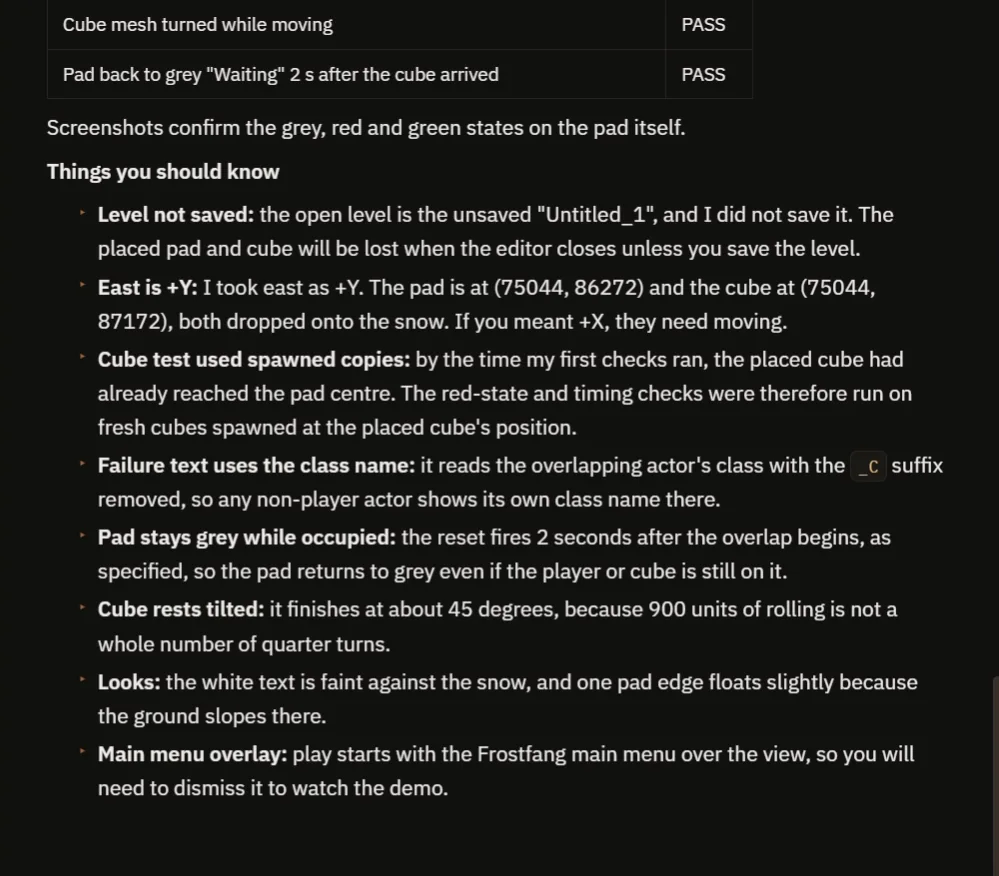
The checks and the notes: east, spawned cubes, the class name and the faint text.
The report has a table of eight checks: the pad turns green for the player with the right text and returns to grey two seconds later, and the cube starts after its delay, rolls at the right speed, turns while it moves, stops in the center of the pad and turns the pad red with the class name in the text. It also tells you what to know:
- East was taken as +Y, so the actors may need to be moved if you meant the other axis.
- The cube test used spawned copies, because the placed cube had already reached the pad.
- The failure text shows the class name of whatever touched the pad, with the _C suffix removed.
- The pad returns to grey two seconds after the overlap begins, even if something is still standing on it, as requested.
- The cube rests tilted, because 900 units of rolling is not a whole number of quarter turns.
- The white text is faint against the snow, so you may want a darker color.
- The level is not saved, and the main menu was open over the demo during the test.
One cast, two exits, in plain words
The overlap event gives you one pin, Other Actor, with the most general type, Actor. The cast node tries to open it as KhaimeraPlayerCharacter. On success you can use the typed reference. On failure, the failed pin runs. Because the colors, the pad size and the timer are variables, you can reuse the same pad for any class check: a key, an enemy, a vehicle.
Ideas to extend it
- A third result for enemies, a yellow pad.
- A sound for success and another for failure.
- A pad that only reacts to the player with a key in the inventory.
Four tips for casting prompts
- Name the exact class you want to cast to.
- Describe both exits, the success and the failure.
- Add a second actor so the failure case can be seen.
- Ask the AI to test both cases, not only the one that works.
If you want to avoid casting altogether, the Unreal Engine Blueprint interface article shows the alternative.
Frequently asked questions
What does a cast do in Unreal Engine Blueprints?
It tries to treat a general reference, such as an actor from an overlap, as a specific class. If it is that class, you get a typed reference. If not, the cast fails and a separate exit runs.
When should I use a cast?
When something specific happens, like an overlap, and you need that class’s own data. Avoid casting every tick, since it is not free.
Why add a rolling cube to the demo?
Without a second actor the failure case would never happen. The cube rolls onto the pad by itself so you can see the cast fail.
Try it in your project
See what Ultimate Engine CoPilot can build on the product page, or get it on Fab. See how the AI Blueprint generator works.
More builds from this series: the Unreal Engine Blueprint interface, the Unreal Engine Blueprints for beginners and the Unreal Engine event dispatcher.