Unreal Engine Crouch: Build a Toggle Crouch With a Ceiling Check Using AI
How to build an Unreal Engine toggle crouch: a smaller capsule, slower speed, a label and a ceiling check so you cannot stand up under a low beam, built by an AI from one request.

A crouch in Unreal Engine is three ideas: a smaller capsule, so the character fits under things; a slower speed; and a rule for standing up, which is the part most tutorials forget. Before the capsule grows back, you must check that there is room above. Otherwise the character stands up inside the ceiling. The easiest way to build one is to ask an AI for the toggle, the label and a test beam in a single request.
In this walkthrough, Ultimate Engine CoPilot builds a toggle crouch on the C key with a ceiling check and a low beam to test it. You get the exact prompt, one test that failed because of the test and not the game, and a plain explanation of how a crouch with a stand up check works.
What the finished crouch does
A low stone beam stands in the snow. You press C and the character crouches: a text appears in the corner, “Crouching”, the body is lower and the character moves more slowly. You walk under the beam and press C, and nothing happens. The message says “Too low to stand”. The character stays low, because there is no room above.
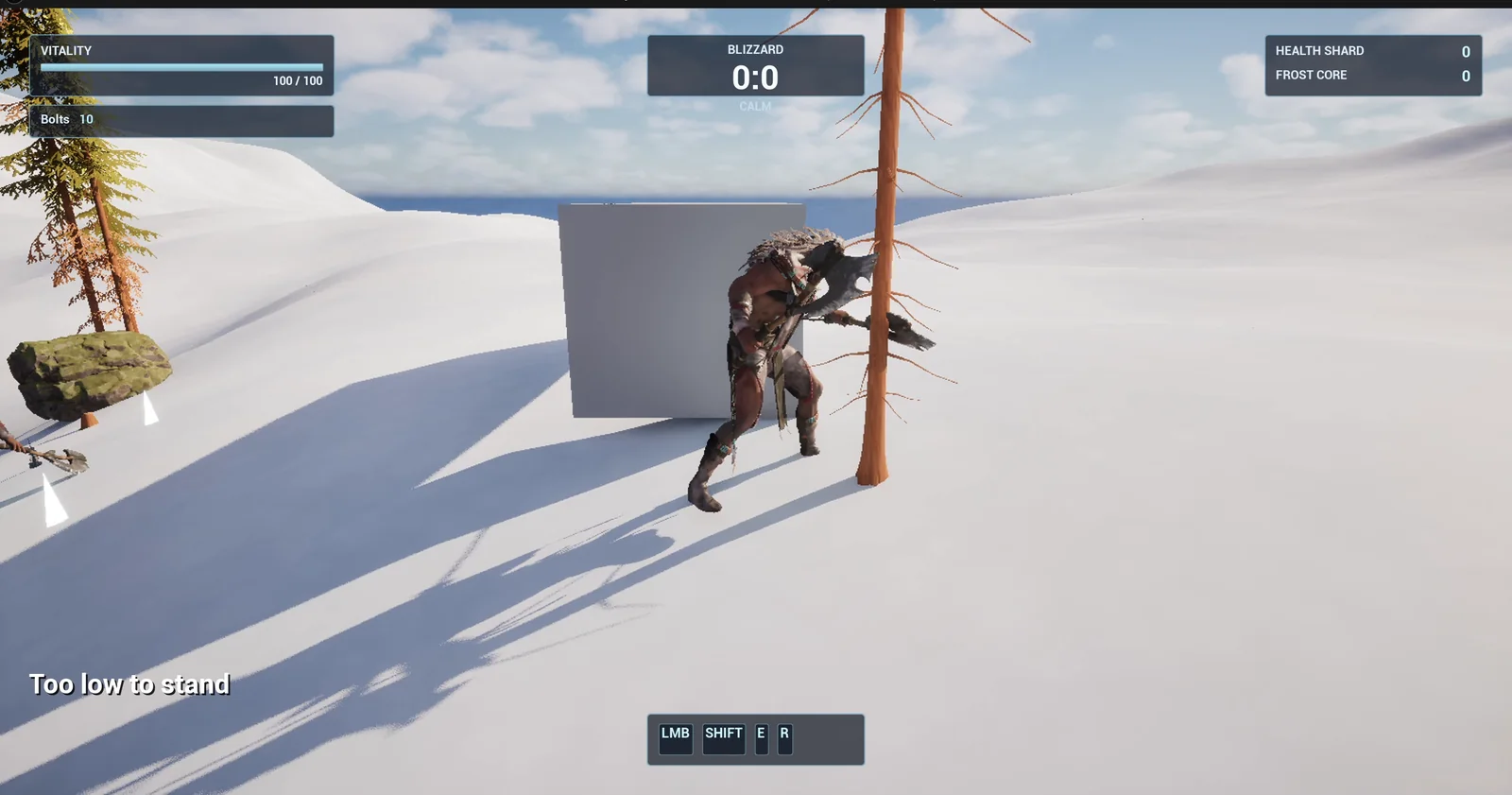
Crouched at the beam: the stand up is refused with “Too low to stand”.
The prompt
Copy this, change the numbers or the beam, and see what the AI builds:
Make a toggle crouch for the player. Create BP_CrouchController in /Game/Series/EP54_Crouch, an actor that I place once in the level, that listens for the C key. Pressing C switches between standing and crouching. While crouching, shrink the character capsule half height to 48 units, drop MaxWalkSpeed to 200, and show the text Crouching in the lower left of the screen, above the ability bar level and clear of it, built as WBP_CrouchLabel in the same folder. When the player presses C again, stand up only if there is room: check the space above with a capsule trace, and if something blocks it keep crouching and show Too low to stand for 2 seconds in the same label spot. Restore the original half height and speed when standing. Create BP_LowBeam in the same folder, a long stone box 600 units wide, 200 units deep and 40 units thick, held up by two pillars so its underside is 140 units above the snow. Keep these numbers as variables. Place the controller and one beam on the open snow about 600 units east of the player start. Then play test it: record the standing half height and speed, press C and check the half height is 48, the speed is 200 and the label shows, walk under the beam, press C there and check you stay crouched with the message, walk out, press C and check the original values are restored, and fix anything that does not work.Look at three things. The numbers, 48 and 200. The sentence about restoring the original half height and speed, so the game never leaves the character at the wrong size. And the test plan: in the open, under the beam, outside again. Three places, so every case is checked.
How the AI builds it
The AI starts by finding where the ability bar sits, so the label can go above it. Then three assets appear in the Content Browser: the controller, the beam and the label widget. The numbers and both texts are variables.
The beam is built by a construction script from variables: the width, the depth, the thickness and the clearance. The controller reads the original values at the moment of crouching. And the stand up check is a capsule trace upward, through the space the standing capsule would take.
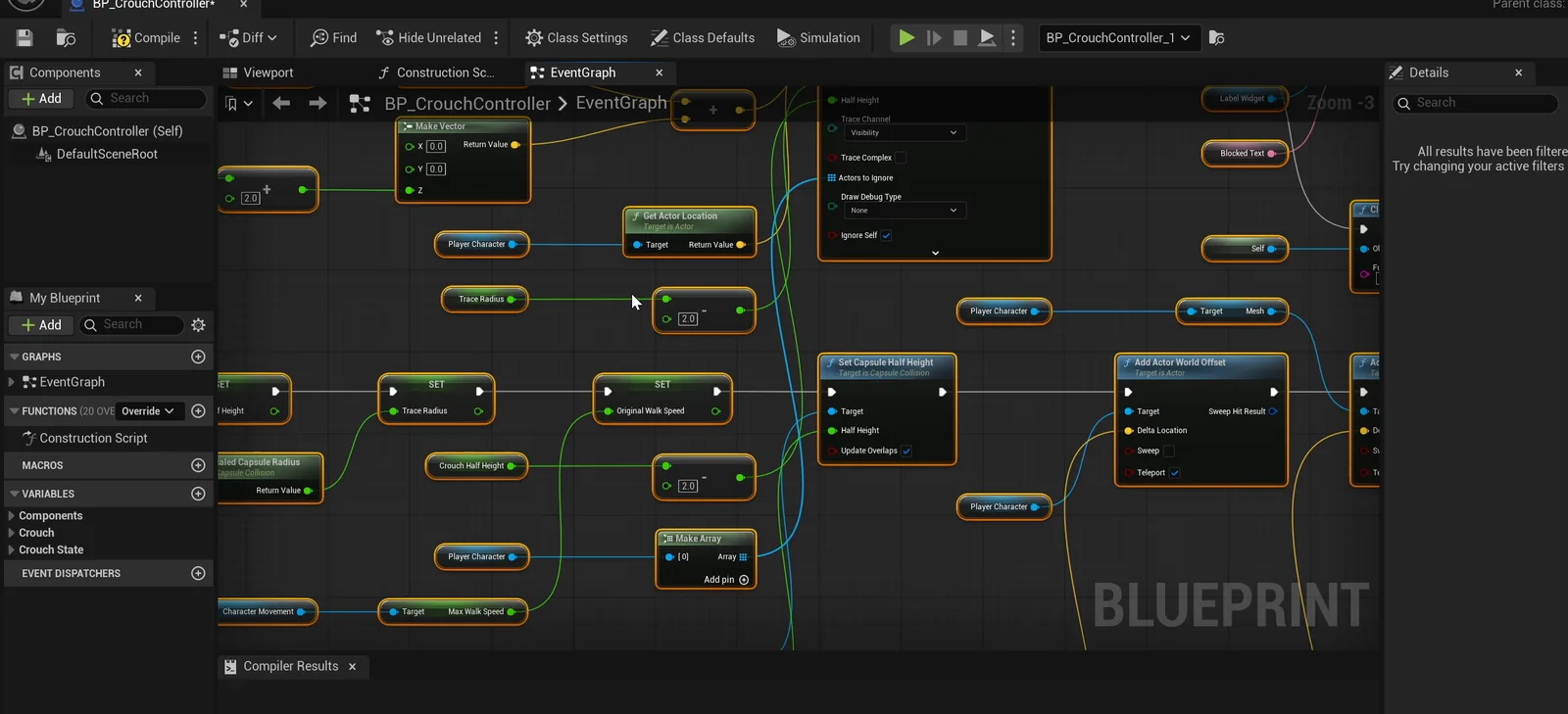
The controller graph: the toggle, the stored values and the stand up check.
A test that failed because of the test
The first run failed eight checks, but only because the scripted walk went the wrong way and never reached the beam. The AI saw this, steered the walk correctly and ran again. Then all 14 checks pass:
- Pressing C in the open gives a half height of 48, speed 200 and the label.
- Under the beam, pressing C does nothing: the half height stays 48, “Too low to stand” shows and then goes back to “Crouching”.
- Outside, C brings the half height back to 95 and the speed to 600, and the label disappears.
The report
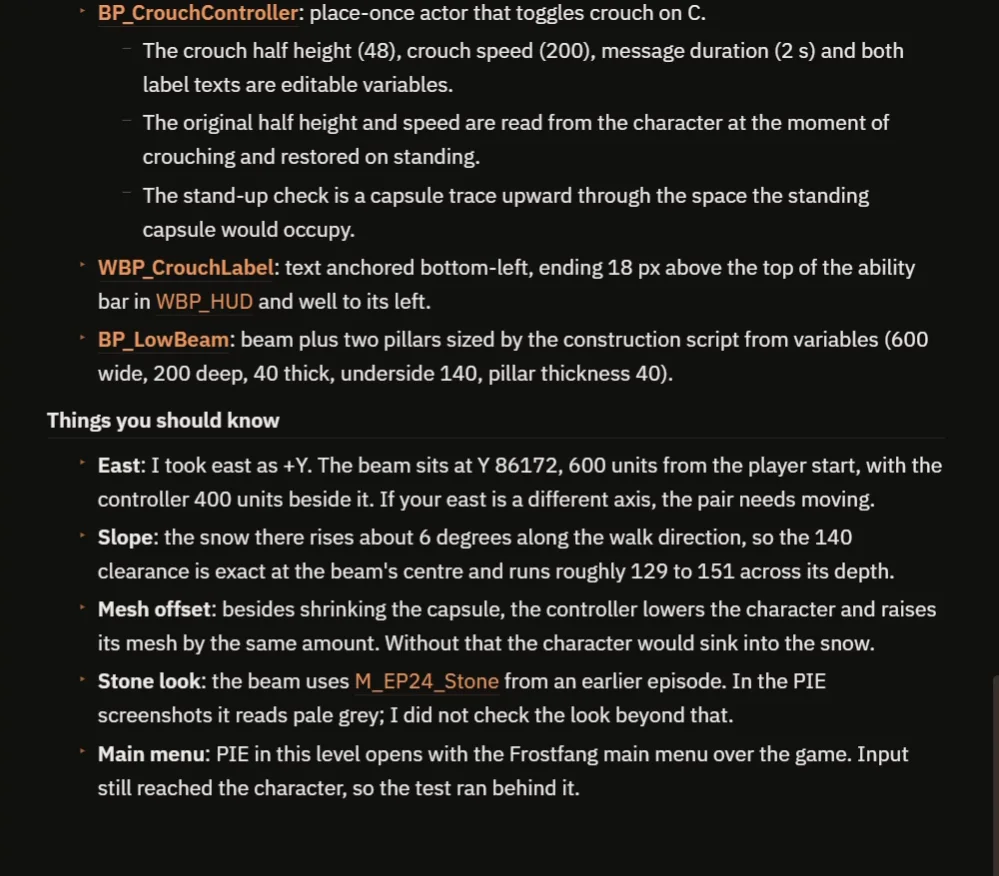
What was built, and the notes on the slope, the mesh offset and the stone material.
The report also tells you things you might not expect:
- The snow slopes about 6 degrees, so the 140 unit clearance is exact in the middle of the beam and runs roughly from 129 to 151 across its depth.
- The controller also lowers the character mesh by the same amount as the capsule, or the character would sink into the snow.
- The beam uses a stone material from an earlier episode, and the AI did not check its look beyond a pale grey in the screenshots.
- East was taken as +Y, so if your east is a different axis, the pair needs moving.
- The Frostfang main menu opens over the game in the test, and input still reached the character.
How a crouch with a stand up check works, in plain words
When you press C and you are standing, the controller stores the current half height and speed, sets the capsule half height to 48, sets the speed to 200 and shows the label. It also moves the mesh down by the difference.
When you press C and you are crouching, it does a capsule trace upward, as tall as the standing capsule. If the trace hits something, the controller keeps the crouch and shows the message. If not, it restores the stored values and hides the label. Because the numbers are variables, you can make a deep crouch or a small duck with two numbers.
Ideas to extend it
- Crouching held on the left control key, instead of toggled.
- A slide that starts when you press crouch while sprinting.
- Stealth, where enemies see you less when you crouch. See the Unreal Engine stealth sentry.
Four tips for crouch prompts
- Give the half height and the speed as numbers.
- Say to read and restore the original values.
- Ask for a stand up check, with the ceiling case.
- Ask the AI to test in the open, under a low object and outside again.
Frequently asked questions
How do I make a crouch in Unreal Engine 5?
Shrink the capsule half height, lower the walk speed and show feedback while crouched. Store the original values first so you can restore them.
How do I stop the player standing up under a low ceiling?
Before standing, run a capsule trace upward as tall as the standing capsule. If it hits something, stay crouched and show a message.
Why did the first test fail eight checks?
The scripted walk went the wrong way and never reached the beam. The AI steered it correctly and the second run passed all 14 checks.
Try it in your project
See what Ultimate Engine CoPilot can build on the product page, or get it on Fab. See how the AI Blueprint generator works.
More builds from this series: the Unreal Engine sprint and stamina, the Unreal Engine stealth sentry and the Unreal Engine double jump.