Unreal Engine Enhanced Input: Dash and Swap the Key While You Play
How Unreal Engine Enhanced Input works: input actions, two mapping contexts and a controller that dashes, toggles a light and swaps the dash key from Z to X, built by an AI.

Enhanced Input in Unreal Engine has two parts. An input action is what the player wants to do: dash, toggle the lamp, a name and a type. An input mapping context is a list that says which key triggers which action. The Blueprint only knows the actions, so if you change the context, the same dash is on another key. The best way to understand it is to swap a key while the game runs.
In this walkthrough, Ultimate Engine CoPilot builds two input actions, two mapping contexts and a controller that dashes, toggles a light and swaps the dash key from Z to X. You get the exact prompt, how the AI tested the old key after the swap and a plain explanation of why this makes rebinding easy.
What the finished demo does
A small text on the left side of the screen reads “Dash key: Z”. You press Z, and the character dashes forward. You press T, and a light turns on around the character. T again, and it turns off. Now you press B, and the text changes to “Dash key: X”. You press Z, and nothing happens. You press X, and the dash works. The same action, with a different key, switched while the game is running.
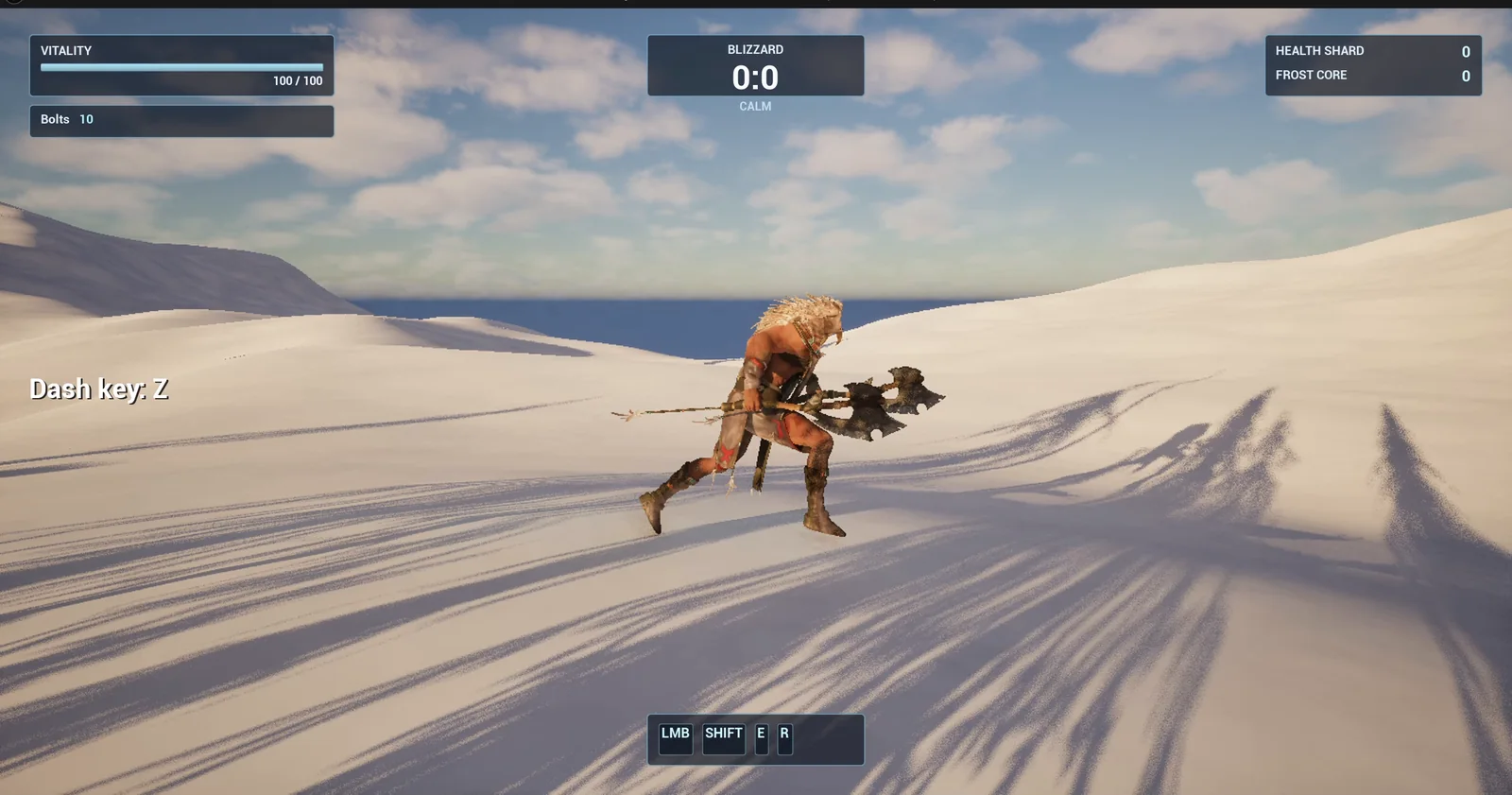
The hint text on the left shows which context is active.
The prompt
Copy this, change the keys or the actions, and see what the AI builds:
Make an Enhanced Input demo with rebinding. In /Game/Series/EP50_EnhancedInput create the Input Actions IA_Dash and IA_ToggleLamp (both boolean), and two Input Mapping Contexts: IMC_DashZ, where IA_Dash is on Z and IA_ToggleLamp is on T, and IMC_DashX, where IA_Dash is on X and IA_ToggleLamp is on T. Create BP_InputController, an actor that I place once in the level, that on BeginPlay adds IMC_DashZ to the local player's Enhanced Input subsystem. Dash launches the player character 1500 units per second forward on the ground for a short burst with a cooldown of 1 second. The toggle spawns or removes a warm point light attached to the player, radius 800. Pressing B swaps the contexts, removing the active one and adding the other, which rebinds the dash key. A text at the left of the screen at y=500 reads Dash key: Z or Dash key: X, matching the active context. Keep the dash strength, the cooldown and the light radius as variables. Place the actor near the player start. Then play test it: press Z and check the player dashes, press T and check the light toggles, press B and check the text changes to X and that X dashes while Z no longer does, and fix anything that does not work.Look at the shape of this request: actions first, then contexts, then the one actor that uses them. And the last test matters the most. After the swap, Z must do nothing and X must dash. Without that, you only prove that the keys work, not that the contexts really swap.
How the AI builds it
The AI first creates the assets: two actions and two mapping contexts with the keys inside. Then the controller and a small widget the AI added for the hint text appear in the Content Browser. The dash strength (1500), the cooldown (1.0) and the light radius (800) are variables.
At the start, the controller enables input, adds the first context and shows the text. The dash event launches the character and starts the cooldown. The lamp event spawns or destroys the light. On B, it removes the active context and adds the other one. The AI fixed one small type problem on its own, in the lamp logic, and compiled.
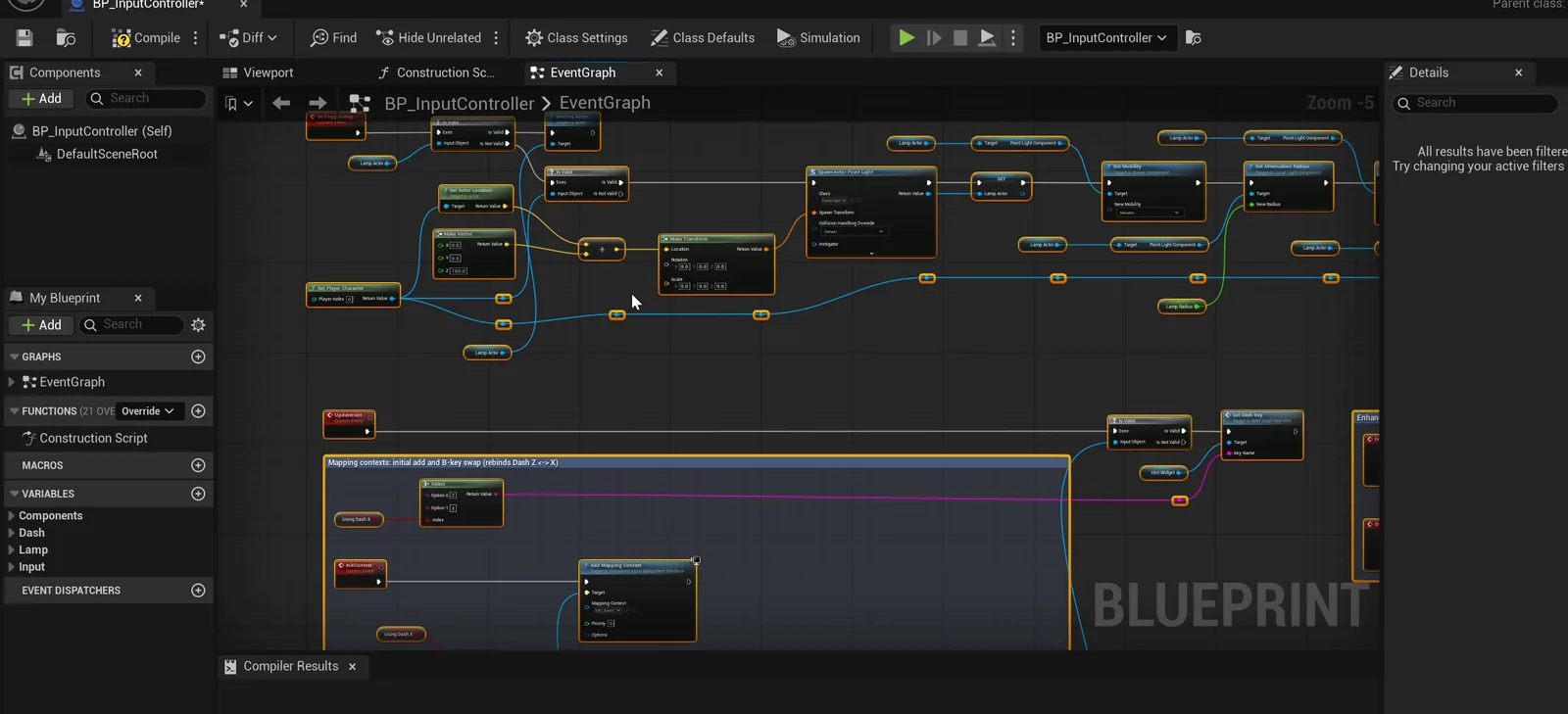
The controller graph: the dash and lamp events, and the B key that swaps the contexts.
The play test passes first time
- Z dashes, with a speed of 1500.
- T adds one light above the player, and a second T removes it.
- B changes the text from “Dash key: Z” to “Dash key: X”.
- After the swap, Z does nothing, with the speed staying at 0, and X dashes, with the speed reaching 1292.
The report
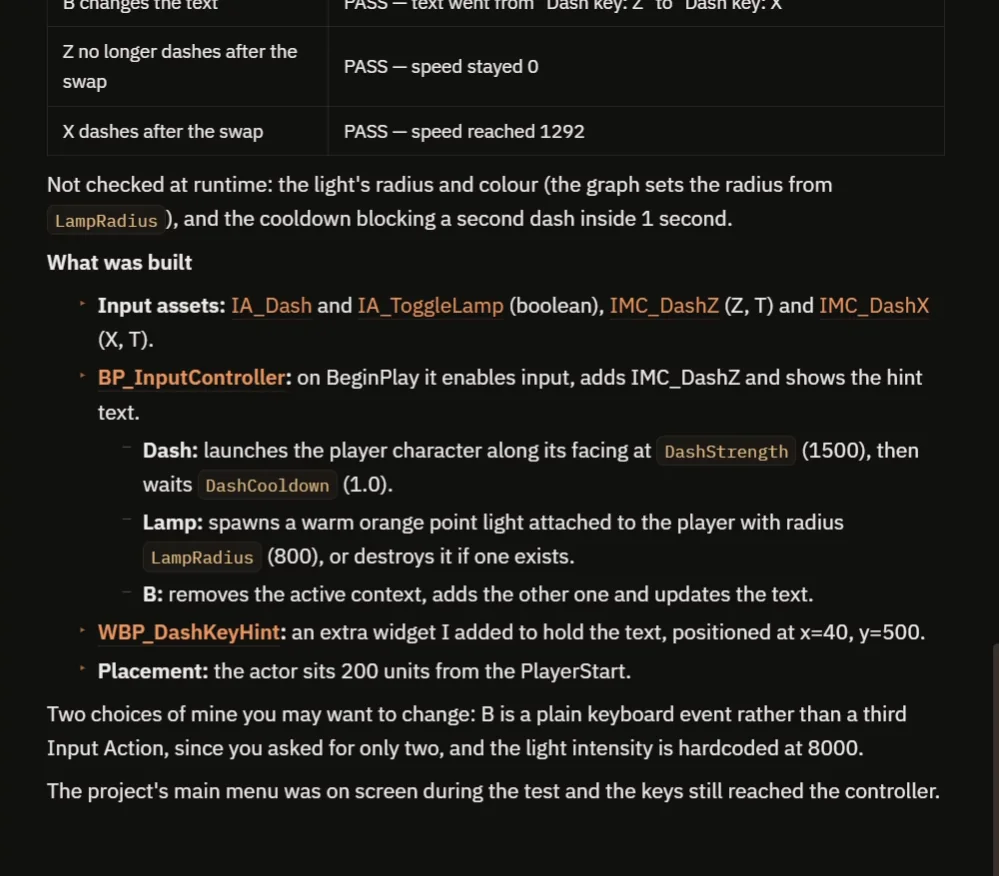
The checks and what was built.
The report lists everything that was built, including the WBP_DashKeyHint widget at x=40, y=500, and the controller placed 200 units from the PlayerStart. It says what it did not check: the light’s radius and color were not measured at runtime, since the graph sets the radius from LampRadius, and the cooldown blocking a second dash inside 1 second was not tested.
It also made two choices you may want to change:
- B is a plain keyboard event rather than a third Input Action, since you asked for only two.
- The light intensity is hardcoded at 8000.
The main menu was on screen during the test, and the keys still reached the controller.
How Enhanced Input works, in plain words
At the start, the controller gets the input subsystem of the local player and adds a mapping context with a priority. From then on, when the player presses Z, the engine looks in the active contexts, finds that Z maps to the dash action and fires the dash event in the Blueprint. When you press B, the controller removes the first context and adds the second. Now Z is not mapped to anything, and X is. The dash event in the Blueprint did not change at all.
That is the whole idea: your gameplay code stays the same, and the keys live in data. Because the strength and the cooldown are variables, you can tune a heavy dash or a light step with two numbers.
Ideas to extend it
- A gamepad button for each action in the same contexts.
- A third context for when the player is in a vehicle.
- A menu where the player picks the dash key.
Four tips for input prompts
- Name the actions, not the keys.
- List the contexts, with the keys inside each one.
- Say which context is active at the start, and what swaps it.
- Ask the AI to test the old key after the swap.
Frequently asked questions
What is an input mapping context in Unreal Engine?
A list that maps keys to input actions. Add or remove a context at runtime and the same actions respond to different keys.
How do I rebind a key in Enhanced Input?
Remove the active mapping context and add another one where the action is on a different key. The Blueprint that handles the action does not change.
Why test the old key after the swap?
Without that check you only prove that the keys work. Z doing nothing and X dashing after the swap proves that the contexts really swapped.
Try it in your project
See what Ultimate Engine CoPilot can build on the product page, or get it on Fab. See how the AI Blueprint generator works.
More builds from this series: the Unreal Engine sprint and stamina, the Unreal Engine item bar and the Unreal Engine pause menu.