Unreal Engine Pause Menu: Build Pause, Resume and Restart With AI
How to build an Unreal Engine pause menu: a P key that freezes the game, a PAUSED panel with Resume, Restart and Quit, and input that keeps working while paused, built from one AI request.

A pause menu in Unreal Engine is three small ideas: a key that toggles the pause, a widget with the buttons and a way for the menu to keep working while the game is paused. That last one is the trap. If the game is paused, everything stops, even your own buttons, unless you tell them not to.
In this walkthrough, Ultimate Engine CoPilot builds a pause menu on the P key with Resume, Restart and Quit buttons, styled like the main menu. You get the exact prompt, the two problems the AI ran into and how it fixed them, and a plain explanation of how a pause menu works.
What the finished menu does
You run across the snow and press P. The whole world freezes and a menu appears in the middle of the screen: “PAUSED”, with three buttons, Resume, Restart and Quit. The mouse cursor shows. You click Resume, the menu is gone and you keep running.
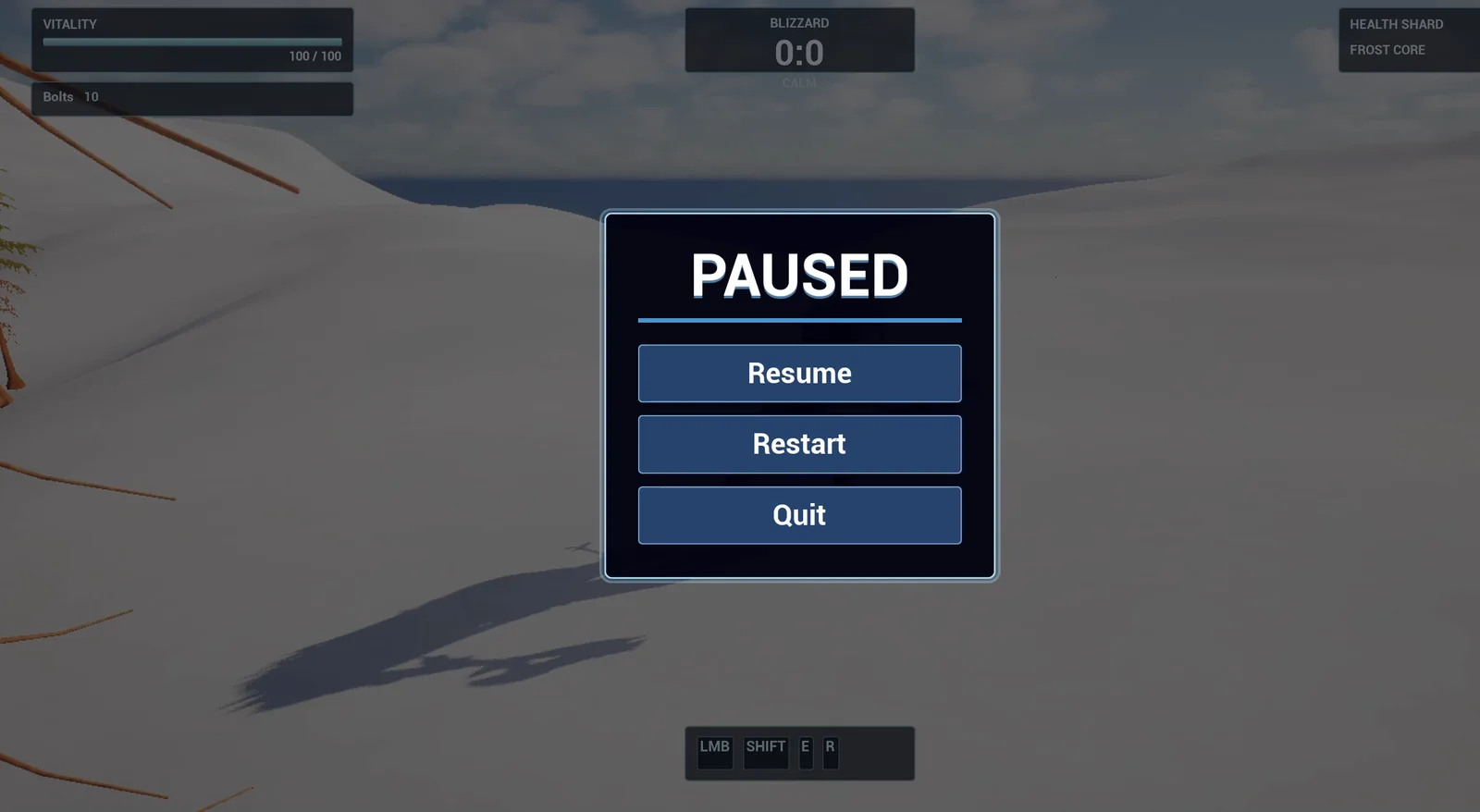
The pause menu in the running game, in the same style as the main menu.
The prompt
Copy this, change the key to Escape or add a fourth button, and see what the AI builds:
Make a pause menu. Create WBP_PauseMenu in /Game/Series/EP33_PauseMenu, a centred dark blue panel with the title PAUSED and three buttons: Resume, Restart and Quit, styled to match the existing Frostfang main menu. Create BP_PauseController, an actor that I place once in the level, that listens for the P key. Pressing P while the game is running pauses the game, shows the menu, and shows the mouse cursor. Pressing P again, or clicking Resume, unpauses the game, removes the menu and hides the cursor again. Restart reloads the current level, and Quit closes the game, but in the editor only print a log line instead of quitting. The menu must keep working while the game is paused, so make sure the widget and the P key are not blocked by the pause. Place the actor near the player start. Then play test it: record the game time of an animated object, press P and check the game is paused and the menu is on screen, wait 2 seconds and check the game time did not advance, press P again and check the game continues and the menu is gone, and fix anything that does not work.The sentence that matters is the last requirement: “The menu must keep working while the game is paused”. It is the one most people forget. If you only say “pause the game”, the AI builds a menu that you can see but cannot click, or a key that pauses but cannot unpause. Say that the menu and the key must work during the pause.
How the AI builds it
The AI starts by reading the project, and especially your main menu, because the new menu should look the same. It copies the colors, the outlines, the fonts and the button states. Then the assets appear: the pause menu widget, the controller Blueprint and two assets nobody asked for, an input action and an input mapping.
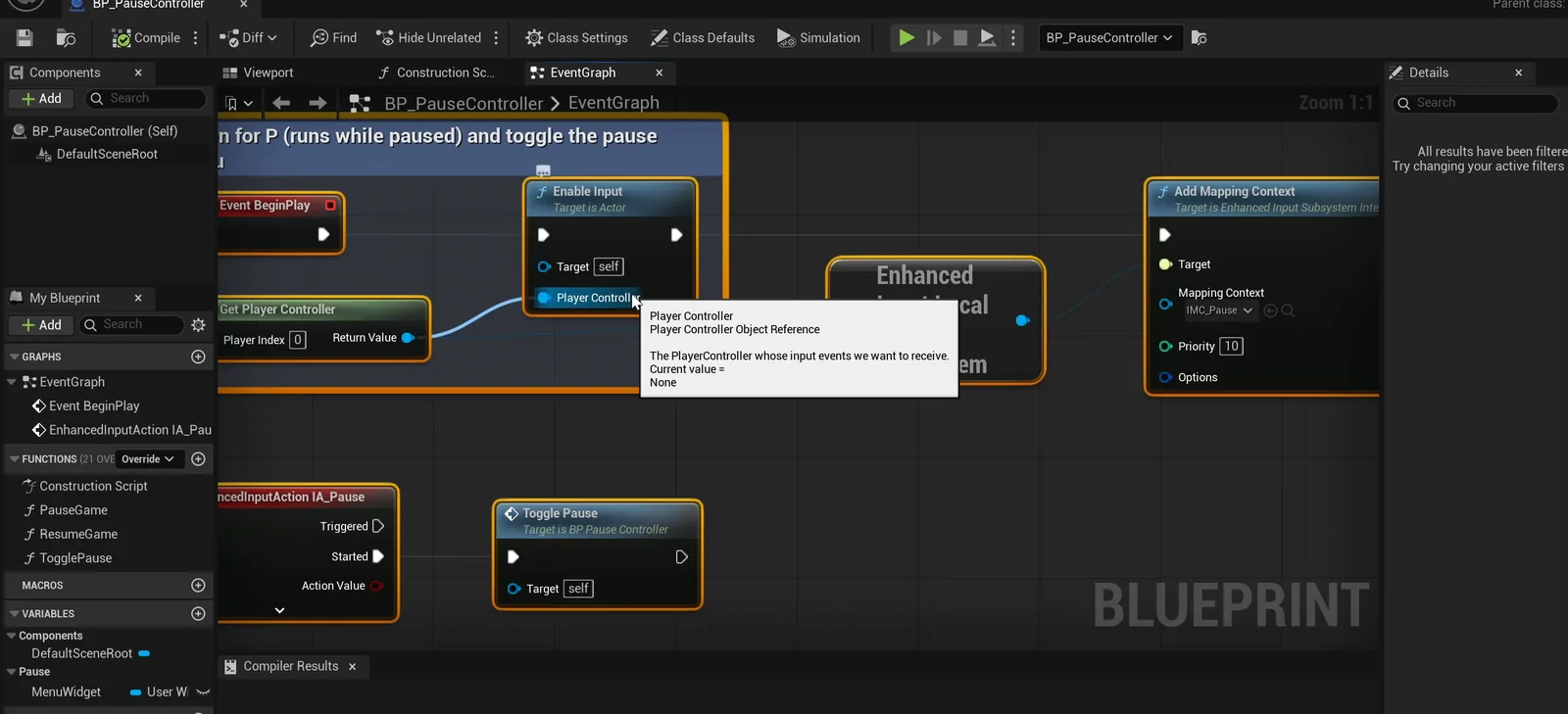
The controller graph: it adds the input mapping and runs Toggle Pause from the P action.
Problem one: a key that stops working when the game stops
A plain key node cannot be set to run while the game is paused through the tools the AI has. So it chose another route: an Enhanced Input action with the option “Trigger when paused” turned on. That is why those two extra assets exist.
The Blueprint has three functions, PauseGame, ResumeGame and TogglePause. Resume unpauses, Restart reloads the level, and Quit prints a log line in the editor and quits in a real game. The AI detects the editor by the name of the play map.
Problem two: the first run did nothing
The first run did nothing when P was pressed. The reason was not the new Blueprint. The game’s own title menu was up, and it puts the input in a mode where keys are ignored until you click Play. And a simulated key press was released in the same frame. So the AI clicked Play and held P for 0.2 seconds.
Then everything passes:
- The game time freezes at 77.868 seconds. A spinning ice shard stops, and after 2 seconds the game time is the same number and the shard is at the same angle.
- The menu is on the screen with the title and the three buttons. The cursor is shown.
- P again: the game continues, the menu is gone and the cursor is hidden. The Resume button does the same.
- Quit prints its log line and the game keeps running.
- Restart reloads the level and the game time goes back to about 5 seconds.
The report
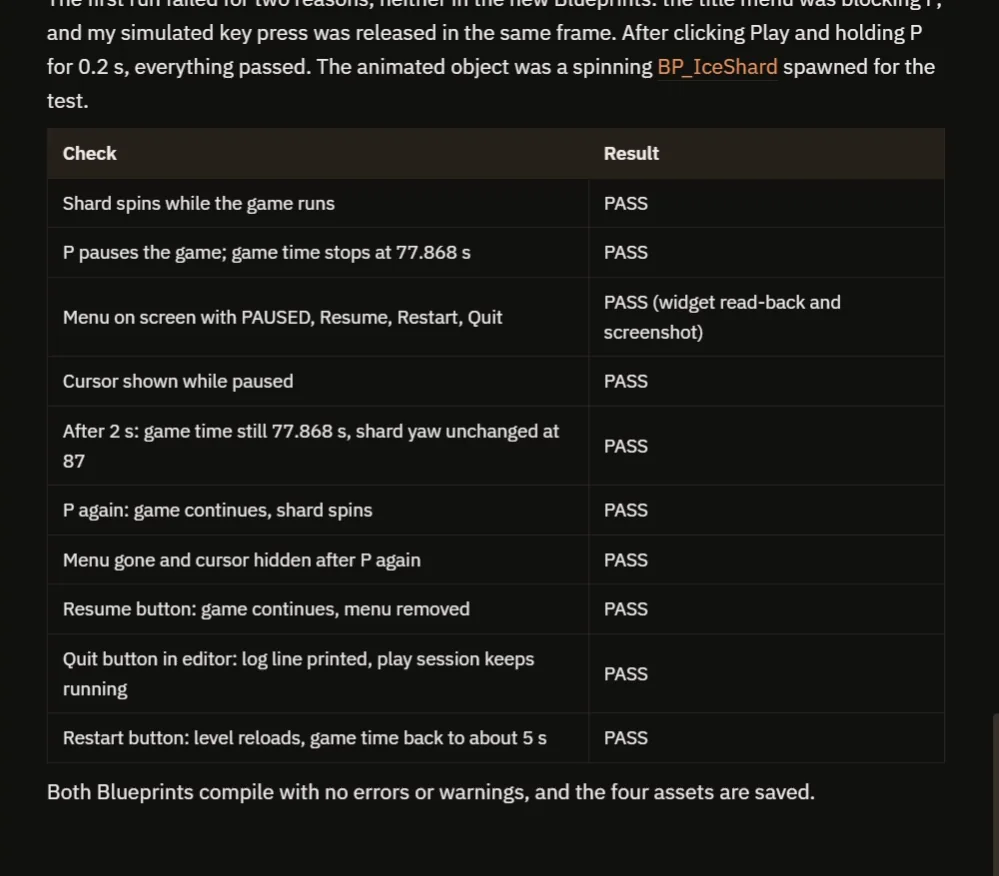
Ten checks, all passing, with the title menu explained.
The report has a table of ten checks, all passing, and both Blueprints compile with no errors or warnings. It also tells you two things first:
- P does nothing on the title screen, because the title menu takes all input until Play is clicked. The AI left that alone, since the request said “while the game is running”.
- In a standalone game, Quit really quits.
How a pause menu works, in plain words
Toggle Pause asks one question: is the game paused? If not, it pauses the game, creates the widget, adds it to the screen and shows the cursor. If yes, it does the opposite.
And the input action is set to trigger even when the game is paused. That is the one setting that makes it all work. A normal key stops working when the game stops. A key that triggers when paused still arrives. The buttons in the widget are the same: they are part of the interface, and the interface keeps working.
Because the whole thing is one Blueprint, you can copy it into any project and add an Options button to the menu next.
Ideas to extend it
- An Options button with a volume slider. The Unreal Engine main menu already has one.
- A fade-in for the menu, and a blur on the game behind it.
- A sound when a button is pressed, and a different one for Quit.
Four tips for pause menu prompts
- Say that the menu and the key must work while paused.
- Say what each button does.
- Say how the menu should look, like the main menu.
- Ask the AI to test the game time, before and after.
Frequently asked questions
How do I make a pause menu in Unreal Engine 5?
Toggle the game’s pause state from a key, create a widget with Resume, Restart and Quit, show the cursor and make sure the input and the widget keep working while paused.
Why can’t I unpause with the same key?
A normal key event stops arriving when the game is paused. Use an Enhanced Input action with “Trigger when paused” turned on, so the key still arrives.
Why did the first test do nothing?
The game’s own title menu was open and ignores keys until Play is clicked. The AI clicked Play and then held P for 0.2 seconds so the press was not released in the same frame.
Try it in your project
See what Ultimate Engine CoPilot can build on the product page, or get it on Fab.
More builds from this series: the Unreal Engine main menu, the Unreal Engine slow motion and the Unreal Engine save game system.