Unreal Engine 5 Main Menu: Build One With AI From a Single Request
How to build an Unreal Engine 5 main menu with Play, Options and Quit buttons and a volume slider, wired and play tested by an AI from one request.

An Unreal Engine 5 main menu is a widget Blueprint with a title, buttons, an options panel and logic that says what each button does. It also needs something to show it when the game starts and to show the mouse cursor. You can ask an AI for all of that in one request, and let it click through the menu to prove every button works.
In this walkthrough, Ultimate Engine CoPilot builds a main menu called Frostfang with Play, Options and Quit buttons and an options panel with a master volume slider. You get the request, what the AI tested and how a menu widget works in plain words.
What the finished menu does
A main menu with a title, three buttons and an options panel with a volume slider. You click Options, drag the slider and go back. You press Play, the menu closes and you can move. Every button is wired.
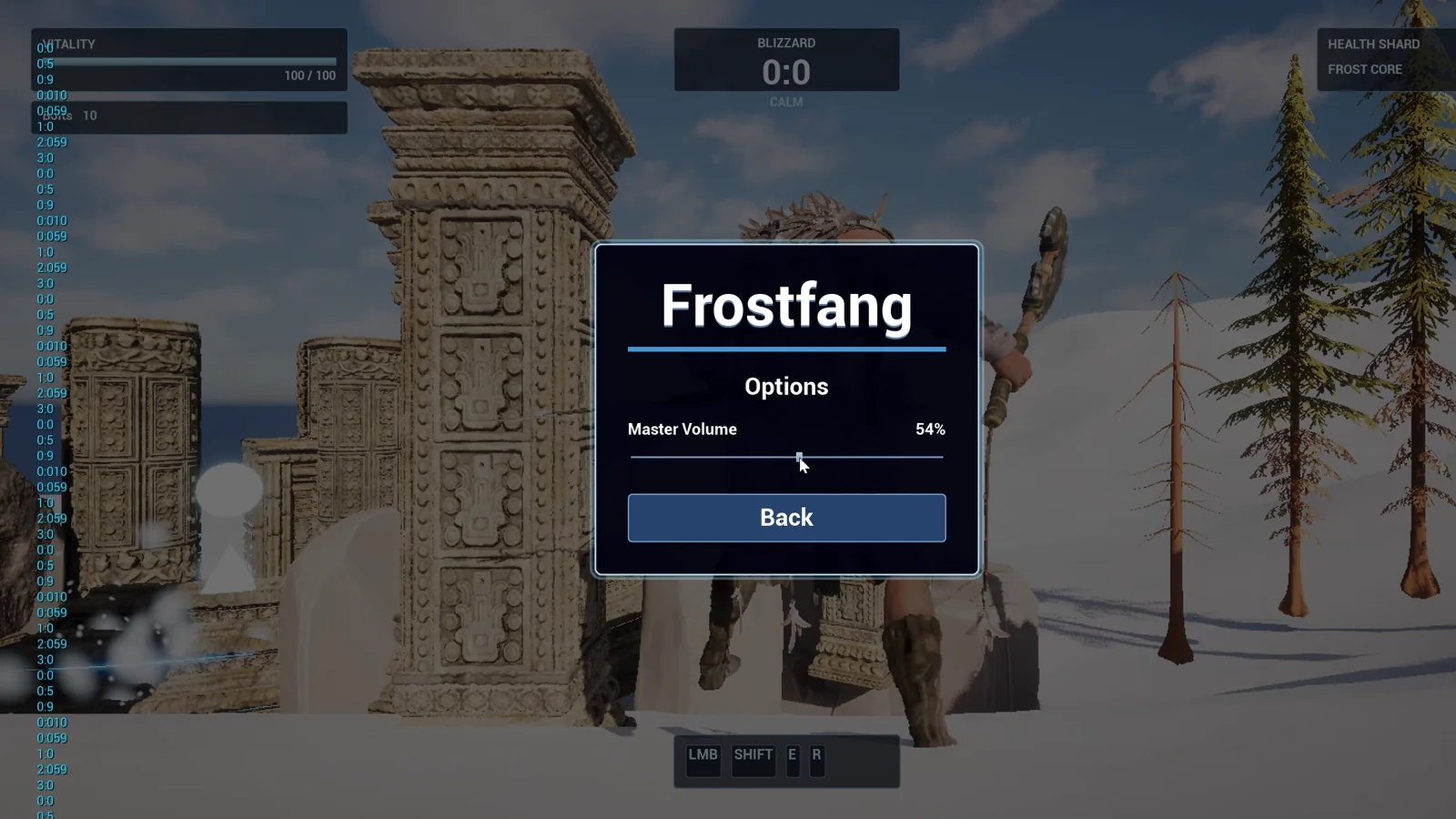
The options panel in the running game. Dragging the slider changes the volume setting.
What a main menu needs
A menu is a widget Blueprint with four parts:
- A title and buttons.
- A panel for the options.
- Logic that says what each button does.
- Something that shows the menu when the game starts, and shows the mouse cursor.
The last one is the part people forget.
Here is the finished widget in the Designer. You can open it and restyle it like any widget you made yourself.
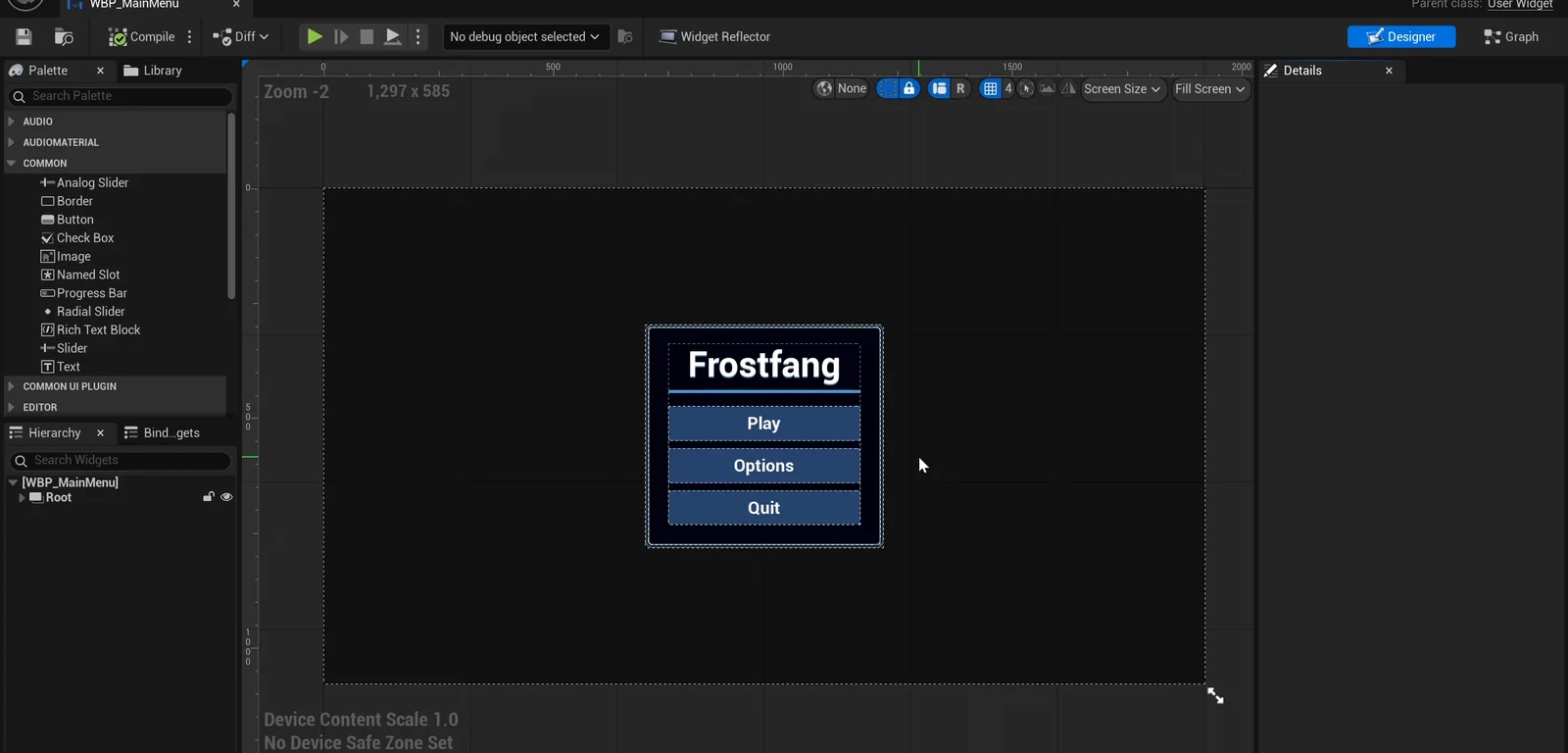
WBP_MainMenu in the Widget Blueprint designer: a title, Play, Options and Quit.
The request
This is the request in short form:
Make a main menu for my game. Create WBP_MainMenu in /Game/Series/EP06_MainMenu with the title Frostfang at the top and three large buttons: Play, Options and Quit. Play closes the menu and gives control to the player. Options opens a panel with a master volume slider and a Back button. Quit closes the game. Use a dark blue panel with a light blue glow and white text. Show the menu when the game starts, with the mouse cursor visible until Play is pressed. Then play test it by clicking Play and Options in the running game, and fix anything that does not work.Look at how the request describes behavior, not just looks. Each button has a sentence that says what it does, and the last sentence says when the menu appears. That is what lets the AI wire everything up.
How the AI builds it
The AI starts by looking at your project. It finds the game mode and the player character, because showing a menu at game start is a game level decision. Then three assets appear in the Content Browser:
- The menu widget.
- A controller that creates the menu for the local player.
- A sound mix for the volume slider.
The play test
The AI plays the game and drives the menu. It checks that:
- the menu shows at start and the cursor is visible;
- Options opens the panel, and dragging the slider changes the percentage;
- Back returns to the three buttons;
- Play removes the menu, hides the cursor and gives the player control. The character moved about 550 units on the move input.
The test found two problems, and the AI fixed both. The panel first drew as a circle instead of a rounded rectangle, and the log showed a focus error because the menu tried to take focus while it was not focusable. After the fixes it ran the game again and both were gone.
The report
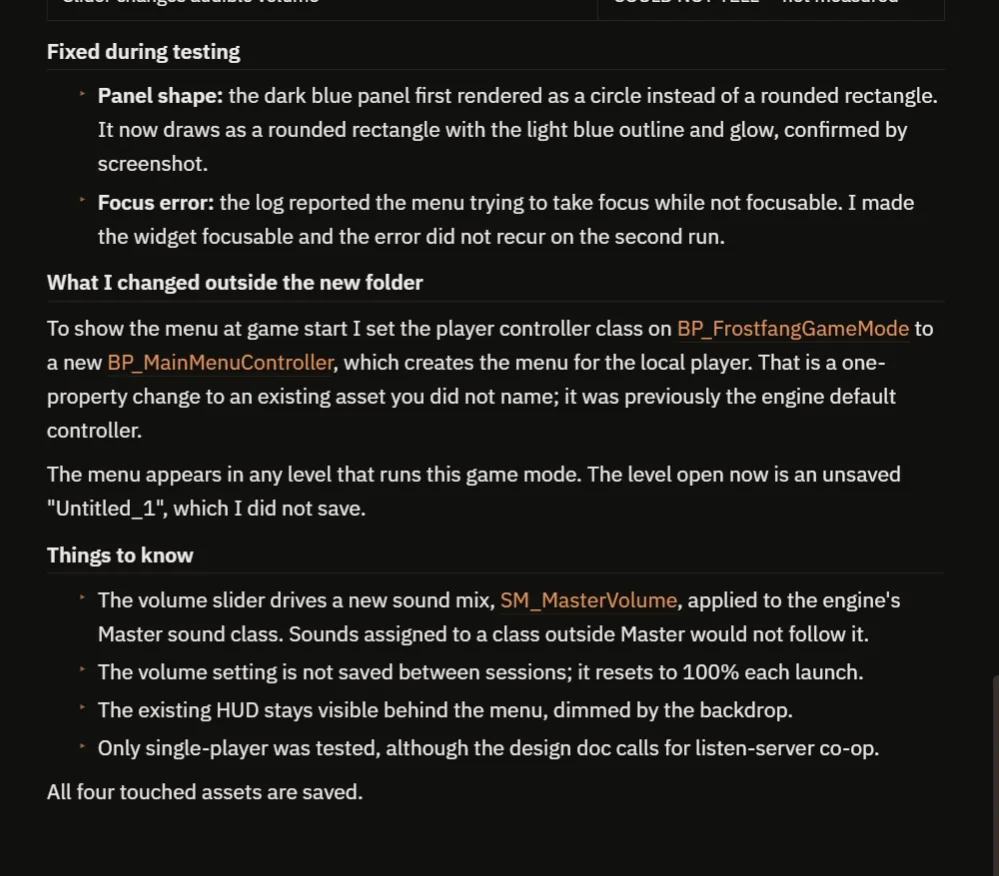
The report: what was fixed, the one change outside the new folder and what to know before you build on it.
The report lists nine checks. Seven pass. The other two are marked as not tested, with the reason: Quit was wired to Quit Game but not clicked, and the audible volume was not measured. That is useful because you know what to try yourself.
It also names the one change outside the new folder. To show the menu at game start, it set the player controller class of your game mode to the new controller. That is a single property, and now you know where to look. The notes add that the volume setting is not saved between sessions and resets to 100 percent on every launch.
How a menu widget works, in plain words
Think of a menu like a TV remote. The Designer is the shell and the labels: the title, the three buttons and the slider. The graph is the wiring behind them.
Every button has a click event, and you can picture it as a doorbell. Press Play and the bell rings, and the graph runs whatever you connected to it. Options rings a different bell, which shows the panel and hides the three main buttons. Back rings a third bell and undoes it.
A widget does nothing on its own, though. Something has to create it and put it on screen. Here, a player controller creates the menu for the local player when the game starts.
Then there is input mode. While the menu is up, the cursor is visible so you can click, and the game listens to the menu first. When you press Play, the menu is removed, the cursor hides and control goes back to the character. Same menu, two modes: one for clicking and one for playing.
Ideas to extend it
- A Credits button with its own panel.
- A saved volume setting, so it is still there on the next launch.
- A pause menu that opens with the Escape key and reuses the same look.
- A soft fade in when the menu appears, or a hover glow on each button.
Copy the request, change one thing such as the title or the colors, and see what the AI builds. Small changes are the fastest way to learn.
Four tips for menu prompts
- Name the widget and every button.
- Say what each button does.
- Describe the look.
- Say when the menu shows and how the mouse behaves.
Not sure how to phrase a request like this? How to Write AI Prompts for Unreal Engine shows how to have the CoPilot draft it for you.
Frequently asked questions
How do I make a main menu in Unreal Engine 5?
Create a widget Blueprint with a title and buttons, wire each button’s click event, and use a player controller to create the widget and show the mouse cursor when the game starts. The request above asks an AI to do all of it and test it.
How do I show the main menu when the game starts?
Something outside the widget has to create it and add it to the screen. In this build, a player controller does that for the local player, and the game mode points to that controller.
How does the volume slider work?
The slider drives a sound mix applied to the engine’s Master sound class. Sounds assigned to a class outside Master would not follow it.
Try it in your project
See what Ultimate Engine CoPilot can build on the product page, or get it on Fab.
More builds from this series: the Unreal Engine inventory system and the Unreal Engine day night cycle.