Unreal Engine Inventory System: Build One With AI From a Single Request
How to build an Unreal Engine inventory system: pickups with an item name, a count per item on the player, a pickup message and an inventory panel on the I key.

Strip an Unreal Engine inventory system down to its core and it is a list of names with counts, plus a way to add to it. Everything else, the panel, the messages and the pickups, is built on that list. You can ask an AI for the whole system in one request and let it play the game to check the counts.
In this walkthrough, Ultimate Engine CoPilot builds pickups that carry an item name and a color, an inventory on the player that keeps a count for each name, a “Picked up” message and an Inventory panel that opens with the I key. You get the request, what the play test found and how the system works.
What the finished inventory does
You walk over a glowing pickup and a message says “Picked up Herb”. You press I, and an inventory panel lists everything you collected, with counts. You press I again and it closes.
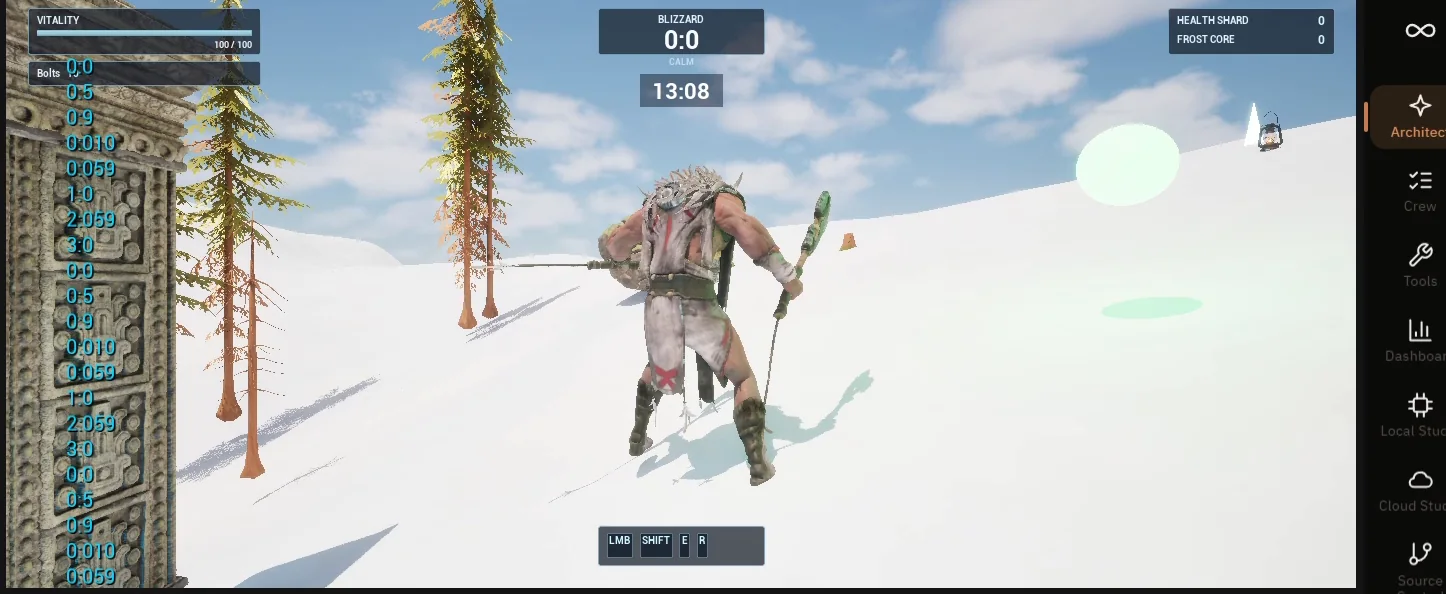
Glowing pickups on the snow. Walking over one adds it to the inventory.
The pickup
The pickup has an item name and an item color that you can set per instance, so one Blueprint gives you herbs, crystals, keys and anything else you want to add.
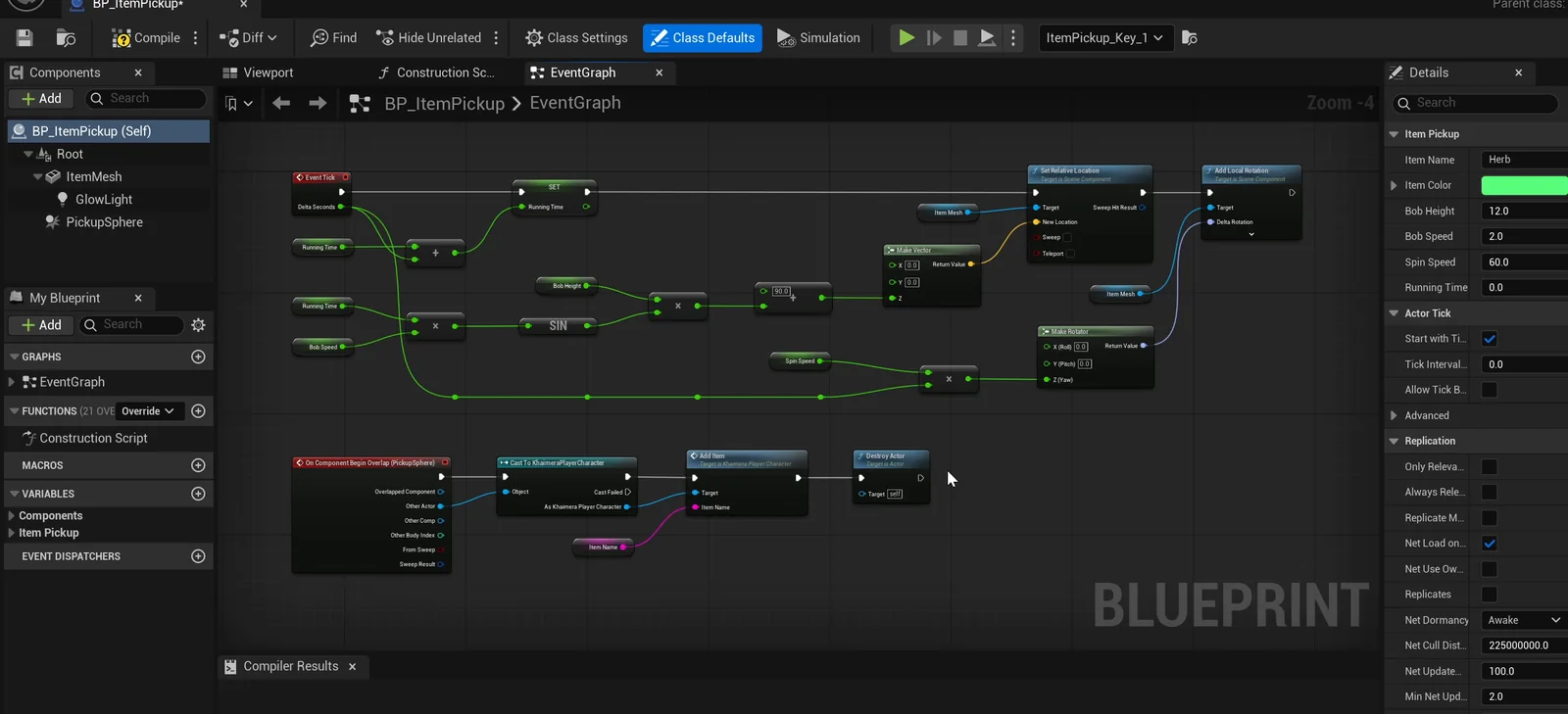
BP_ItemPickup: the overlap logic, plus the item name and color variables on the right.
The request
This is the request in short form:
Build a simple inventory system. Create BP_ItemPickup in /Game/Series/EP08_Inventory, a floating glowing pickup with an ItemName variable and an ItemColor variable, and an inventory on the player that keeps a count for each item name. Walking over a pickup adds 1 to that item and shows a small message like Picked up Herb for 2 seconds. Pressing the I key opens and closes WBP_Inventory, a dark blue panel titled Inventory that lists each item with its count. Place six pickups on the snow near the player start: three named Herb, two named Crystal and one named Key, each in a different color. Then play test it by collecting a few, opening the panel with I, and fix anything that does not work.Notice that the request says how the data is stored: one count for each item name. That one sentence decides the design. It tells the AI to build a simple map instead of a complicated item class.
How the AI builds it
The AI starts by reading the project. It finds the player character that the game mode uses and the existing input mapping, so the new key fits in with the others. Then the assets appear: the pickup Blueprint, the inventory panel widget and a new input action for the I key.
It adds the inventory to the player as a map of item name to count, with a function that adds an item. The panel is a widget, and it also holds the pickup message.
The play test
Because the main menu from the previous episode appears first, the AI clicks Play before it tests anything. Then it collects pickups and checks that:
- the counts change, and a third herb makes the count three;
- the message disappears after two seconds;
- the I key opens and closes the panel with the right list.
It also made two fixes on its own. The pickup message was white text that was hard to read on snow, so it put it in a dark blue box. And the glow was so bright that every color washed out to white, so it turned the glow down until the herb read clearly green.
The report
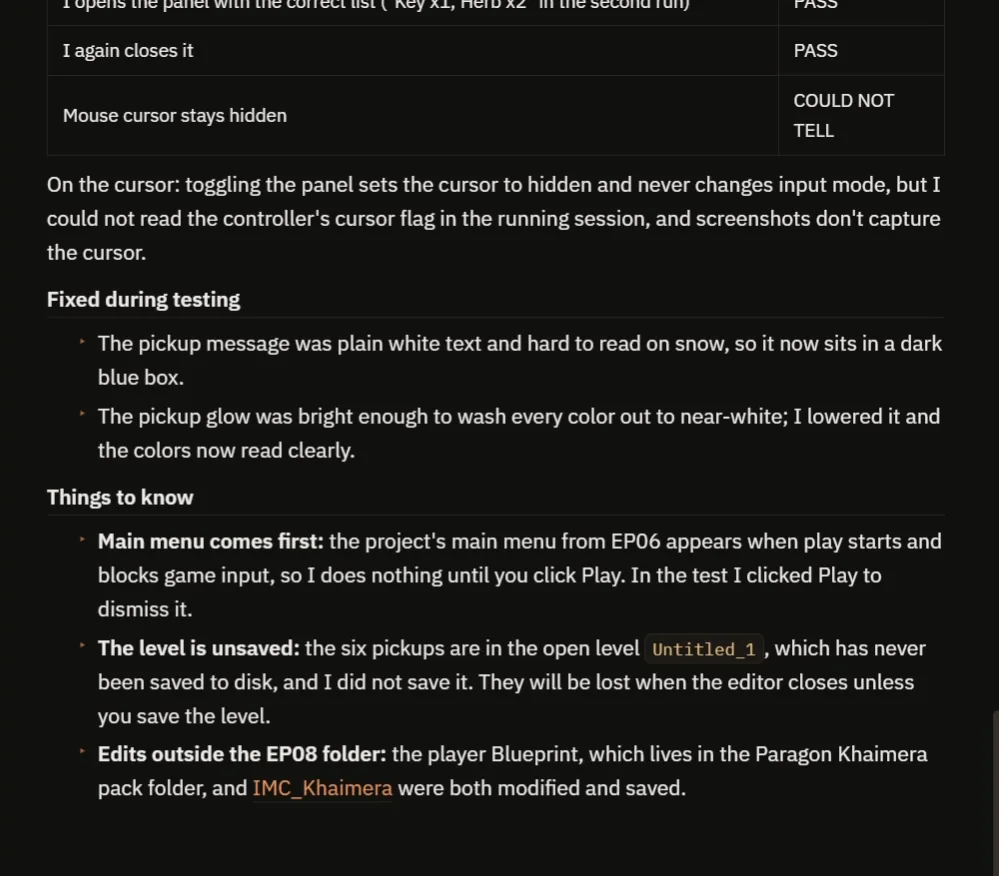
Five of six checks pass. The sixth cannot be confirmed, and the report says why.
Five of the six checks pass. The one it cannot confirm is whether the mouse cursor stays hidden, because screenshots do not capture the cursor.
The report also tells you what it changed outside the new folder: the player Blueprint and the input mapping were edited. And the level is not saved yet, so the six pickups would be lost when the editor closes until you save it. That is useful information when you add this to a real project.
How an inventory works, in plain words
Think of a backpack with a notebook taped inside. Every time you pick something up, you find its name in the notebook and add one tally mark. Herb, three marks. Crystal, two marks. That notebook is the map the AI added to the player. A name goes in, and a count comes out. If the name is not in the notebook yet, it starts at one. Nothing more is needed.
So how does a pickup reach the notebook? Each pickup has an overlap sphere around it. When the player walks into that sphere, Unreal fires an overlap event. The pickup then calls the add item function on the player, and the message appears.
The panel is a widget that reads the map and writes one line for each entry. The I key is an input action, and each press switches the panel on or off. Four small pieces, one list, and that is the whole system.
Ideas to extend it
- Limit each item to five, so you can only carry five herbs.
- Play a sound when you pick something up.
- Sort the list by name.
- Add a small icon beside each item, so the panel feels more like a real game.
- A door that only opens when you hold the key.
You can also copy the request, change one number, such as how many herbs are placed, and see what the AI builds.
Four tips for inventory prompts
- Name the pickup and the data it carries.
- Say how items are counted.
- Say which key opens the panel.
- Ask for a message when something is picked up.
Frequently asked questions
How do I make an inventory system in Unreal Engine 5?
Keep a map of item name to count on the player, add a function that adds one to a name, and have each pickup call it on overlap. A widget reads the map and lists each entry.
Do I need an item class for a simple inventory?
Not for a simple one. Counting by item name is enough for herbs, crystals and keys. You can move to item classes later if you need more data per item.
How do I open the inventory with a key?
Create an input action for the key and have it toggle the panel’s visibility. In this build, the I key is an Enhanced Input action added to the existing mapping.
Try it in your project
See what Ultimate Engine CoPilot can build on the product page, or get it on Fab.
More builds from this series: the Unreal Engine main menu and the Unreal Engine interaction prompt.