How to Write AI Prompts for Unreal Engine (Let the CoPilot Write Them)
How to write AI prompts for Unreal Engine: type one sentence, ask the CoPilot to write the full prompt with exact numbers, screen positions and a test plan, then paste it back.

You do not have to write long, exact prompts yourself. The fastest way to write an AI prompt for Unreal Engine is to type one plain sentence, tell the AI not to build anything yet, and ask it to write the prompt for you, with exact numbers, positions on the screen and a way to test the result. Then you read it, change what you like, paste it back and send.
This article walks through that method step by step, using Ultimate Engine CoPilot inside the editor. It follows the video below, so you can watch the full run or just read the steps.
Why long prompts work better
If you have seen other prompts in this series, they are long and very precise. Nobody types like that by hand, and nobody has to. A good prompt for Unreal Engine has three parts:
- Exact numbers. Without numbers, the AI has to guess the size, the speed and the colors.
- A place on the screen. This keeps a new widget from covering your health bar.
- A test. A test lets the AI prove that the feature works instead of only saying that it works.
The trick is to let the CoPilot assemble those three parts for you.
Step 1: Say what you want in one sentence
This is the whole request typed into the chat:
I want a training dummy I can hit that shows floating damage numbers. Do not build anything yet. Write me one good prompt that I can paste back to you, with exact numbers, where things should go on screen, and a way to test it.The first sentence says what you want. You do not need to know how it will be built. The second sentence is the important one. Normally the CoPilot starts building right away. Here you ask it to stop and write the prompt first, so you can check it before anything touches your project.
Step 2: Let it read your project and write the prompt
After you press send, the CoPilot prepares instead of building. It reads the project index and the design document, and it searches for assets by name. That is how the prompt ends up matching your project and not an imaginary one.
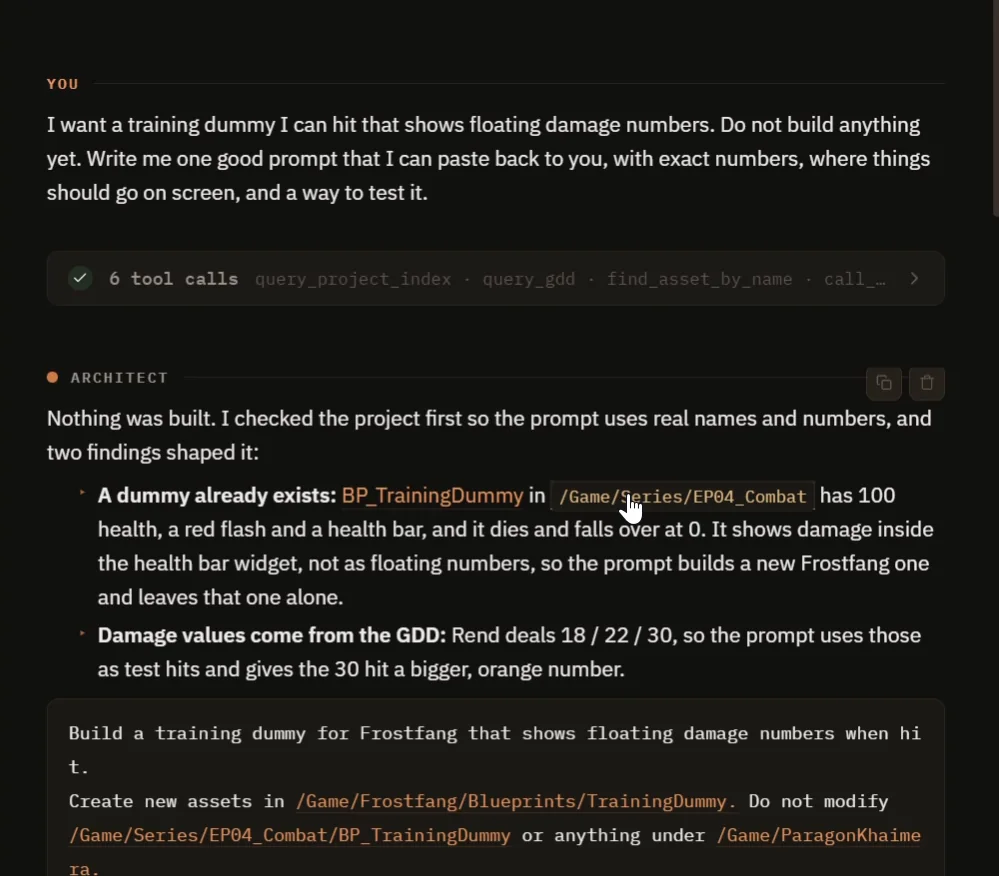
The request, and the first answer: nothing was built, and two findings shaped the prompt.
In this run it found two things that a prompt written from memory would have missed:
- A training dummy already existed in the project, with 100 health, a red flash and a health bar. It showed damage inside the bar and not as floating numbers, so the new prompt builds a separate dummy and leaves the old one alone.
- The design document lists the damage values of the main attack: 18, 22 and 30. The prompt uses those exact numbers for its test.
What the finished prompt contains
The answer is a prompt in a box, and it covers everything you would otherwise forget:
- Where to put the new assets, and what not to touch.
- The dummy, with exact sizes, the shapes it is made of, a variable for 100 health and a three second reset.
- The floating number: it appears 200 cm above the origin, moves 60 cm up in 0.8 seconds and then fades. It is white for a normal hit and bigger and orange for 30 damage and above.
- A health bar with its size.
- The dummy placed 400 cm in front of the player.
- What is out of scope: no sound and no replication.
- A nine step test. Apply 18, 22 and 30 damage and check that health reads 82, 60 and 30, check that three numbers can exist at once, and take one screenshot to confirm the orange number does not sit on top of the health bar.
You would never write that by hand, and you do not need to.
Read the notes before you paste
Below the prompt, the CoPilot lists decisions to check:
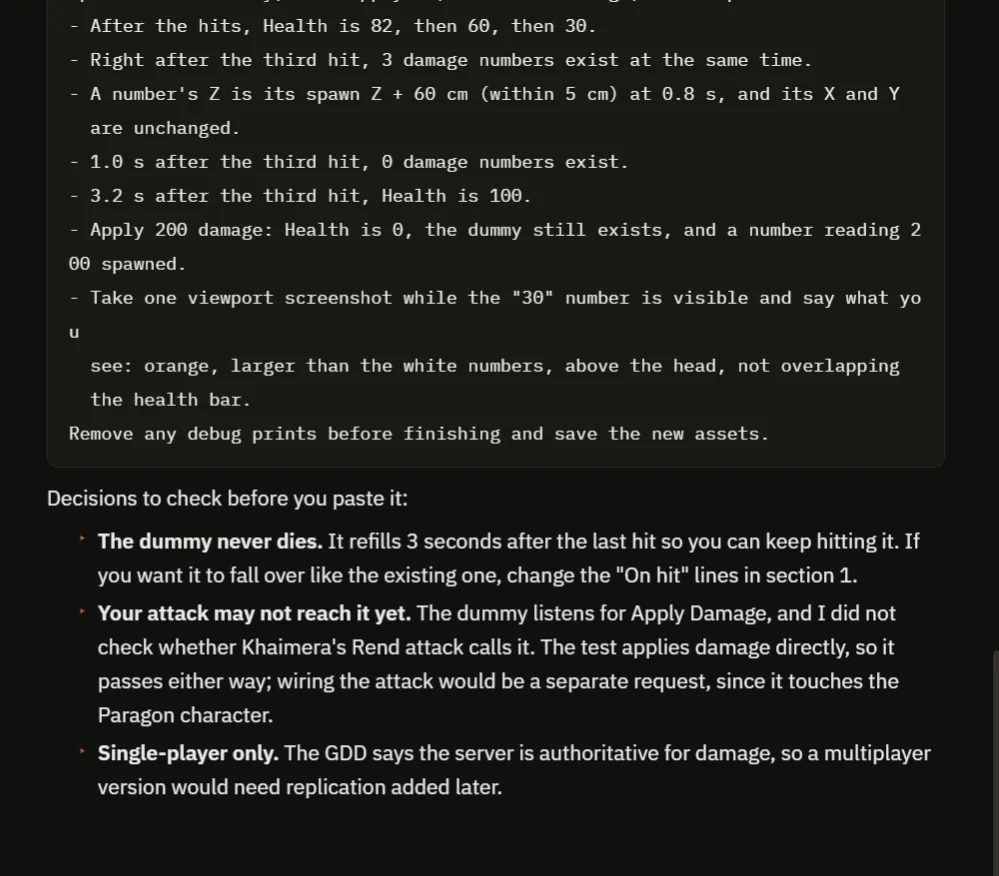
The end of the test plan, then three honest notes about the result.
- The dummy never dies. It refills three seconds after the last hit so you can keep hitting it. Change the “on hit” lines if you want it to fall over.
- Your attack may not reach it yet, because the CoPilot did not check whether the attack applies damage. The test applies damage directly, so it passes either way.
- It is single player only. The design document says the server is authoritative for damage, so a multiplayer version would need replication added later.
This is the kind of advice that comes from something that has actually read your project.
Step 3: Copy, paste, send
Scroll up to the start of the answer and move the mouse over it. A small copy button appears. Click it, click in the chat box and paste. The whole prompt is there to read, and you can change a number first: a bigger number, a different color, a longer reset. Then press send, and the CoPilot builds exactly what the prompt says.
Four tips for better AI prompts
- Say what you want in one sentence.
- Tell the CoPilot not to build yet.
- Ask for exact numbers, a place on the screen and a test.
- Copy the prompt, change what you like and send it back.
The method works for anything. It also helps when a build goes wrong: describe what you saw and ask the CoPilot to write a better prompt for it. If you do not know which numbers to use, ask. It will pick sensible ones and you can adjust them.
Frequently asked questions
Do I need to write long prompts for the CoPilot?
No. A one sentence request is enough to start. Ask the CoPilot to write the long, exact version for you, then paste it back.
Why tell the AI not to build yet?
Because you get to read and change the plan before anything is created. It costs one extra message and prevents most surprises.
What makes an AI prompt for Unreal Engine good?
Exact numbers, a position on the screen for any new UI, and a test the AI can run to prove the result. Those three parts are what turn a vague idea into something the AI can build and verify.
Try it in your project
Ultimate Engine CoPilot is the plugin used in this walkthrough. You can see what it does on the product page, or get it on Fab. Plans and licenses are on the pricing page.
Next in this series: see what a prompt like this produces in Generate a Blueprint From One Sentence in Unreal Engine 5, see a full system built from one request in Unreal Engine 5 main menu, or read the wider guide to AI Blueprint generation in Unreal Engine 5.