Generate a Blueprint From One Sentence in Unreal Engine 5
Watch an Unreal Engine AI generate a Blueprint from one sentence: a magic ice chest with a glowing light, 12 coins and a counter, built, play tested and fixed inside the editor.

An Unreal Engine AI can generate a Blueprint from one plain sentence, play your game to test it and fix the bugs it finds. In this walkthrough, Ultimate Engine CoPilot builds a magic ice chest inside the editor: a glowing blue light, 12 gold coins that pop out in an arc, and a coin counter on the screen. No node is dragged by hand, and the result is a normal Blueprint asset that you can open and edit.
The video shows the full run. The article below covers the sentence, what the AI built, what it got wrong the first time and how it fixed it.
What it means to generate a Blueprint with AI
Blueprints are Unreal Engine’s visual scripting. Normally you place nodes and draw wires one at a time, and even a small feature like this chest can take an hour or more.
Ultimate Engine CoPilot builds the same graph through the engine’s own Blueprint tools. The output is a real Blueprint asset that you can open, read and change, just like one you made yourself. Nothing is hidden and nothing is locked away.
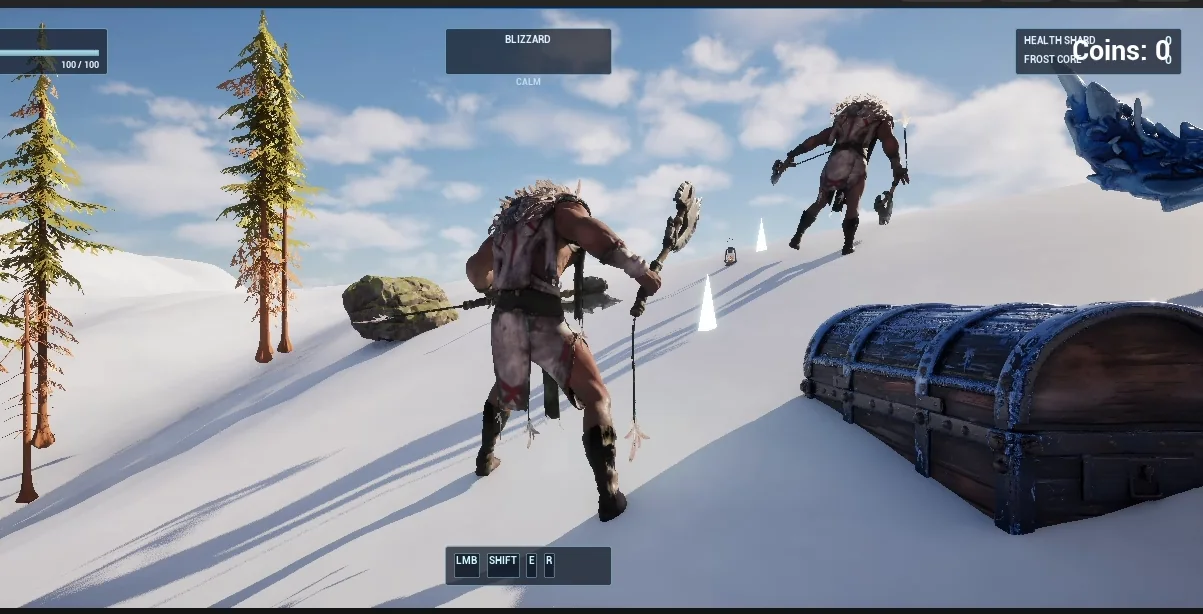
The result: a chest on the snow and a coin counter in the top corner of the screen.
The sentence
This is the request, with the exact asset paths shortened:
Make a magic ice chest Blueprint called BP_IceChest in a new folder, using the chest mesh that is already in my project. When the player walks within 300 units it glows with a blue light that fades in, and 12 gold coins pop out of it in an arc and fall to the ground. Walking over a coin collects it, and the screen shows a Coins counter. Place the chest next to the shrine steps near the player start, then play test it and fix anything that does not work.Look at what is inside it: a name, a folder, an existing asset to reuse, a number for the trigger distance, a number of coins and a clear order to test. The more precise the sentence, the fewer questions the AI needs to ask you.
What the AI builds
After you press send, the AI first looks around. It reads the level, finds the shrine and the player start, and checks the documentation for the tools it needs. Then it creates the assets, and you can watch them appear in the Content Browser one after another: the chest Blueprint, the coin Blueprint, a gold material and the counter widget.
Next come the graphs. The chest gets a trigger sphere and a blue light that fades in, and it throws the coins out one by one. Each coin stays where it lands and waits to be collected.
The AI plays the game and finds real bugs
The AI then plays the game by itself, reads the results and checks them against the request. The first test found problems:
- The coins rolled downhill, and five of them fell through the landscape.
- A pillar stood next to the chest, and the coins moved too fast.
The AI added a log to see what the coins were hitting, moved the chest to open ground, turned on continuous collision for the coins and shortened the throw. It then tested again, and fixed three smaller things:
- The pickup radius was too wide, so one step collected three coins. It went from 60 to 35.
- The counter overlapped another panel, so it was moved.
- The coins looked black until the gold color was applied to the material properly.
This is the loop that matters: test, read the result, fix, test again.
The report
After about eleven minutes the AI stopped and wrote its report: what was built, where the chest sits and a table of checks.
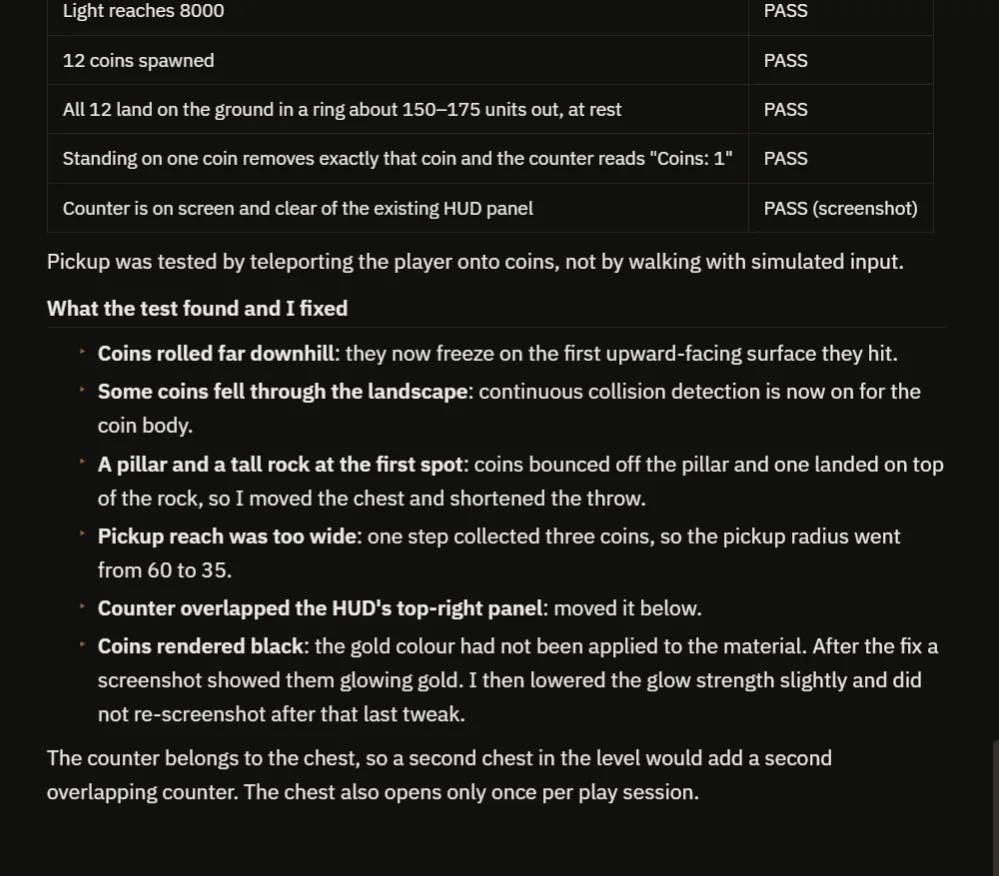
Every check passes: the light is zero before you approach, 12 coins spawn, all of them land and collecting one makes the counter read 1.
The report also tells you what to extend next. A second chest in the level would add a second, overlapping counter, and the chest opens only once per play session. Good to know before you build on top of it.
Open the Blueprint
The chest is a normal Blueprint graph. The overlap event starts the light and the coins in the same node style you would place by hand.
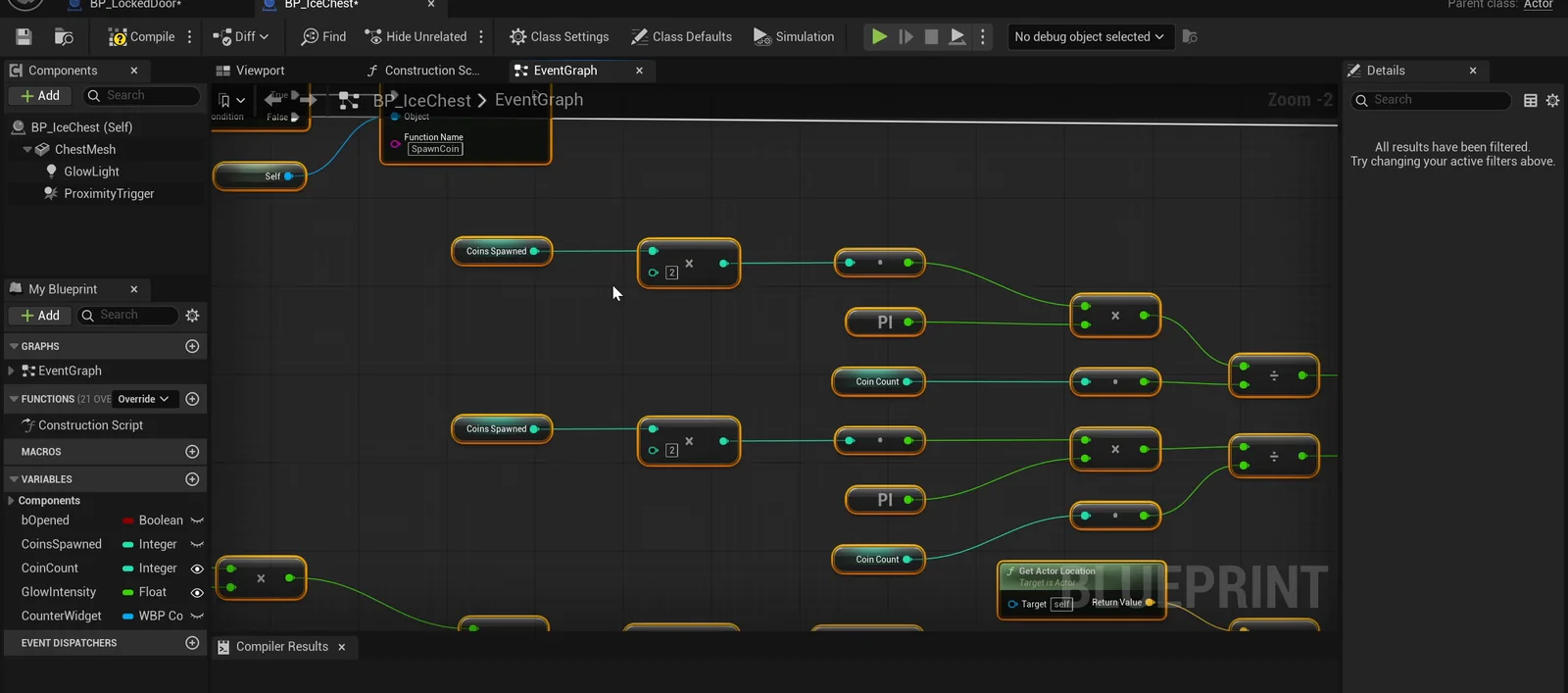
The event graph the AI wrote. You can change the coin count, the distance or the glow yourself, or ask the AI to do it.
How the AI builds it
Unreal Engine already has a tool for every step you do by hand: making an asset, adding a component, writing a graph, compiling and starting a play test. Ultimate Engine CoPilot lets the AI use those same tools.
Think of a builder with a full toolbox. You describe the house, and the builder picks the right tool for each job, in the right order, and checks the work before moving on. Here that meant creating the chest, the coin, a counter widget and a gold material, adding a mesh, a trigger sphere and a light, wiring the graphs, compiling, and playing the game to check the result.
Because every step goes through the engine, you can open the result, change a variable, move a wire and ask the AI to carry on from there.
Ideas to extend it
Try these follow ups in the same chat:
- A chest that only opens when the player presses a key.
- Coins in three colors worth different amounts.
- A counter that counts toward a goal and shows a message when you reach it.
- A light that pulses slowly after it fades in.
- A chest that can open again after a short wait, or one counter shared by several chests.
You can also copy the original request and change one number, such as 12 coins to 30, or 300 units to 600.
Three tips for your own prompts
- Name the assets and the folder.
- Give numbers: distances, counts and speeds.
- End with “play test it and fix what does not work”, because that is where the AI catches its own mistakes.
If you would rather start with one short sentence, let the CoPilot write the long version for you: see How to Write AI Prompts for Unreal Engine.
Frequently asked questions
Can AI really generate Blueprints in Unreal Engine 5?
Yes. The AI uses the engine’s own tools to create the asset, add components, build the graph and compile it, so the result is a normal Blueprint you can open and edit.
Does the AI test what it builds?
In this run it did. It played the game, read the results, found coins falling through the landscape and fixed the cause before it reported back.
Can I edit the Blueprint afterwards?
Yes. It is your project and your asset. Change a variable, move a wire, or ask the AI to continue from where it stopped.
Try it in your project
You can see everything Ultimate Engine CoPilot does on the product page, or get it on Fab. For a broader overview of the approach, read AI Blueprint generation in Unreal Engine 5.
Next in this series: Claude Code in Unreal Engine 5 shows the same idea with the Claude Agent running inside the editor.