Unreal Engine Slow Motion: Build a Slow Motion Toggle With AI
How to build Unreal Engine slow motion: a T key toggle that eases global time dilation to 0.25, a blue vignette overlay and a player that keeps moving at normal speed, built from one AI request.

Unreal Engine slow motion is really one number: the global time dilation. A value of 1 means normal speed, and 0.25 means a quarter of the speed. Change that one number and the whole world slows down. The rest is polish: an easing curve, a screen overlay and a rule that keeps the player at normal speed.
In this walkthrough, Ultimate Engine CoPilot builds a slow motion toggle on the T key from one request. You get the exact prompt, the real bug the AI caught by reading its own graph and a plain explanation of how slow motion works.
What the finished toggle does
You run across the snow and press T. The screen fades to a cool blue vignette and the text “SLOW MOTION” appears. The world slows down, but you keep running at your normal speed. You press T again, the blue fades out and everything is back to normal.
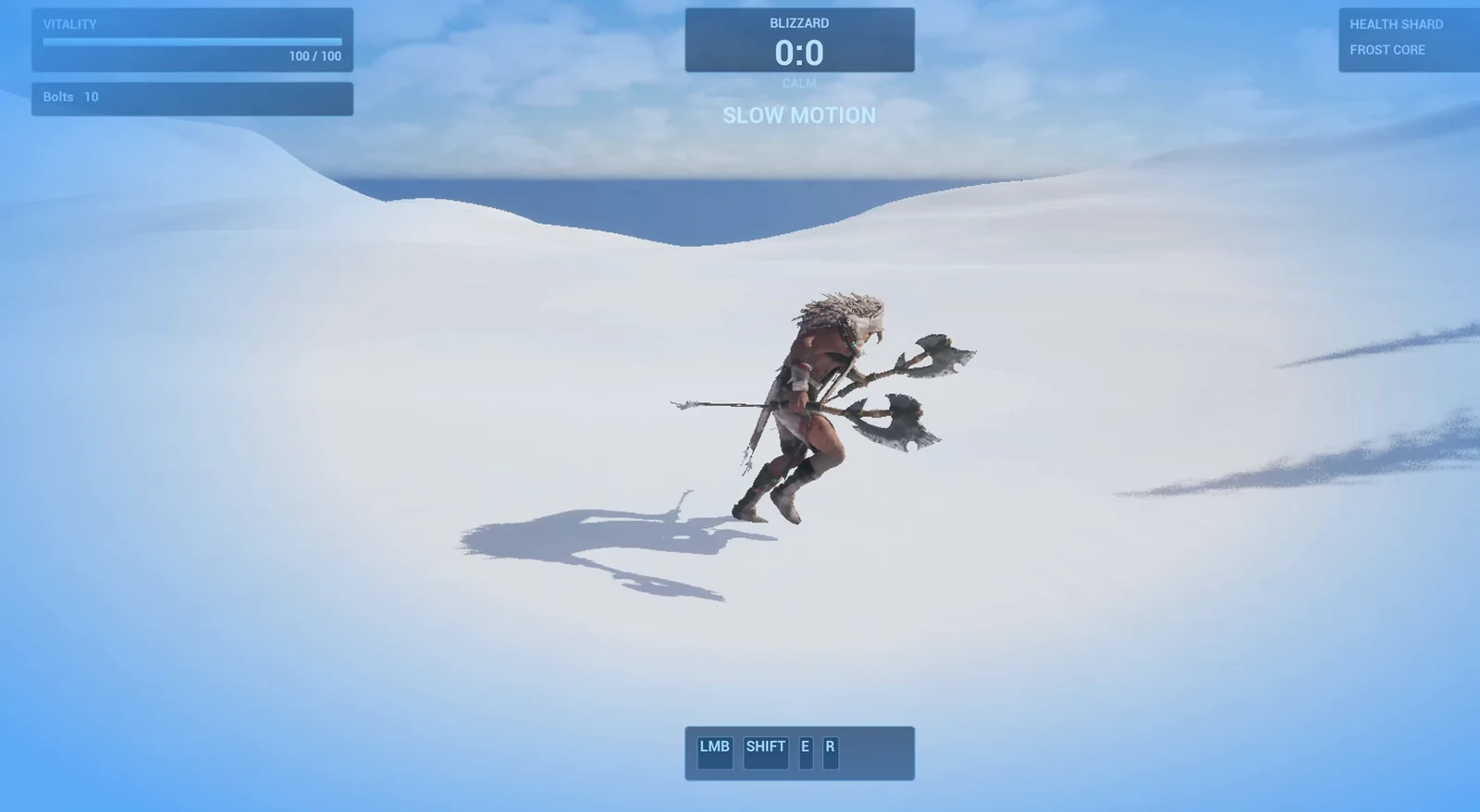
Slow motion is on: the blue vignette covers the screen and the player keeps moving.
The prompt
Copy this, change the speed or the fade time, and see what the AI builds:
Make a slow motion toggle. Create BP_SlowMotion in /Game/Series/EP26_SlowMo, an actor that I place once in the level, that listens for the T key. Pressing T toggles slow motion: the global time dilation eases from 1.0 down to 0.25 over 0.3 seconds, and pressing T again eases it back to 1.0 over 0.3 seconds. While slow motion is active, a blue tinted vignette overlay widget called WBP_SlowMoOverlay fades in over the whole screen and the text SLOW MOTION shows in the top centre below the existing Blizzard box. The player should keep moving at normal speed during slow motion, so compensate the player's own time dilation. Keep the slow motion speed and the fade time as variables. Place the actor near the player start. Then play test it: check the time dilation before, press T and check it reaches 0.25, check the overlay and the text appear, press T again and check everything returns to normal, and fix anything that does not work.Look at the sentence about the player: “The player should keep moving at normal speed”. If you do not say it, everything slows down, including the player, and the game feels heavy. That is the secret of good slow motion in games: the world slows down and the player does not.
How the AI builds it
The AI starts by reading the project. It finds the Blizzard box in the HUD, so it knows where the text can go. Then the assets appear: a blue vignette material, the overlay widget and the slow motion Blueprint.
The first build partly failed. Some library calls needed their class named, and the AI used the wrong handle for the T key. It cleared the graph, looked up the right key event and rebuilt it.
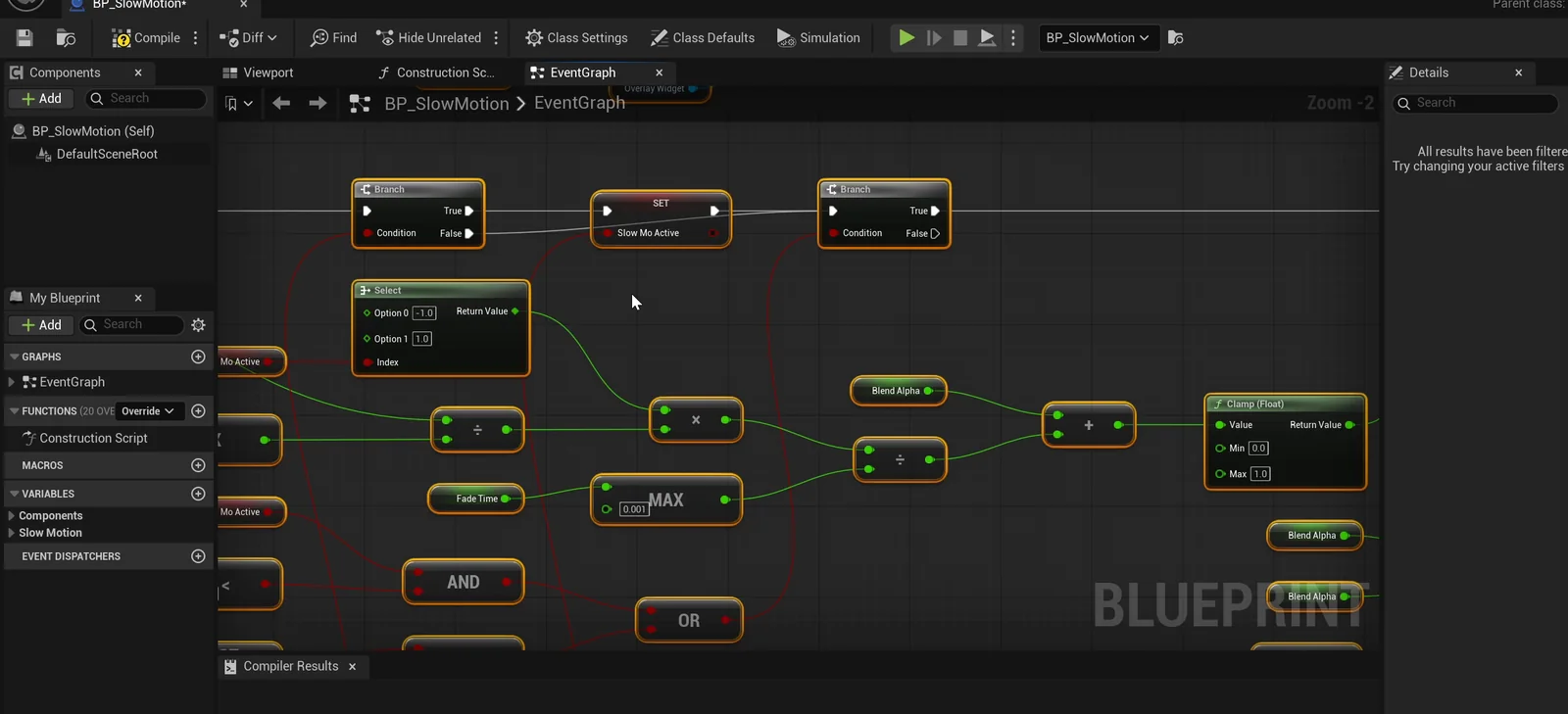
The slow motion graph: a toggle, a blend value and the nodes that apply it.
A bug the AI found by reading its own graph
After building, the AI reads the graph back and finds a real bug. The compensation was being written to the slow motion actor’s own time dilation instead of the player’s. So the player would still have slowed down. The AI fixed that one wire before the test.
The play test
- Before pressing anything, the time dilation is 1 and the overlay is hidden.
- After T, the dilation is 0.25, the overlay is fully faded in and the player dilation is 4.0, because 4 times 0.25 is 1.
- After the second T, the world is back at 1, the overlay is hidden and the player is back at 1.
All the checks pass.
The report
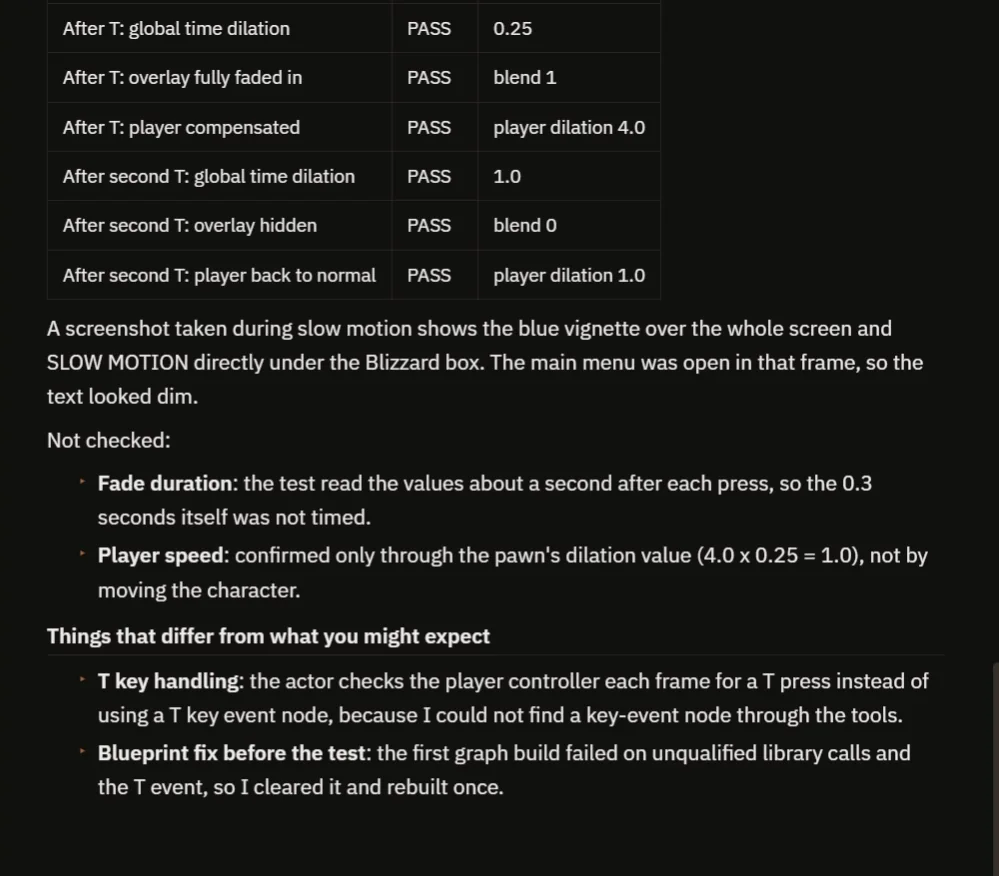
Every check passes, and the notes say what was not timed.
The report has a table of checks and a screenshot of the blue vignette with the text under the Blizzard box. It is honest about what it did not check:
- The fade time itself, 0.3 seconds, was not timed, because the test read the values about a second after each press.
- The player speed was confirmed only through the dilation number (4.0 times 0.25 is 1.0), not by moving the character.
- The main menu was open in the screenshot, so the text looked dim.
It also tells you how the T key is handled: the actor checks the player controller every frame instead of using a key event node, because it could not find one through its tools. That is why the video also shows a real run.
How slow motion works, in plain words
The Blueprint has a true or false value: is slow motion on? Pressing T flips it. Then, every frame, a blend value moves toward 1 if it is on and toward 0 if it is off, over the fade time. That blend decides everything:
- The global time dilation is a mix between 1 and 0.25.
- The overlay opacity is the same blend.
- The player’s own time dilation is 1 divided by the global one, so the player always runs at normal speed.
One blend, three effects. Because the speed and the fade time are variables, you can make a gentle slow motion or a dramatic one with two numbers.
Ideas to extend it
- A lower speed, like 0.1, for dramatic bullet time.
- Sound that slows down and drops in pitch.
- Slow motion that runs out, with a meter that refills.
Four tips for slow motion prompts
- Say what slows down, and what does not.
- Give the speed and the fade as numbers.
- Describe the visual feedback, like a vignette.
- Ask the AI to check the values before and after.
Frequently asked questions
How do I make slow motion in Unreal Engine 5?
Set the global time dilation to a value below 1, such as 0.25. Ease it in and out over a short time so it does not snap, and add a screen overlay as feedback.
How do I keep the player at normal speed during slow motion?
Set the player’s own custom time dilation to 1 divided by the global dilation. With a global value of 0.25, the player value is 4.0, so the two cancel out.
What bug did the AI find in its own graph?
The compensation was written to the slow motion actor instead of the player. The AI caught it by reading the graph back before the test and fixed that one wire.
Try it in your project
See what Ultimate Engine CoPilot can build on the product page, or get it on Fab.
More builds from this series: the Unreal Engine speed boost, the Unreal Engine pause menu and the Unreal Engine weather system.