Unreal Engine Weather System: Build a Fog, Dusk and Clear Switch With AI
How to build an Unreal Engine weather system: a G key switch that blends between Clear, Fog and a warm orange Dusk over 2 seconds, with a weather label, built from one AI request.

A weather switch in Unreal Engine is three small ideas: the lights and the fog already exist in your level, so the switch only needs to find them; each weather is just a list of numbers, such as fog density, colors and sun; and a blend moves from the current numbers to the next ones. The easiest way to build one is to ask an AI for the whole switch in a single request, with its states, blend and label.
In this walkthrough, Ultimate Engine CoPilot builds a weather switch on the G key that blends between Clear, Fog and a warm orange Dusk. You get the exact prompt, the numbers the AI checked and a plain explanation of how a weather switch works.
What the finished switch does
You stand in the snow under a clear blue sky. You press G, the label says “Weather: Fog” and the world slowly turns cool and grey. You press G again, the label says “Weather: Dusk” and the whole valley fades to a warm orange sunset. One more G and everything returns to the clear day. Each change is a smooth blend, two seconds long.
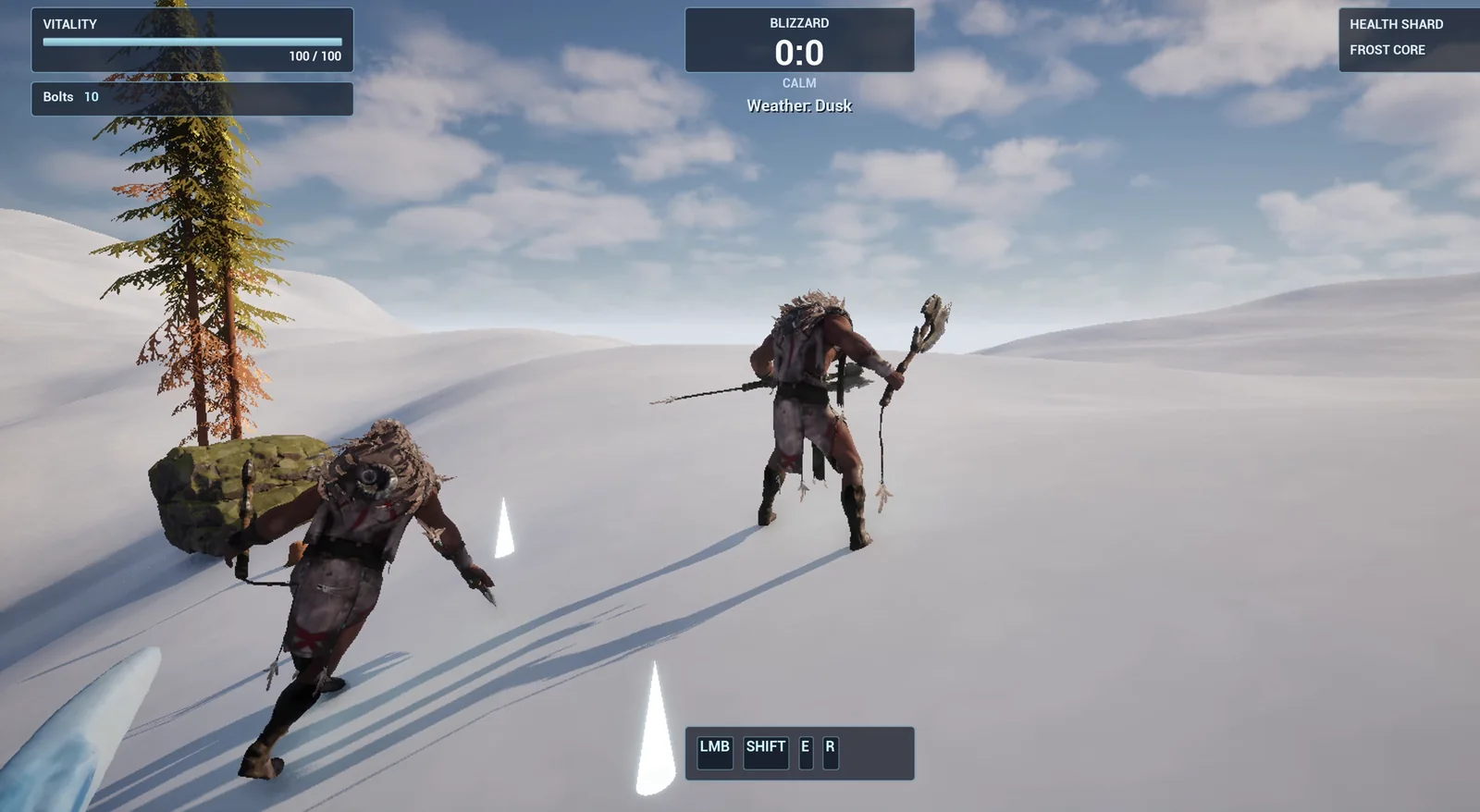
The weather label shows “Weather: Dusk” under the existing Blizzard box.
The prompt
Copy this, change the blend time or the fog density, and see what the AI builds:
Make a weather switch. Create BP_WeatherSwitch in /Game/Series/EP32_Weather, an actor that I place once in the level, that listens for the G key. Pressing G cycles through three weather states: Clear, Fog and Dusk. Each change blends over 2 seconds. Fog increases the exponential height fog density to 0.05, pulls the fog colour to a cool grey-blue, and dims the sun to 40 percent of its intensity. Dusk lowers the sun to a pitch of -8 degrees, tints the sky and light orange, and brings the fog to 0.01. Clear returns everything to the original values, which the actor must remember when the game starts. Show a small text in the top centre below the existing Blizzard box with the name of the current weather, for example Weather: Fog, for 3 seconds after every change. Keep the blend time as a variable. Place the actor near the player start, and add an ExponentialHeightFog and a DirectionalLight to the level if none exist. Then play test it: press G and check the values change to the Fog targets, press G again and check the Dusk targets, press G a third time and check everything returns to the original, check the text appears each time, and fix anything that does not work.Look at the sentence about the original values: “which the actor must remember when the game starts”. That is the trick of every weather system. If Clear is a hard-coded set of numbers, it will not match your level. If Clear is whatever the level had at the start, it always fits.
How the AI builds it
The AI starts by reading the level. It finds the directional light, the height fog and the sky light that already exist, so it adds nothing. It also finds the Blizzard box in the HUD, to know where the label can go.
Then the assets appear: the weather label widget and the weather switch Blueprint. The Blueprint has a function to cycle the state, a function that blends and the event graph for the key. The label is a separate widget, so your existing HUD is not touched.
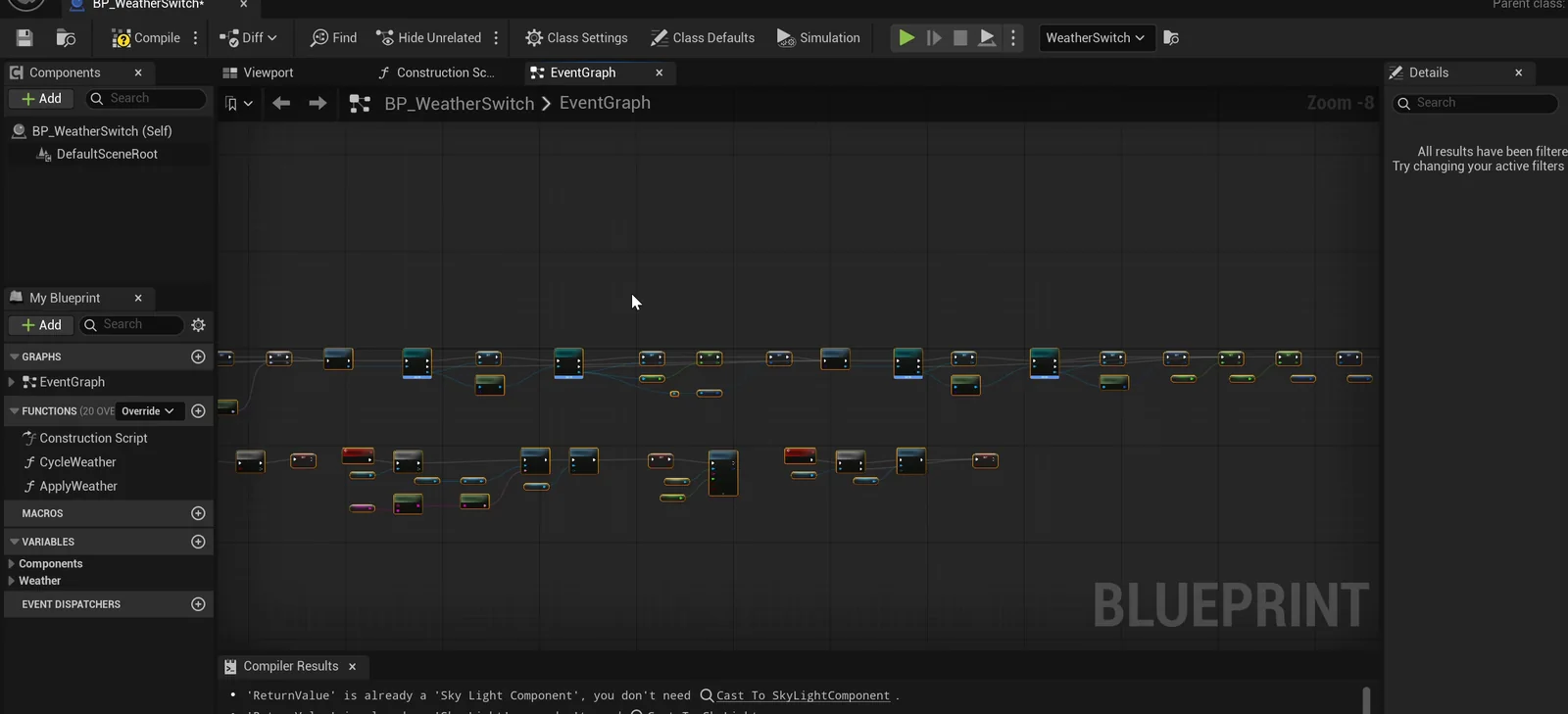
The weather switch graph: it remembers the starting values and blends toward each state.
The play test
The AI checks the numbers at each step:
- At the start, the original values are remembered: fog density 0.0436 and sun intensity 6.
- After one G, the fog density is 0.05, the fog color is a cool grey-blue and the sun is at 2.4, which is 40 percent of 6. Half a second in, the fog is at 0.0456, so it is moving and not snapping.
- After the second G, the sun pitch is minus 8, the fog is at 0.01, and the sun and the sky read the same orange.
- After the third G, everything is back: fog 0.0436, intensity 6, pitch minus 28, and the sun and sky are white again.
The label is visible after every press. Then the AI looks at the screenshot: the label landed on top of the HUD’s “CALM” line, which spills out below the Blizzard box. So it moved the label down and checked again. That is the AI reading the picture, not only the numbers.
The report
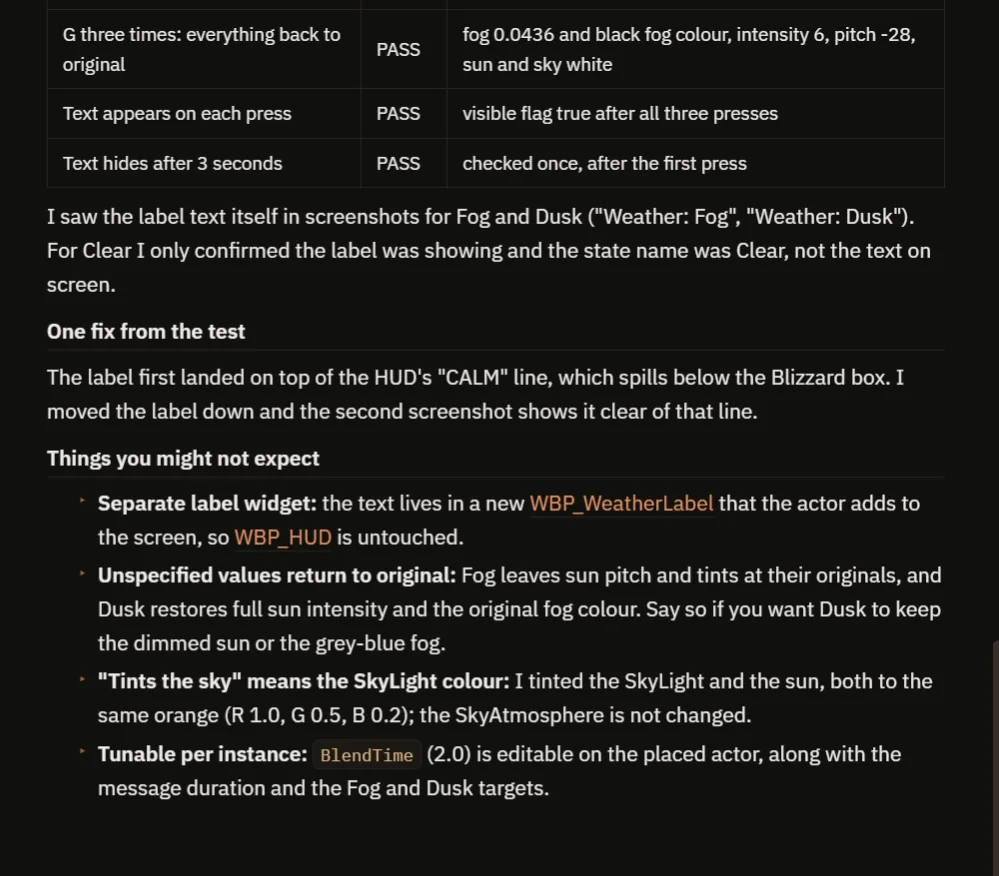
The checks pass, the label fix is explained and so are the choices the request left open.
The report has a table of eleven checks, all passing, and the one fix. It notes that the level already had the light and the fog, so it added neither. It is also honest about a few things:
- It saw the label text for Fog and for Dusk in screenshots. For Clear it only confirmed that the label was showing and the state name was Clear.
- Fog leaves the sun pitch alone, and Dusk restores full sun intensity and the original fog color, because the request did not say otherwise. Say so if you want Dusk to keep the dimmed sun or the grey-blue fog.
- “Tints the sky” means the SkyLight color. The SkyAtmosphere itself is not changed.
- BlendTime (2.0) is editable on the placed actor, along with the message duration and the Fog and Dusk targets.
How a weather switch works, in plain words
When the game starts, the Blueprint reads the current fog density, fog color, sun intensity, sun pitch and light colors, and stores them. Those are the Clear state. Pressing G adds one to the state and wraps around after three.
Then a timeline goes from 0 to 1 over the blend time. At every step, each value is mixed between where it was and the target for the new state. So one timeline blends everything together: the fog, the sun and the colors. Because the blend time and the targets are variables, you can add a fourth state, like a storm, with a new set of numbers.
Ideas to extend it
- A fourth weather, a storm, with darker clouds and flashes of light.
- Ambient sounds that change with the weather: wind in the fog and crickets at dusk.
- Weather that changes by itself, every two minutes.
For a full day and night loop, see the Unreal Engine day night cycle.
Four tips for weather prompts
- Give each weather as numbers.
- Say that Clear returns to the original values.
- Say where the label goes on the screen.
- Ask the AI to test every state, in order.
Frequently asked questions
How do I make a weather system in Unreal Engine 5?
Store the starting fog, sun and sky values, define each weather as a set of target values and use one timeline to blend from the current values to the next state.
How do I add fog in Unreal Engine 5?
Use an ExponentialHeightFog in the level and change its density and color. The switch here finds the fog that already exists, so it adds nothing if your level has one.
Why must Clear remember the original values?
If Clear is a hard-coded set of numbers, it will not match your level. Remembering what the level had at the start means Clear always fits.
Try it in your project
See what Ultimate Engine CoPilot can build on the product page, or get it on Fab.
More builds from this series: the Unreal Engine day night cycle, the Unreal Engine slow motion and the Unreal Engine campfire.