Unreal Engine Save Game System: Build Save and Load With AI
How to build an Unreal Engine save game system: a SaveGame class for location, rotation and inventory counts, F5 to save, F9 to load and on-screen messages, built from one AI request.

In Unreal Engine, a save game is a small class that holds the data you want to keep, and nothing more. You fill it in when the player saves, file it in a named slot, and read it back when the player loads. You can ask an AI for the whole system in one request and have it prove that the position and the inventory come back.
In this walkthrough, Ultimate Engine CoPilot builds a save and load system with a SaveGame class called SG_PlayerSave. It stores the player location, rotation and the inventory item counts. F5 saves to Slot1, F9 loads it, and a “Game saved” or “Game loaded” message shows for 2 seconds.
What the finished system does
You collect a herb, press F5, and the game says “Game saved”. You walk away and collect more. Then you press F9, the game says “Game loaded”, and you are back where you saved, with your inventory restored.
What a save game is
A save game class is a list of the things you want to remember. This is the one the AI made. It has three variables: the player location, the player rotation and a map of item counts.

SG_PlayerSave: a location (Vector), a rotation (Rotator) and a map of item counts.
That list is the design. If you want to save something else later, such as health, quests or settings, you add a variable here and ask for it to be saved.
The request
This is the request in short form. It builds on the inventory from the inventory episode:
Add a save and load system. Create a save game class SG_PlayerSave in /Game/Series/EP09_SaveGame that stores the player location, the player rotation and the inventory item counts. Pressing F5 saves to a slot called Slot1 and F9 loads it, moving the player back to the saved spot and restoring the item counts. Show a message at the bottom of the screen, Game saved or Game loaded, for 2 seconds. Add F5 and F9 input actions to the existing input mapping. Then play test it: collect a pickup, press F5, walk away, press F9, and confirm the player and the item counts come back. Fix anything that does not work.Look at the first sentence. It lists exactly what to save: location, rotation and counts. That one list is the most important part of any save game prompt.
How the AI builds it
The AI starts by reading the project. It finds the player character and the inventory, so it knows where the counts are stored. Then the assets appear: the save class and two input actions, one for the save key and one for the load key.
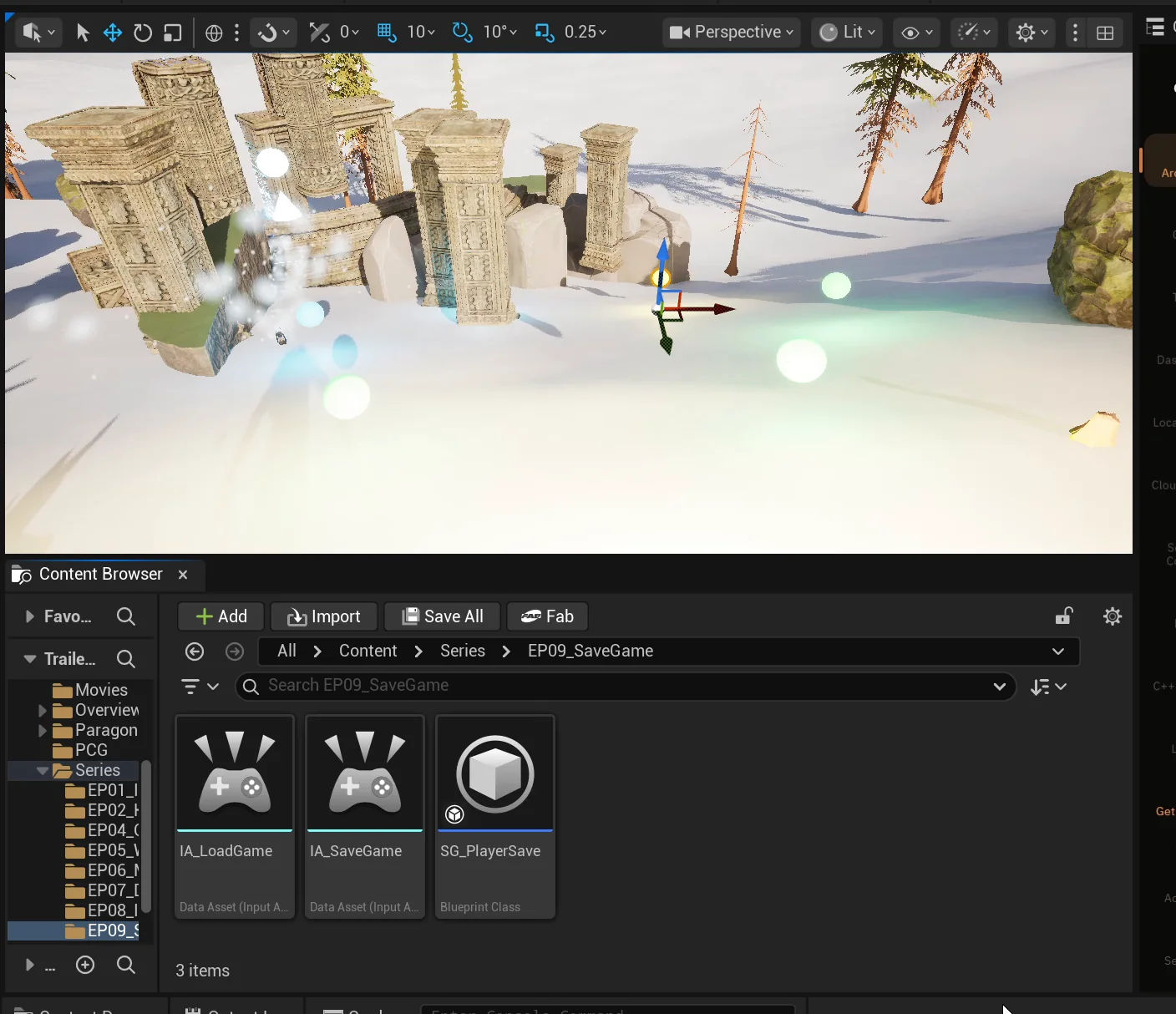
The three new assets in the EP09_SaveGame folder.
It adds a save function and a load function to the player. Save writes the data into the slot. Load reads it, moves the player and restores the counts. If there is no save yet, load does nothing.
The play test
The AI collects a herb, saves, moves away, collects a second herb and loads. The position comes back exactly, to the decimal, and so does the rotation. The inventory returns to one herb. Nothing needed fixing, and the AI says so.
The report
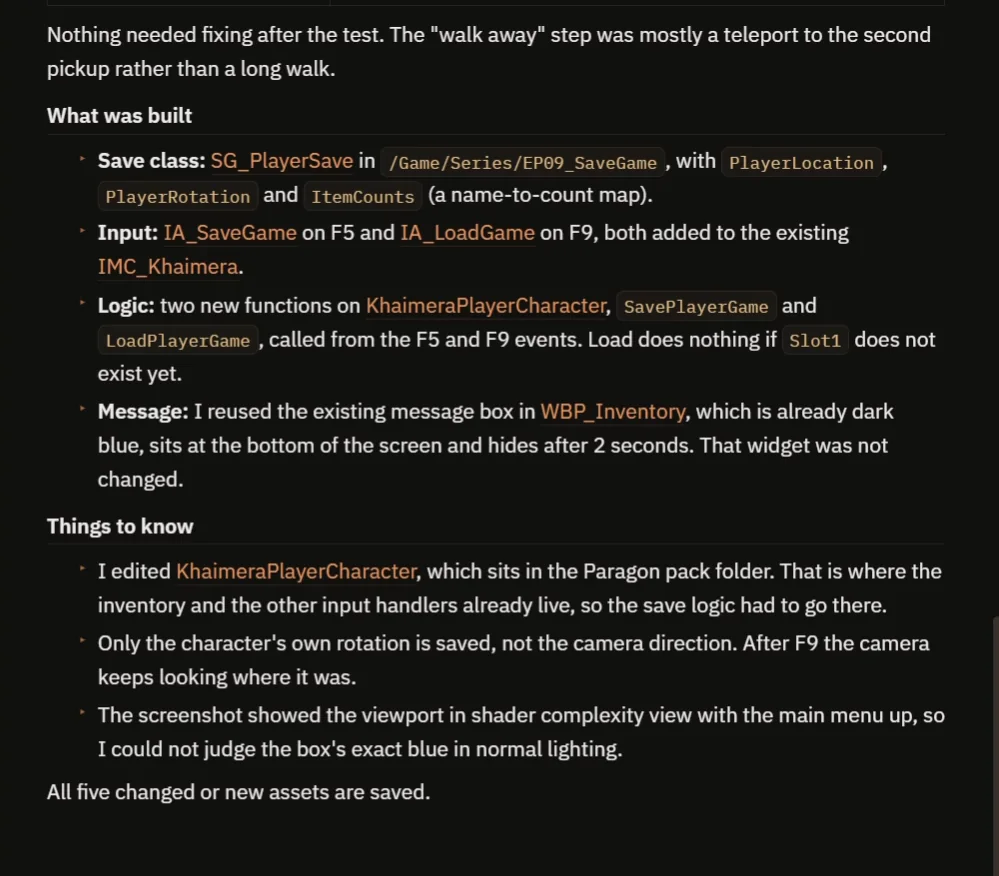
What was built, and what to know before you extend it.
The report has a table of seven checks. Six pass. The one it could not confirm is the “Game saved” message, because it did not look at that screenshot, and it tells you that. The “Game loaded” message was seen.
It also notes what to know:
- The save logic lives on the player character, which is where the inventory already was.
- Only the character’s own rotation is saved, not the camera. After F9 the camera keeps looking where it was.
- The “walk away” step in the test was mostly a teleport to the second pickup rather than a long walk.
How it works, in plain words
Think of a save game like a notebook page with a few blank lines. The save game class is that page. In this episode it has a line for the player location, a line for the rotation and a line for the item counts. When you press F5, the game fills in those lines with what is true right now and files the page in a named slot. Ours is called Slot1. A slot is just a name, like a label on a drawer.
When you press F9, the game goes to that drawer, takes out the page and reads the lines back. It moves the player to the saved location, turns the character to the saved rotation and puts the counts back into the inventory. If the drawer is empty because you never saved, nothing happens.
That is why the first decision matters. Anything that is not written on the page is simply forgotten, so add a line for it first, then ask the AI to save it.
Ideas to extend it
- Save the player health too.
- A second slot on two more keys, so you can keep two separate saves.
- Show the time of the save in the message at the bottom.
- An automatic save every time the player picks up an item.
Each idea is a small change to the same save class, so the AI can build on what is already there.
Four tips for save game prompts
- List exactly what to save.
- Name the slot and the keys.
- Say what message the player sees.
- Test by changing things, then loading.
Frequently asked questions
How do I make a save and load system in Unreal Engine 5?
Create a SaveGame class with a variable for everything you want to keep. On save, fill it in and write it to a named slot. On load, read the slot and apply the values back to the player.
What is a save slot?
A slot is a name that identifies one save, like a label on a drawer. This build uses Slot1. Add more slots to keep separate saves.
How do I save the inventory?
Store the item counts as a map of item name to count in the save class, and restore the map on load. That is what this build does with the inventory from the previous episode.
Try it in your project
See what Ultimate Engine CoPilot can build on the product page, or get it on Fab.
Related builds: the Unreal Engine inventory system this one saves, and the Unreal Engine main menu.