Unreal Engine Item Bar: Build a Quick-Select Hotbar With AI
How to build an Unreal Engine item bar: three slots on the keys 1, 2 and 3, a gold selected slot scaled to 115 percent and the item name above, built from one AI request.

An item bar in Unreal Engine is three small ideas: a row of slots, each with its own look; one number, the selected slot; and a key for each slot that changes that number. Everything you see, the border, the size, the dimming and the name, is just a reaction to that one number. The easiest way to build one is to ask an AI for the whole hotbar in a single request.
In this walkthrough, Ultimate Engine CoPilot builds a three slot quick-select bar on the keys 1, 2 and 3. You get the exact prompt, how the AI tested every key and a plain explanation of how an item bar works.
What the finished bar does
At the bottom left of the screen, there are three small slots: a red gem, a blue gem and a green gem. The first one is selected, with a gold border, a little bigger than the others, and the name above says “Fire”. You press 2 and the border moves to the blue gem and the name says “Frost”. You press 3, the green gem, “Heal”. And 1, back to Fire.
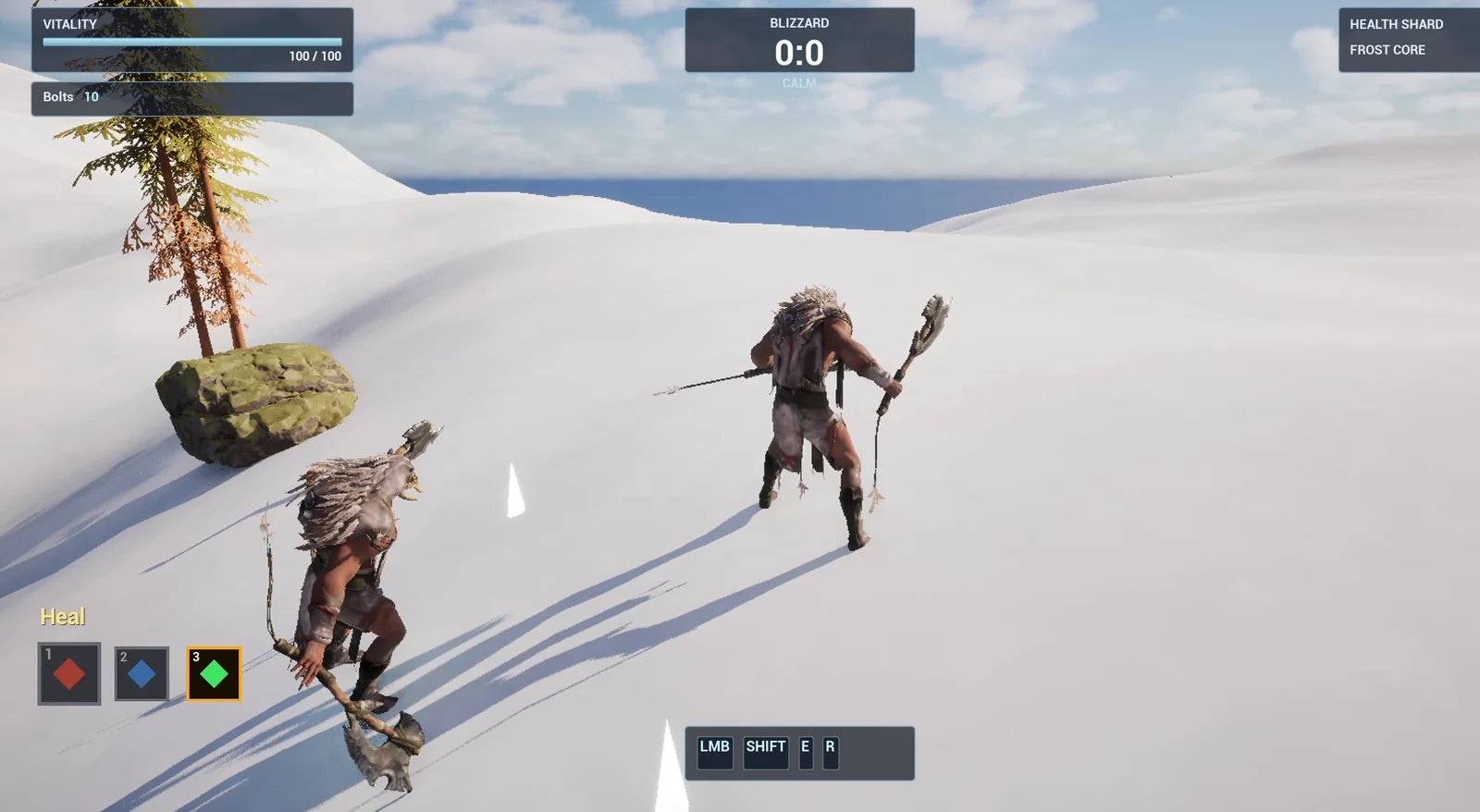
The bar with the green Heal slot selected: gold border, full size, the others dimmed.
The prompt
Copy this, change the colors or add a fourth slot, and see what the AI builds:
Make a quick-select item bar. Create WBP_ItemBar in /Game/Series/EP38_ItemBar, a row of three square slots at the bottom left of the screen, above the existing ability bar and clear of it, each 72 pixels wide with the key number 1, 2 or 3 in the corner and a coloured gem in the middle: red for Fire, blue for Frost and green for Heal. The selected slot has a gold border and is scaled up to 115 percent, the other two are dimmed to 55 percent. Above the bar, show the name of the selected item, Fire, Frost or Heal. Create BP_ItemBarController in the same folder, an actor that I place once, that adds the widget on BeginPlay and listens for the keys 1, 2 and 3 to select the matching slot. The change animates over 0.15 seconds. Slot 1 is selected at the start. Keep the slot size and the animation time as variables. Place the actor near the player start. Then play test it: check slot 1 is selected at the start, press 2 and check slot 2 is selected and the name reads Frost, press 3 and check Heal, press 1 and check Fire, and fix anything that does not work.Look at the two numbers: 115 percent and 55 percent. If you only say “highlight the selected slot”, the AI picks something. If you give the numbers, you get the look you want the first time. And one small detail: “above the existing ability bar and clear of it”. Always say where new UI goes when the screen already has some.
How the AI builds it
The AI starts by reading the project and the HUD, to see where the ability bar sits. Then the assets appear: the item bar widget, the controller Blueprint and three Enhanced Input actions (IA_ItemSlot1, 2 and 3) plus an input mapping, because there is no raw key event available for an actor.
The widget has a lot of small parts: three slots, three gems, the key numbers, the name text and three selection animations. The input actions are set to not consume the keys, so anything else bound to 1, 2 or 3 still works. That is a thoughtful detail.
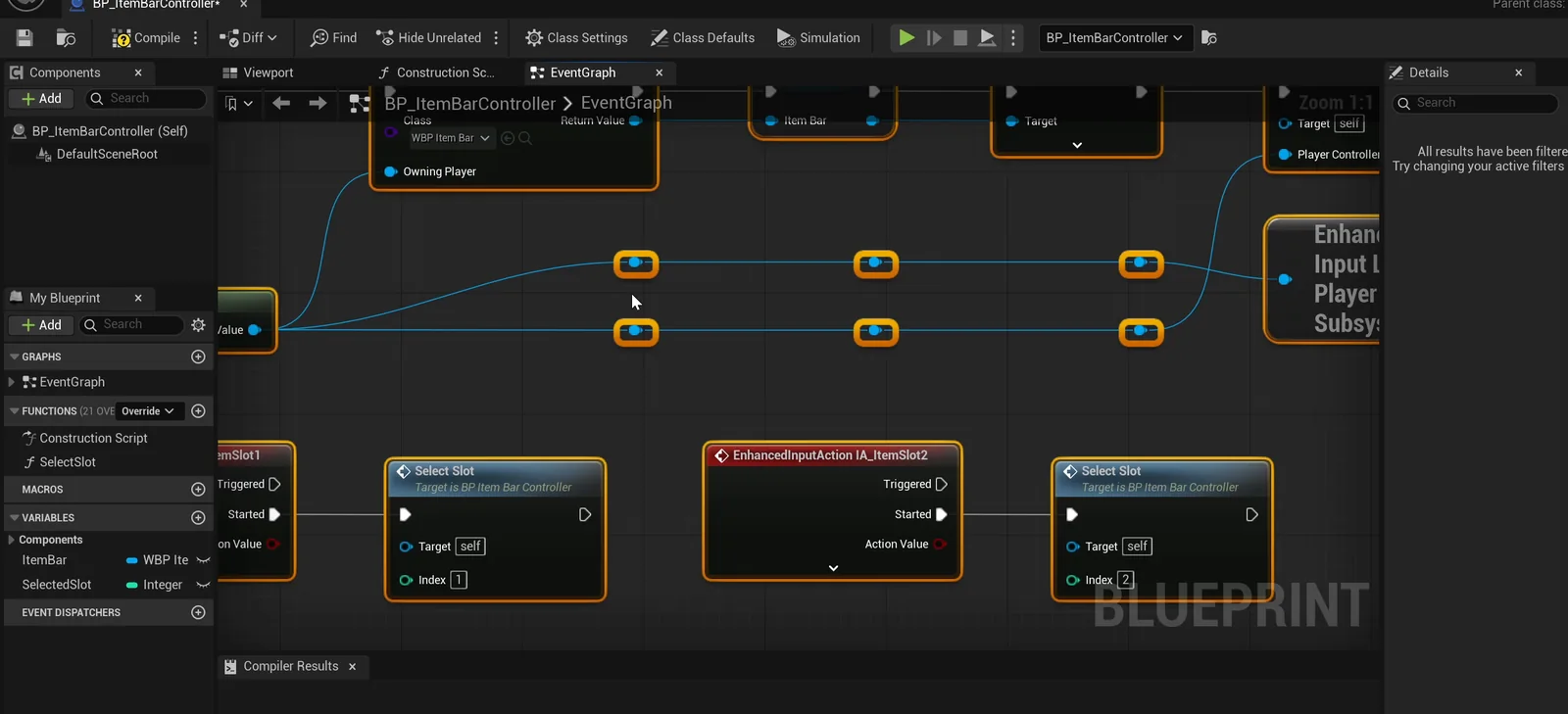
The controller graph: each key calls Select Slot with its number.
The play test
It passes at the first try:
- At the start, the controller reports slot 1, the name is Fire, and the screenshot shows slot 1 with the gold border and bigger, and the other two dimmed.
- Press 2: slot 2, Frost, and the border moved.
- Press 3: slot 3, Heal.
- Press 1: slot 1, Fire again.
Four checks, all passing, and nothing to fix.
The report
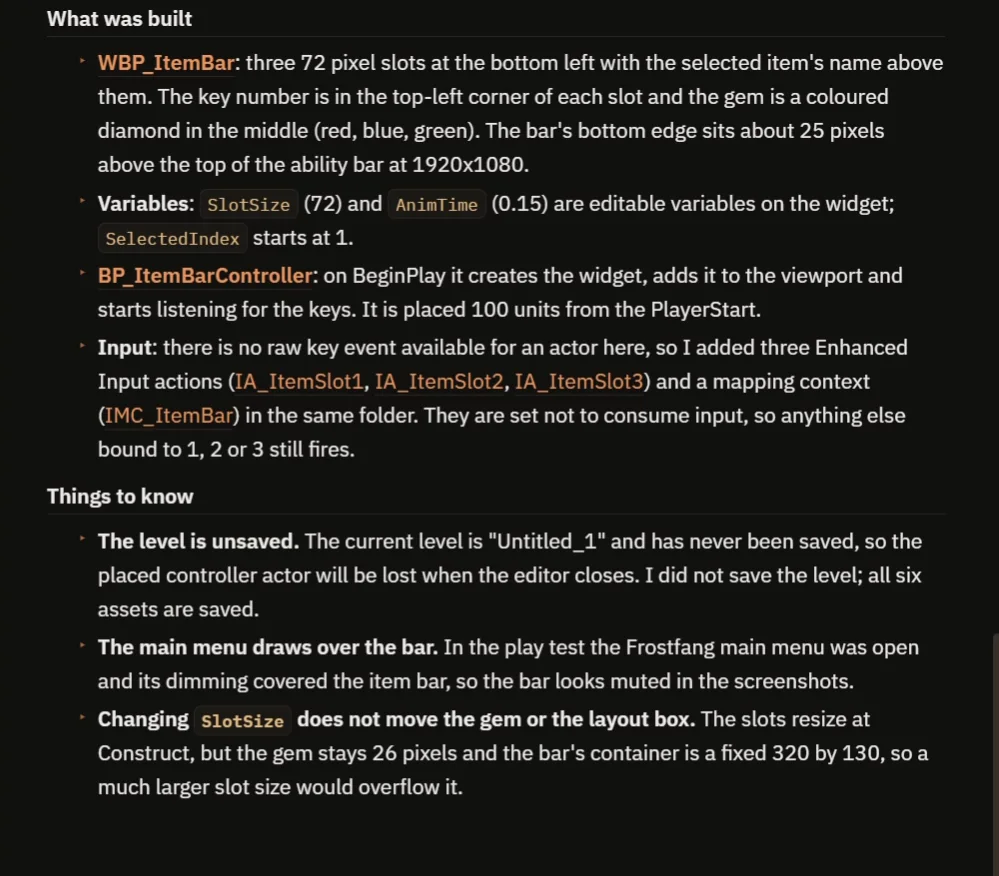
Six assets in all, and the notes on what was not measured.
The report lists what was built, six assets in all: the widget, the controller, three input actions and the mapping. It is honest about what it did not measure:
- The 0.15 second animation was not timed in play. Each check was read about 0.6 seconds after the key, so it only confirms the end state.
- The main menu covered the bar in the test screenshots, so it looks muted.
- Changing SlotSize does not move the gem or the layout box. The slots resize, but the gem stays 26 pixels and the bar’s container is a fixed 320 by 130, so a much bigger slot size would overflow.
- The level is unsaved.
How an item bar works, in plain words
The widget keeps one number, the selected index. When the controller gets the key 2, it tells the widget: select slot 2. The widget stores that number. Then for every slot, it asks one question: am I the selected one? If yes, play the select animation: gold border, scale to 115 percent, full brightness. If not, play it in reverse: dimmed to 55 percent. And the name text is chosen by the index: three slots, three names.
Because the animation time and the slot size are variables, you can make a snappy bar or a slow one with two numbers.
Ideas to extend it
- The mouse wheel to change the slot.
- Items that really do something: Fire throws a flame, Frost slows an enemy, Heal restores health.
- A cooldown sweep over each slot, and a counter for how many you have. The Unreal Engine inventory system shows how to count items.
Four tips for item bar prompts
- Give the selected and the dimmed look as numbers.
- Say where the bar goes, relative to the existing UI.
- Say which slot is selected at the start.
- Ask the AI to test every key, in a mixed order.
Frequently asked questions
How do I make a hotbar in Unreal Engine 5?
Keep one selected index in a widget, add a key for each slot that sets it, and have every slot react to whether it is the selected one with an animation.
Why does the AI use Enhanced Input actions here?
There is no raw key event available for an actor through the tools, so it added one input action per key and a mapping. They are set to not consume input, so other bindings on those keys still work.
Can I change the slot size?
SlotSize is a variable, but the gem and the container do not scale with it. A much bigger slot would overflow the fixed container, so adjust the layout too.
Try it in your project
See what Ultimate Engine CoPilot can build on the product page, or get it on Fab. See how the AI Blueprint generator works.
More builds from this series: the Unreal Engine inventory system, the Unreal Engine ranged weapon and the Unreal Engine main menu.