Unreal Engine Fast Travel: Build Teleport With a Screen Fade Using AI
How to build Unreal Engine fast travel: an F key that fades to black, moves the player to the next of three places and shows the place name, built and debugged by an AI from one request.

Fast travel in Unreal Engine is three small ideas: a list of places, a step that moves the player to the next place, and a fade so the player never sees the jump. The fade is what makes it feel right. Without it, the player just pops from one spot to another. The easiest way to build one is to ask an AI for the whole system in a single request.
In this walkthrough, Ultimate Engine CoPilot builds a fast travel on the F key that fades to black, moves the player and shows the name of the place. You get the exact prompt, a bug the AI found by looking at a screenshot mid-fade and a plain explanation of how fast travel with a fade works.
What the finished system does
You stand in the snow and press F. The screen fades to black, and when it fades back in, you are somewhere else, far away, and a small text says “East Camp”. You press F again and arrive at “North Ridge”. One more time, and you are back at the start.
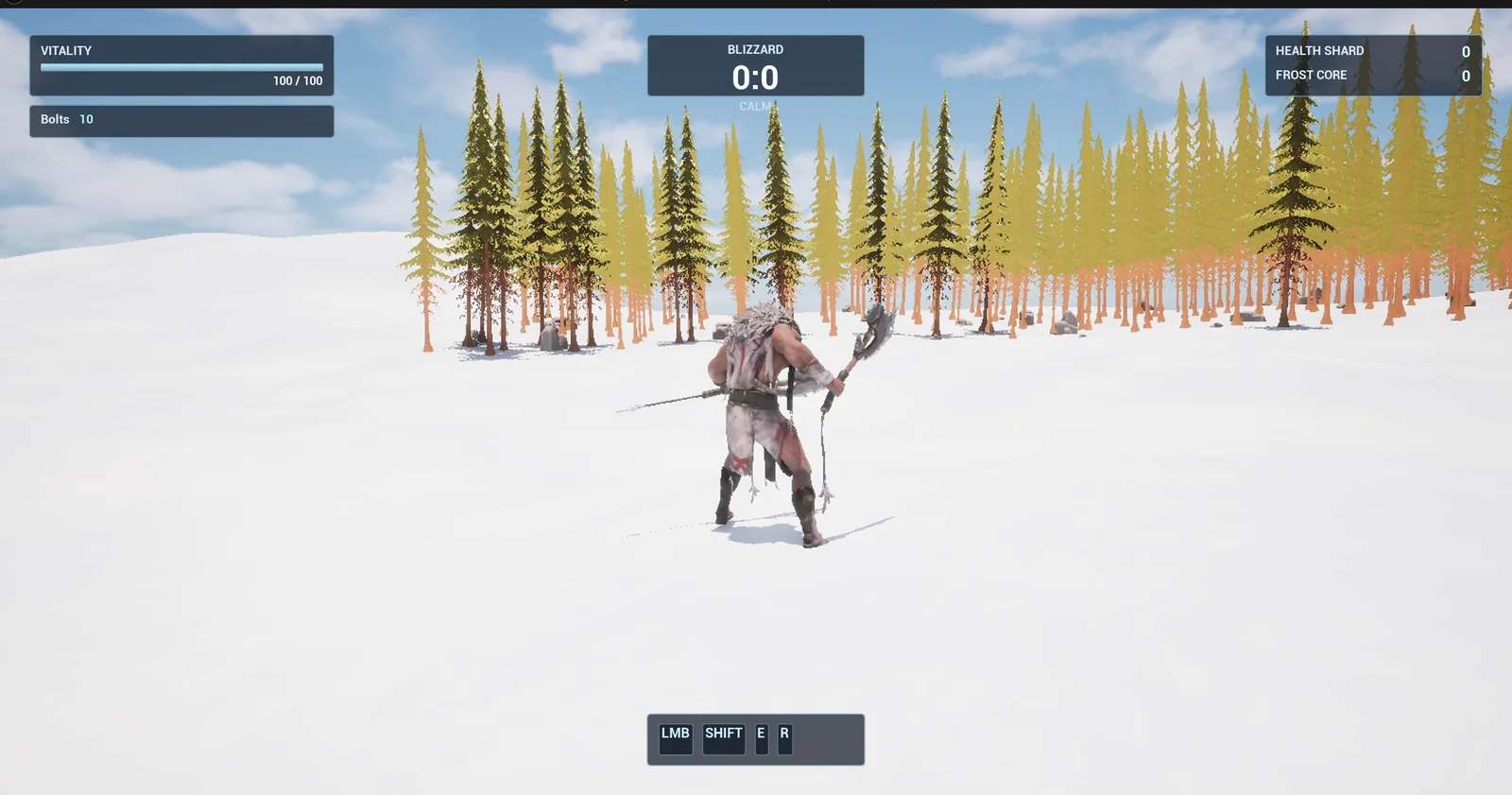
The start: three places, one key.
The prompt
Copy this, change the distance or add a fourth place, and see what the AI builds:
Make a fast travel with a screen fade. Create BP_FastTravel in /Game/Series/EP36_FastTravel, an actor that I place once in the level, that listens for the F key. Pressing F teleports the player to one of three stored locations in order, each press going to the next one and wrapping around: the player start, a point 1500 units east of it, and a point 1500 units north of it, each placed 100 units above the snow so the player lands safely. The teleport is hidden by a fade: a black full-screen widget called WBP_ScreenFade fades in over 0.4 seconds, the player is moved while the screen is black, then the black fades out over 0.4 seconds. Also show the name of the place in the top centre below the existing Blizzard box for 2 seconds after arriving: Start, East Camp and North Ridge. Ignore a press while a transition is already running. Keep the fade time and the three location offsets as variables. Place the actor near the player start. Then play test it: press F and check the player ends at the East point, check the screen was black in the middle, press F again for the North point, press F a third time to return to the start, check the place name each time, and fix anything that does not work.Two sentences matter: “each placed 100 units above the snow so the player lands safely” and “Ignore a press while a transition is already running”. Both are about the things that go wrong. A player who lands inside the ground is stuck, and a player who presses the key five times fast can break the sequence. If you can think of how it breaks, say how it should behave.
How the AI builds it
The AI starts by reading the project and your HUD, so the place name can go below the Blizzard box. Then the assets appear: the fast travel Blueprint and the screen fade widget.
The AI hits a small limit here. A variable that holds a list cannot get default values in this setup. So it swaps the list for three plain offset variables, one for each place. They are offsets from the player start, read when the game begins.
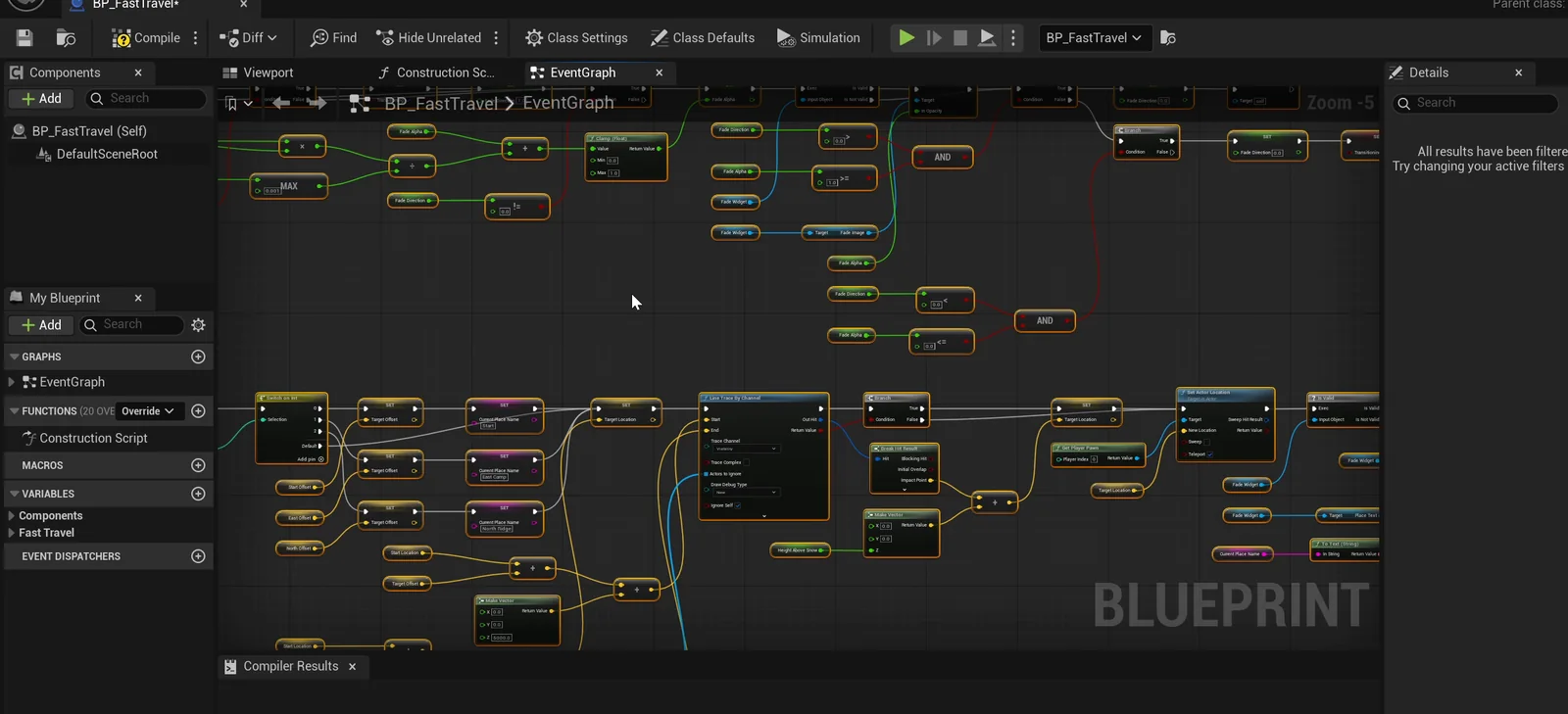
The fast travel graph: one sequence runs on every press.
The play test
- Press F: the player ends at the East point, 1500 units along from the start.
- The screen is black in the middle: the fade value reads 1, and the screenshot shows pure black with the name “East Camp” on top.
- A second F pressed during the transition is ignored. The player stays at East instead of skipping to North.
- F again: North. A third press: the player is back at the exact spot where it spawned.
A bug you only find by looking
In the middle of the fade, the screenshot caught a strip along the right edge and the bottom edge that was not black. The black image was 1820 by 1050 instead of covering the full screen. The AI fixed the size to 1920 by 1080, ran the test again, and the new screenshot is black from edge to edge.
The report
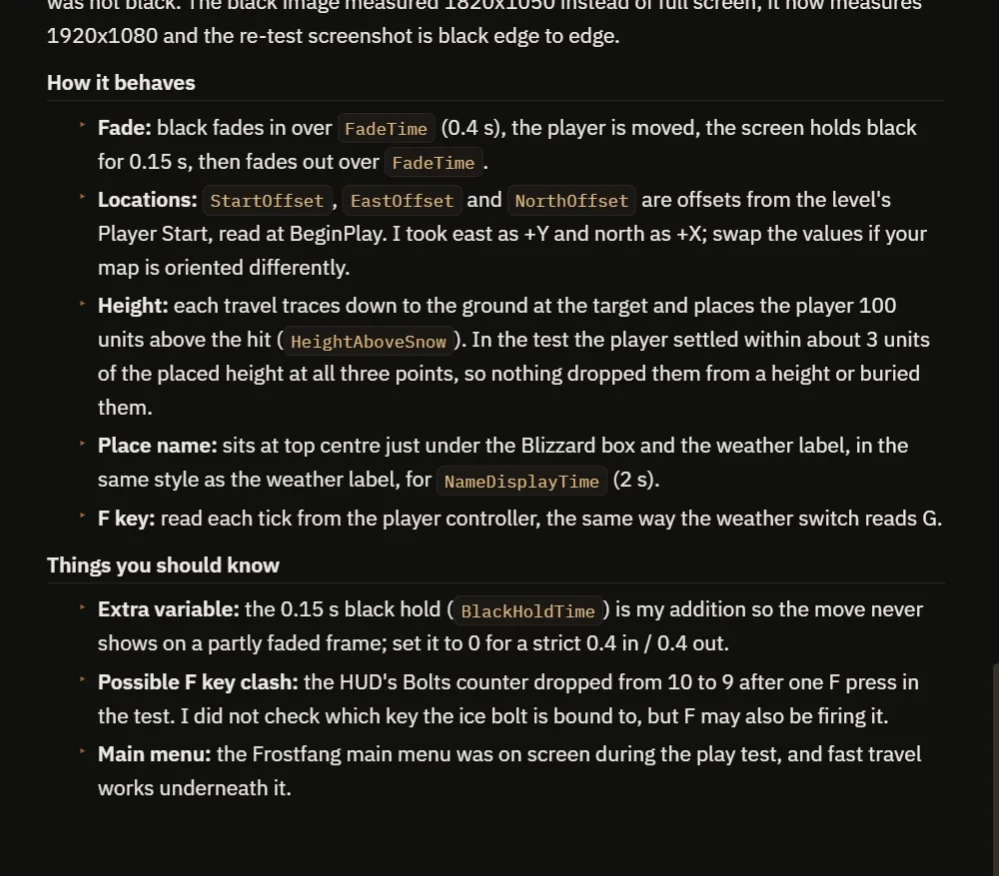
How it behaves, and the things to watch for.
The report describes the sequence: black in over the fade time, the move, a short hold of black, then the fade out. Each travel traces down to the ground at the target and places the player 100 units above it. It also tells you what to watch for:
- The hold of black, 0.15 seconds, is something the AI added so the move never shows on a half faded frame. It is a variable, BlackHoldTime.
- East is set to the Y axis and North to the X axis, so swap the values if your map is rotated.
- Only East Camp was seen on screen in the test.
- The HUD’s Bolts counter dropped from 10 to 9 after one press of F. The F key may also fire the ice bolt, which the AI did not check.
How fast travel works, in plain words
When F is pressed, the actor first checks one thing: is a transition already running? If so, it ignores the press. If not, it starts the sequence. The black widget fades in over the fade time. When it is fully black, the actor picks the next place and traces down to find the ground. Then it moves the player 100 units above that spot, waits a short moment and fades the black out. Then it shows the name of the place for two seconds and adds one to the place number, wrapping around after three.
Because the fade time and the three offsets are variables, you can add more places or make the fade slower with a few numbers.
Ideas to extend it
- Fast travel points you unlock by finding them, like a campfire.
- A map screen where you choose the place.
- A sound for the travel, and a loading text during the black.
Four tips for fast travel prompts
- Place the player above the ground, so they land safely.
- Say what happens if the key is pressed during a transition.
- Say what the fade looks like, in seconds.
- Ask the AI to check the screen in the middle of the fade.
Frequently asked questions
How do I make fast travel in Unreal Engine 5?
Store a list of places, move the player to the next one on a key press, and hide the jump with a full-screen black widget that fades in before the move and out after it.
How do I stop the player from landing inside the ground?
Trace down to find the ground at the target and place the player a set height above it. This build uses 100 units.
What happens if I press the key during the fade?
The press is ignored while a transition is running, so the sequence cannot be broken. Say so in the request.
Try it in your project
See what Ultimate Engine CoPilot can build on the product page, or get it on Fab. See how the AI Blueprint generator works.
More builds from this series: the Unreal Engine checkpoint system, the Unreal Engine portal teleporter and the Unreal Engine compass bar.