Unreal Engine Ice Patch: Build a Slippery Floor With AI
How to build an Unreal Engine slippery ice patch: lower GroundFriction to 0.3 and braking to 150 while the player stands on it, restore the originals on exit, built from one AI request.

A slippery floor in Unreal Engine is one idea: lower the character’s friction while the character stands on the patch, and put it back when the character leaves. The patch is only a trigger that does two jobs, on enter and on exit. The easiest way to build one is to ask an AI for the whole patch in a single request, with its trigger, friction change and label.
In this walkthrough, Ultimate Engine CoPilot builds an ice patch that makes the player slide. You get the exact prompt, three problems the AI fixed while building and a plain explanation of how a slippery floor works.
What the finished patch does
You run across the snow toward a pale blue patch of ice. The moment you step on it, a small text appears at the top: “Slippery!”. You let go of the keys, and you do not stop. You keep sliding across the ice, like on a frozen lake.
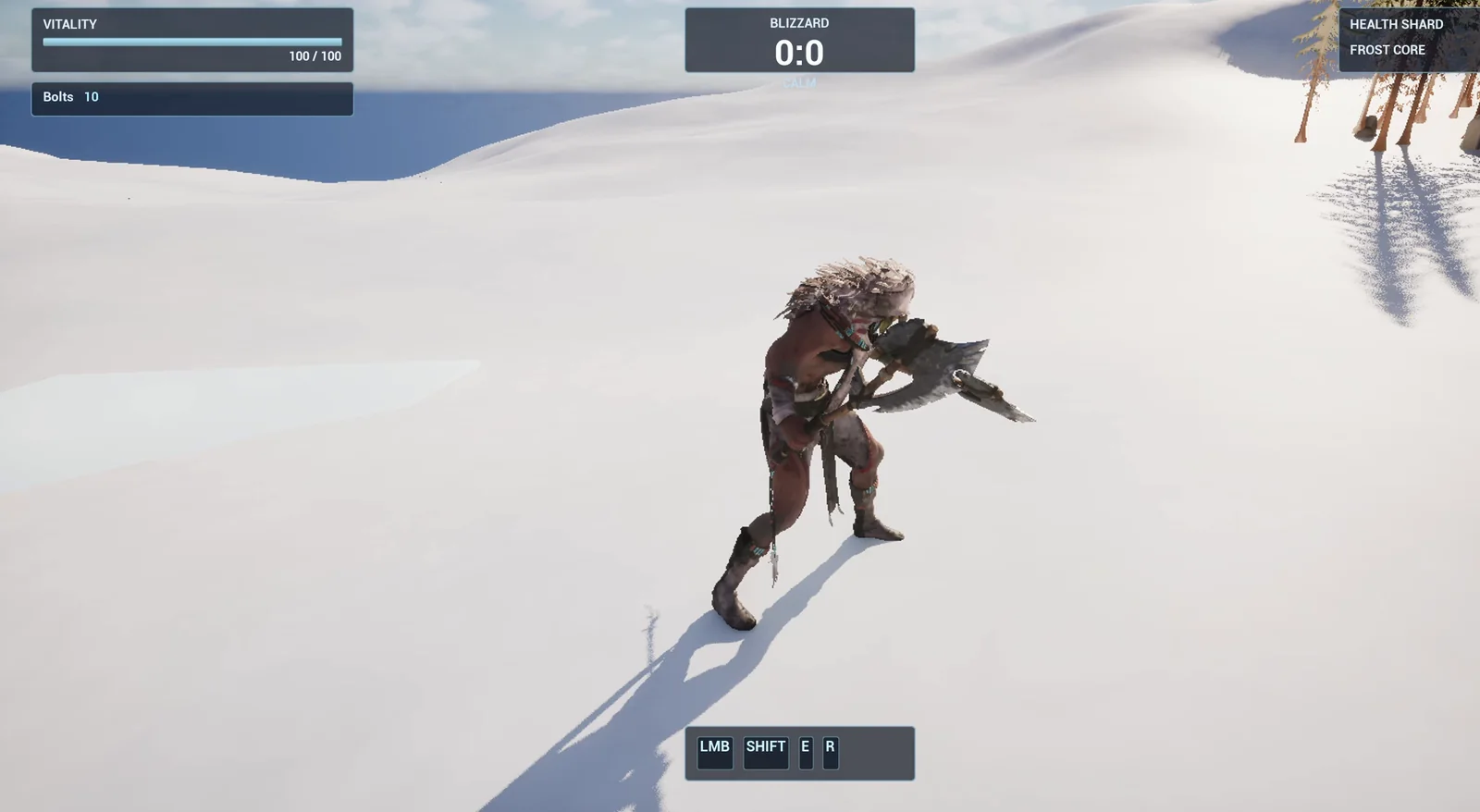
The real run. Pale blue on white snow is hard to see, so you notice the ice in how the character moves.
The prompt
Copy this, change the friction or the patch size, and see what the AI builds:
Make an ice patch. Create BP_IcePatch in /Game/Series/EP34_IcePatch, a flat slippery ice patch 600 by 600 units made from a thin cube with a glossy pale blue material that has a subtle shine, and a trigger box above it. While the player's character is inside the trigger, its ground friction and braking deceleration are lowered so that the player slides: set GroundFriction to 0.3 and BrakingDecelerationWalking to 150. When the player leaves the patch, restore the original values, which the actor must read and remember when the player enters. Show the text Slippery! in the top centre below the existing Blizzard box while the player is on the ice. Keep the friction and the braking values as variables. Place two patches on the snow near the player start, 900 units apart, one rotated 30 degrees. Then play test it: record the character's original friction and braking, step onto a patch and check the values change, check the text is on screen, step off and check the original values are restored and the text is gone, and fix anything that does not work.Two details matter. First, the request gives the exact property names: GroundFriction and BrakingDecelerationWalking. Second, it says the actor must read and remember the original values. A character can have its own friction, and if the patch restores a number it made up, it breaks the character. Always restore what you read.
How the AI builds it
The AI starts by reading the project and the character, to find where the friction lives. Then the assets appear: a pale blue ice material, the ice patch Blueprint and a small widget for the text.
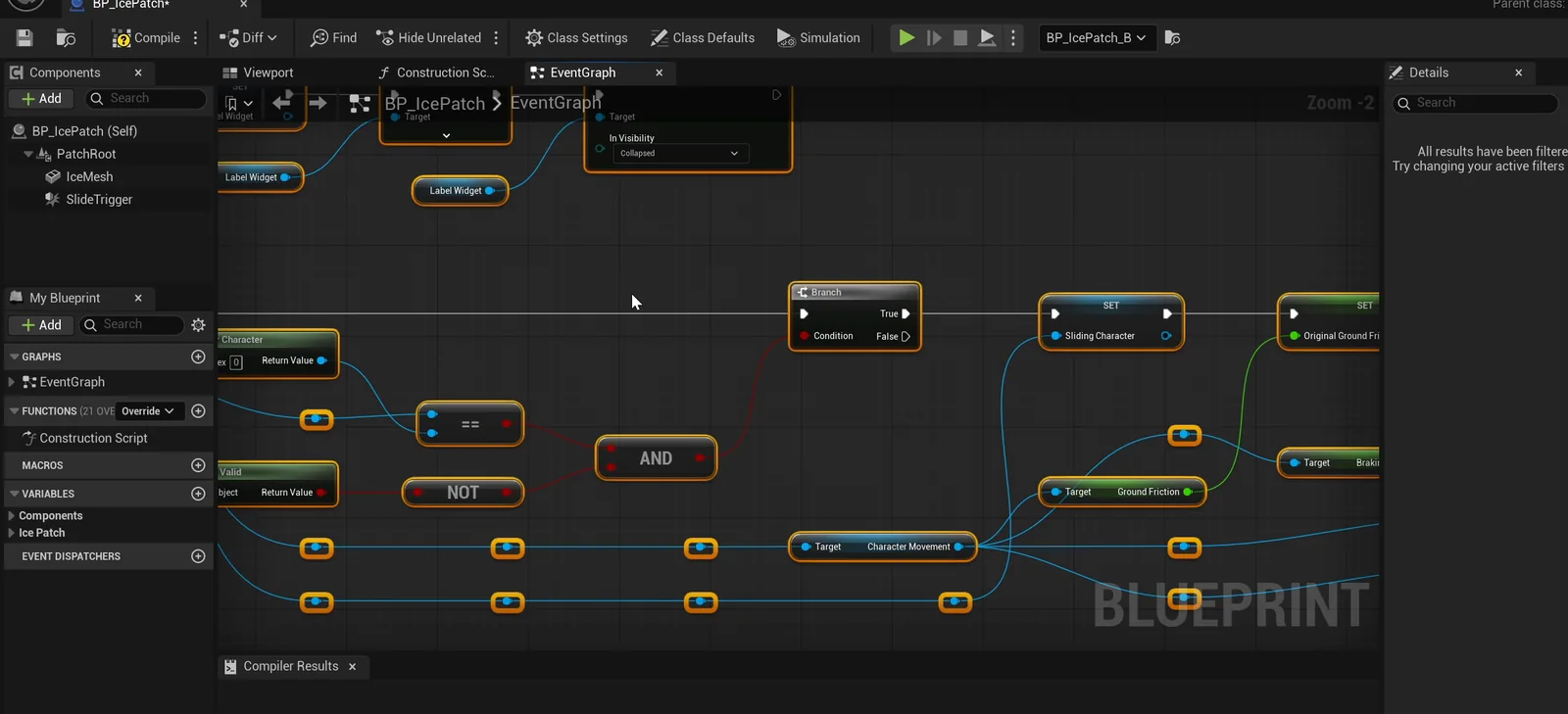
The patch graph. On enter it remembers the original values and applies the ice values. On exit it restores them.
Three things that went wrong
- The ice material came out black. The first version dropped the color values and the shine connection. The AI saw that and set them again.
- The placed patch lost its size. The cube was the root of the Blueprint, so placing the actor reset it to a 100 unit cube and left the trigger floating about 1000 units up. The AI added a plain root with the mesh and the trigger as children.
- The label overlapped the HUD. The “CALM” line of the existing HUD spills out below the Blizzard box, and the label sat on top of it. The AI moved the label down to clear both.
The play test
The AI records the character’s original values first: GroundFriction 8 and BrakingDecelerationWalking 2048. On the first patch, friction drops to 0.3 and braking drops to 150. Stepping off, they return to 8 and 2048. Then the same on the second patch, and all of it passes. The text shows on screen on the ice and is gone after the player steps off.
The report
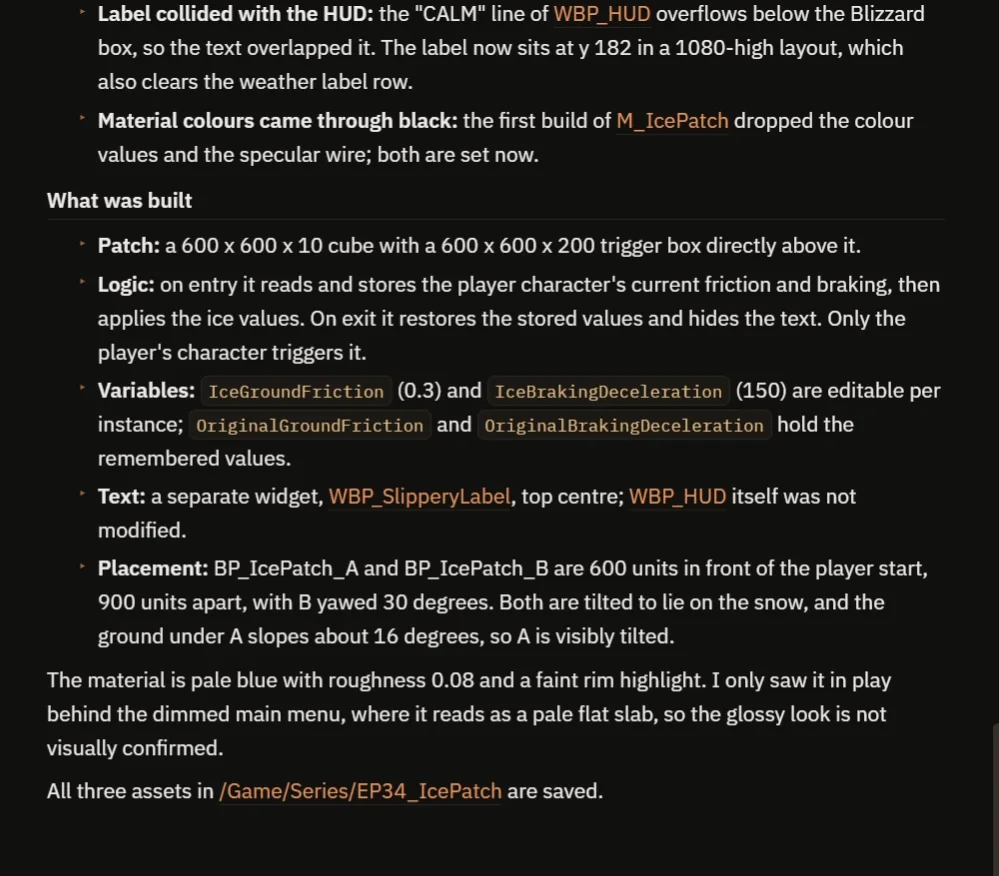
What was built, the fixes and the placement.
The variables are IceGroundFriction (0.3) and IceBrakingDeceleration (150), editable on each patch, and two more that hold the remembered originals. The report is honest about two things:
- The player was moved on and off the ice by teleport, so real sliding under movement keys was not tested.
- The AI only saw the ice behind the dimmed main menu, where it looks like a pale flat slab, so the glossy look is not confirmed.
Pale blue on white snow is hard to see. If you build this, ask for a darker blue or an outline. That is why the video also shows a real run.
How a slippery floor works, in plain words
When the player’s character enters the trigger, the patch reads two numbers from the character’s movement: the ground friction and the braking deceleration. It stores them. Then it writes the ice values, 0.3 and 150, and shows the text. When the character leaves, it writes the stored numbers back and hides the text.
That is why a low braking number matters. The character does not stop when you let go of the keys. It glides. Because the two ice values are variables, you can make a little slippery or a lot, one patch at a time.
Ideas to extend it
- A mud patch with high friction that slows the player down.
- A crackling sound when you slide on the ice.
- A patch that melts and turns back into normal snow after ten seconds.
Copy the prompt, change the friction to zero or the patch to a very big size, and see what the AI builds.
Four tips for slippery floor prompts
- Name the exact properties to change.
- Say to read and restore the original values.
- Give the ice values as numbers.
- Ask for a color that stands out from the ground.
Frequently asked questions
How do I make a slippery floor in Unreal Engine 5?
Lower the character movement’s GroundFriction and BrakingDecelerationWalking while the character is inside a trigger, and restore the stored original values when it leaves.
Why does the patch have to read the original values?
A character can have its own friction. If the patch restored a number it made up, it would break the character. Reading and restoring the originals avoids that.
Why is the ice hard to see in the video?
Pale blue on white snow has little contrast. Ask for a darker blue or an outline if you want the patch to stand out.
Try it in your project
See what Ultimate Engine CoPilot can build on the product page, or get it on Fab. See how the AI Blueprint generator works.
More builds from this series: the Unreal Engine sprint and stamina, the Unreal Engine speed boost and the Unreal Engine slow motion.