Unreal Engine Shop System: Build a Coin Shop With Pedestals Using AI
How to build an Unreal Engine shop: pedestals with prices, a 50 coin balance, F to buy, a Not enough coins refusal and a sold pedestal that does nothing, built by an AI from one request.

A simple shop in Unreal Engine is three ideas: a balance, the coins the player has; a price on every item; and a rule that runs on one key. Is there an item near the player, is it still for sale, and can the player pay? If yes, take the coins and give the item. If not, say why. The easiest way to build one is to ask an AI for the pedestals, the coins and every outcome in a single request.
In this walkthrough, Ultimate Engine CoPilot builds a coin shop where one key buys an item, refuses when there are not enough coins and ignores a sold pedestal. You get the exact prompt, the outcomes the AI tested and a plain explanation of how a simple shop works in Blueprints.
What the finished shop does
At the lower right of the screen there is a small counter: “Coins 50”. You walk up to a stone pedestal with a gold coin floating above it and the price on its side. You press F, and the counter drops to 20, a message says “Bought a Frost Blade”, and a glowing blue sword appears above the pedestal and starts to spin. At the second pedestal, the crown, you press F and the message says “Not enough coins”, and the balance stays the same. At the first pedestal again, nothing happens, because it is already sold.
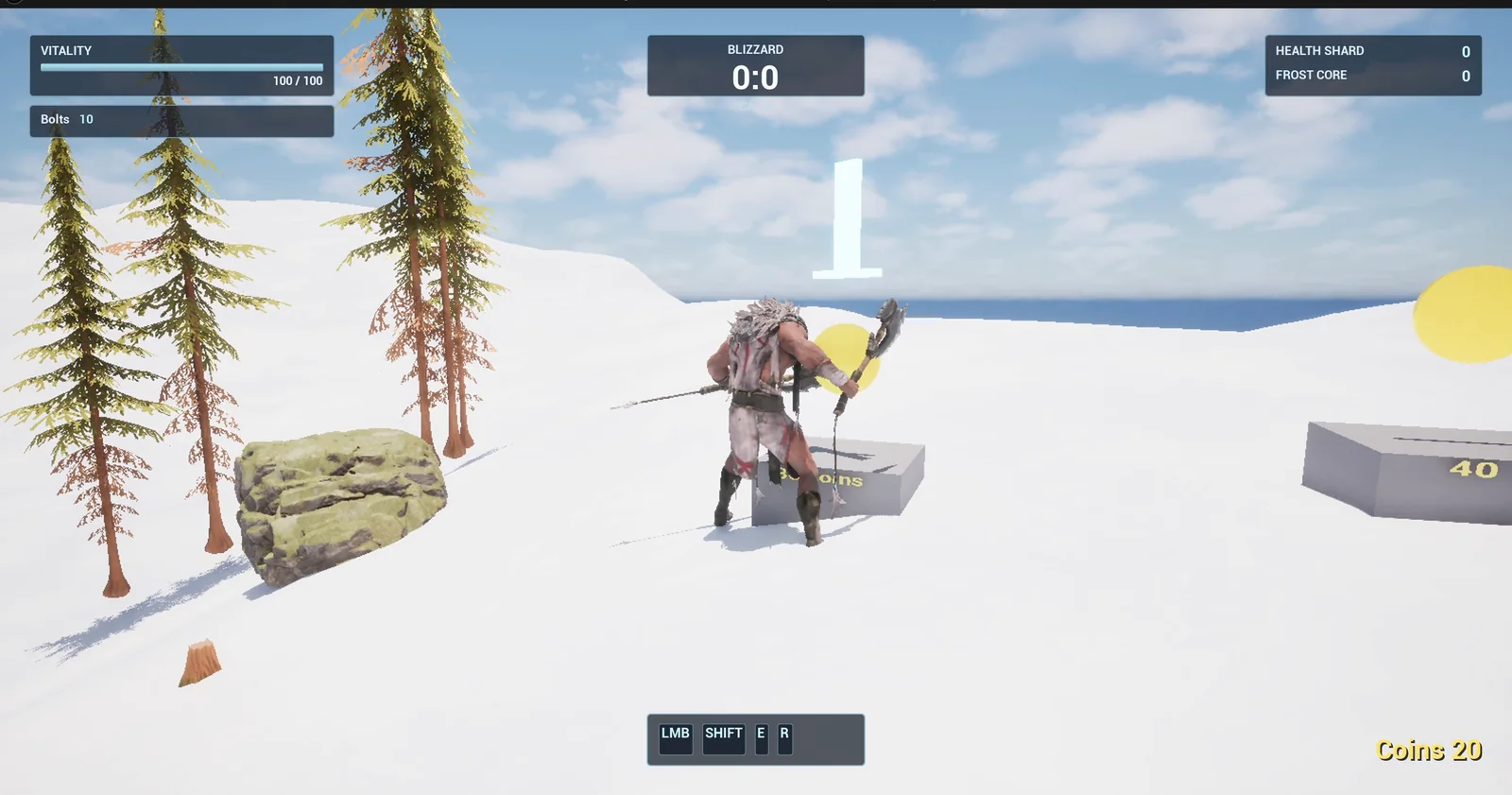
After buying the Frost Blade, the counter reads Coins 20. The 40 coin pedestal is on the right.
The prompt
Copy this, change the items or the prices, and see what the AI builds:
Make a coin shop. Create BP_ShopPedestal in /Game/Series/EP58_Shop, a stone pedestal 120 units wide with a floating gold coin shape above it, ItemName and Price variables and the price on a 3D text. Create BP_ShopManager in the same folder, an actor that I place once in the level, that holds the coin balance (50 at the start) and adds WBP_ShopHud from the same folder on BeginPlay. The widget shows Coins 50 at the lower right, clear of the ability bar, and a message line in the lower centre above the ability bar. When the player stands within 250 units of a pedestal and presses F, compare the balance with its price. If there are enough coins subtract the price, update the coin text, show Bought a Frost Blade for 2 seconds, and make a glowing blue sword shape, built from a thin cube blade and a small cube hilt, appear and spin above that pedestal. If there are not enough, show Not enough coins for 2 seconds and buy nothing. Each pedestal sells once. Place two pedestals on the open snow about 700 units east of the player start, 400 units apart: the Frost Blade for 30 coins and a Gold Crown for 40 coins. Then play test it: check the text reads Coins 50, press F far from both and check nothing happens, buy the Frost Blade and check Coins 20 and the sword, press F at the Gold Crown and check Not enough coins with the balance still 20, and fix anything that does not work.Look at the three outcomes in the request: bought, not enough coins and sold. A shop with only the happy path is a demo. A shop that handles refusals and repeats is a system. And the prices live on the pedestals as variables, so every item has its own.
How the AI builds it
The AI starts by reading the HUD, so the coin counter and the messages can sit clear of the ability bar. Then the assets appear in the Content Browser: the pedestal, the manager, the HUD widget and three materials, for the stone, the gold and the glowing sword.
The pedestal holds the item name and the price, and a hidden sword that appears when sold. The manager has the balance, and on every frame it checks the F key, finds the nearest unsold pedestal within range, and either buys it or shows the refusal.
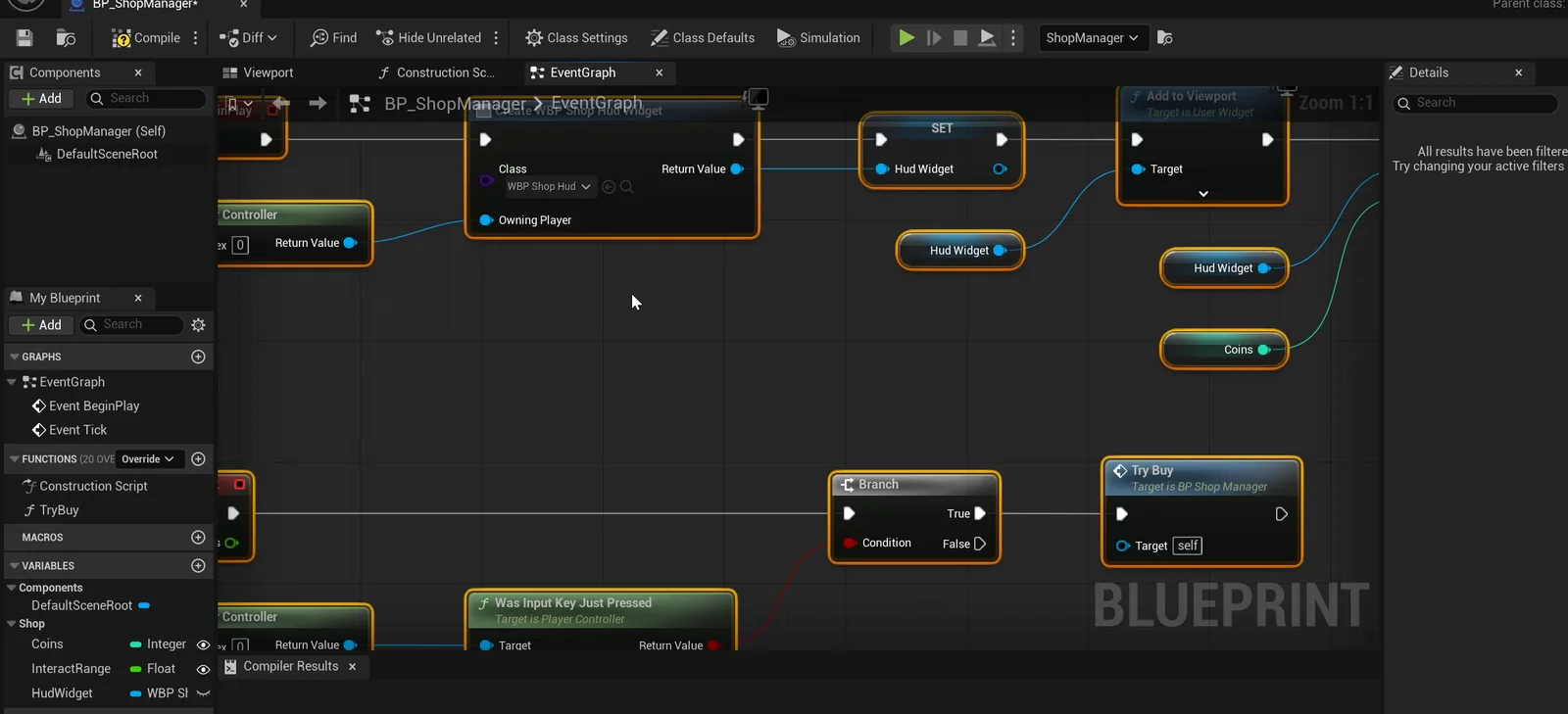
The manager graph: it creates the HUD and handles the F key.
The play test
Everything passes at the first try:
- The HUD reads “Coins 50” at the start, with an empty message.
- F at the player start, 700 units away: the balance stays 50, nothing is sold and the sword stays hidden.
- F at the Frost Blade: the balance is 20, the HUD reads “Coins 20”, the message is “Bought a Frost Blade”, and the sword’s blade and hilt are visible above the pedestal and spinning.
- F at the Gold Crown: “Not enough coins”, the balance is still 20, nothing is sold and there is no sword.
- The message is gone when read again 2.5 seconds later.
- F again at the sold Frost Blade: the balance stays 20, with no message.
The report
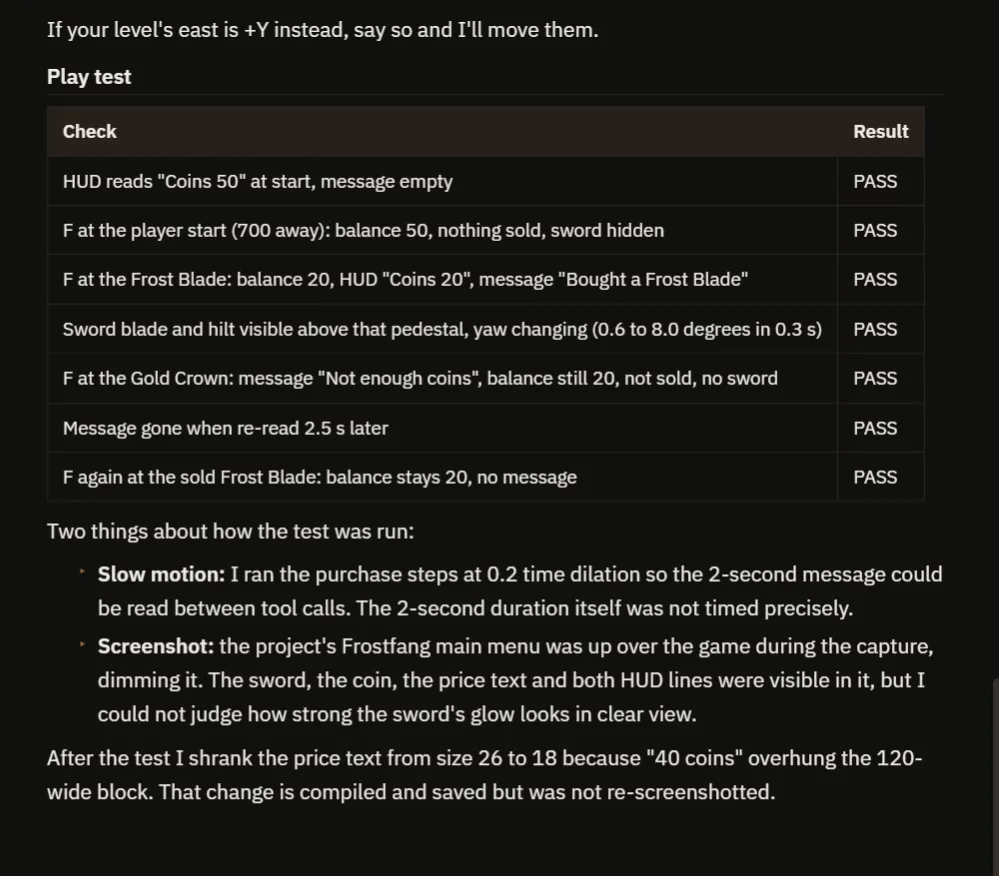
The checks, and how the AI ran them.
The AI also tells you how it ran the checks, and what it could not see clearly:
- The purchase steps ran in slow motion, at 0.2 time dilation, so the 2 second message could be read between tool calls. That means the 2 seconds were not timed precisely.
- The Frostfang main menu was up over the game during the screenshot capture, dimming it. The sword, the coin, the price text and both HUD lines were visible, but the AI could not judge how strong the sword’s glow looks in clear light.
- After the test, the AI shrank the price text from size 26 to 18, because “40 coins” overhung the 120 unit wide block. That change is compiled and saved but was not re-screenshotted.
- If your level’s east is +Y instead of the axis it used, say so and the pedestals will be moved.
That is why the video also shows a real run.
How a shop works, in plain words
When you press F, the manager loops over the pedestals and keeps the nearest one within 250 units that is not sold yet. If there is none, nothing happens. If there is one, it compares the coins with the price. If the coins are enough, the manager subtracts the price, tells the pedestal “you are sold”, and the pedestal shows its sword. It also updates the coin text and starts a two second timer for the message. If the coins are not enough, it only shows the refusal.
Because the coins, the range and the price are variables, you can make a rich player, a poor one, or a whole market by placing more pedestals.
Ideas to extend it
- A way to earn coins, such as a coin pickup. See the Unreal Engine coin collection.
- The sword added to an inventory, instead of floating. See the Unreal Engine inventory system.
- A sound for the buy and a different one for the refusal.
Four tips for shop prompts
- Put the price on every item, as a variable.
- Describe every outcome: bought, not enough coins and sold.
- Give the range and the starting coins as numbers.
- Ask the AI to test the refusal, and the second press.
Frequently asked questions
How do I make a shop in Unreal Engine 5?
Keep a coin balance in a manager, give each item a price, and on a key press find the nearest unsold item in range. If the balance covers the price, subtract it and mark the item sold. If not, show a refusal.
How do I stop an item being bought twice?
Mark the pedestal as sold the first time and skip sold pedestals when searching. Say it in the request, because the AI builds the rule you ask for.
Where should the prices live?
On each pedestal as a variable, so every item has its own. A data table can hold them in one place if you have many items.
Try it in your project
See what Ultimate Engine CoPilot can build on the product page, or get it on Fab. See how the AI Blueprint generator works.
More builds from this series: the Unreal Engine data table, the Unreal Engine coin collection and the Unreal Engine inventory system.