Unreal Engine Data Table: Build a Shop From a Table With AI
How to use an Unreal Engine data table: an item struct, a table with five rows and a spawner that builds one display per row, with the price raised by H, built from one AI request.

A data table in Unreal Engine is a spreadsheet inside the engine. Every column is a field, and every row is one item. The Blueprint does not contain the data. It only knows how to read a row, so you can add a sixth item by adding a row, without opening a single graph. The easiest way to see why games use them is to watch one table build a whole shop.
In this walkthrough, Ultimate Engine CoPilot builds an item struct, a data table with five rows and a spawner that creates one display per row. You get the exact prompt, two visual problems the AI found and fixed and a plain explanation of how a data table works.
What the finished shop does
Five plinths stand in a row in the snow, each with a colored cube, a name, a price and a rarity: a grey Iron Sword, an orange Fire Gem, a blue Frost Shard, a purple Moon Amulet and a Gold Crown. None of them was placed by hand. A spawner read a table and built one display for every row. You press H and every price goes up by 100.
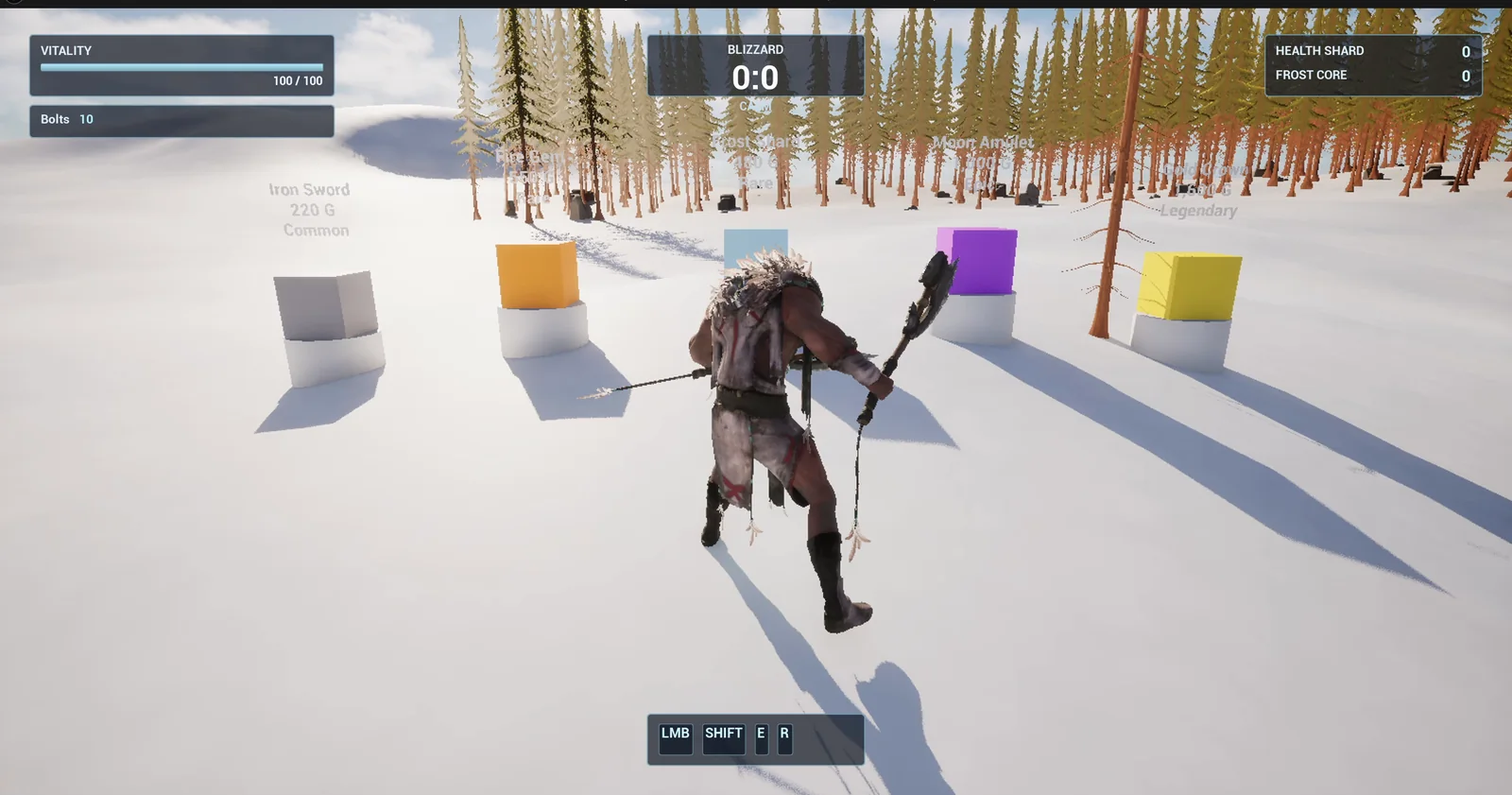
The shop: one display for every row of the table.
The prompt
Copy this, change the items or the prices, and see what the AI builds:
Make a data table shop display. In /Game/Series/EP48_DataTable create a struct F_ItemRow with Name (text), Price (integer), Color (linear color) and Rarity (text), then a data table DT_Items using it with five rows: Iron Sword 120 grey Common, Fire Gem 450 orange Rare, Frost Shard 380 light blue Rare, Moon Amulet 900 purple Epic, Gold Crown 1500 gold Legendary. Create BP_ItemDisplay, a small plinth with a 70 unit cube on top whose color comes from its row, and a text render above it showing the name, the price and the rarity on three lines. Create BP_ItemSpawner, an actor that I place once in the level, that on BeginPlay reads every row of DT_Items and spawns one BP_ItemDisplay per row in a line 250 units apart. When the player presses the H key it adds 100 to every Price and refreshes the texts. Keep the spacing and the price step as variables. Place the spawner 700 units east of the player start so the row runs north to south. Then play test it: check five displays spawn with the right names and colours, press H and check Iron Sword reads 220, and fix anything that does not work.Look at how the data is written in the prompt. Every value is there: name, number, color and rarity. The AI does not invent any of it. And the structure is described, a struct with four fields, which is exactly what a table needs: a row type, and the rows.
How the AI builds it
The AI starts by creating the struct and the table and fills the five rows with your values. Then the assets appear in the Content Browser: the row struct, the table, the display and the spawner. The spacing and the price step are variables on the spawner.
On BeginPlay, the spawner asks the table for all its row names and loops over them. For every name, it gets the row, spawns a display and gives it the data. Pressing H loops over the displays and raises each price.
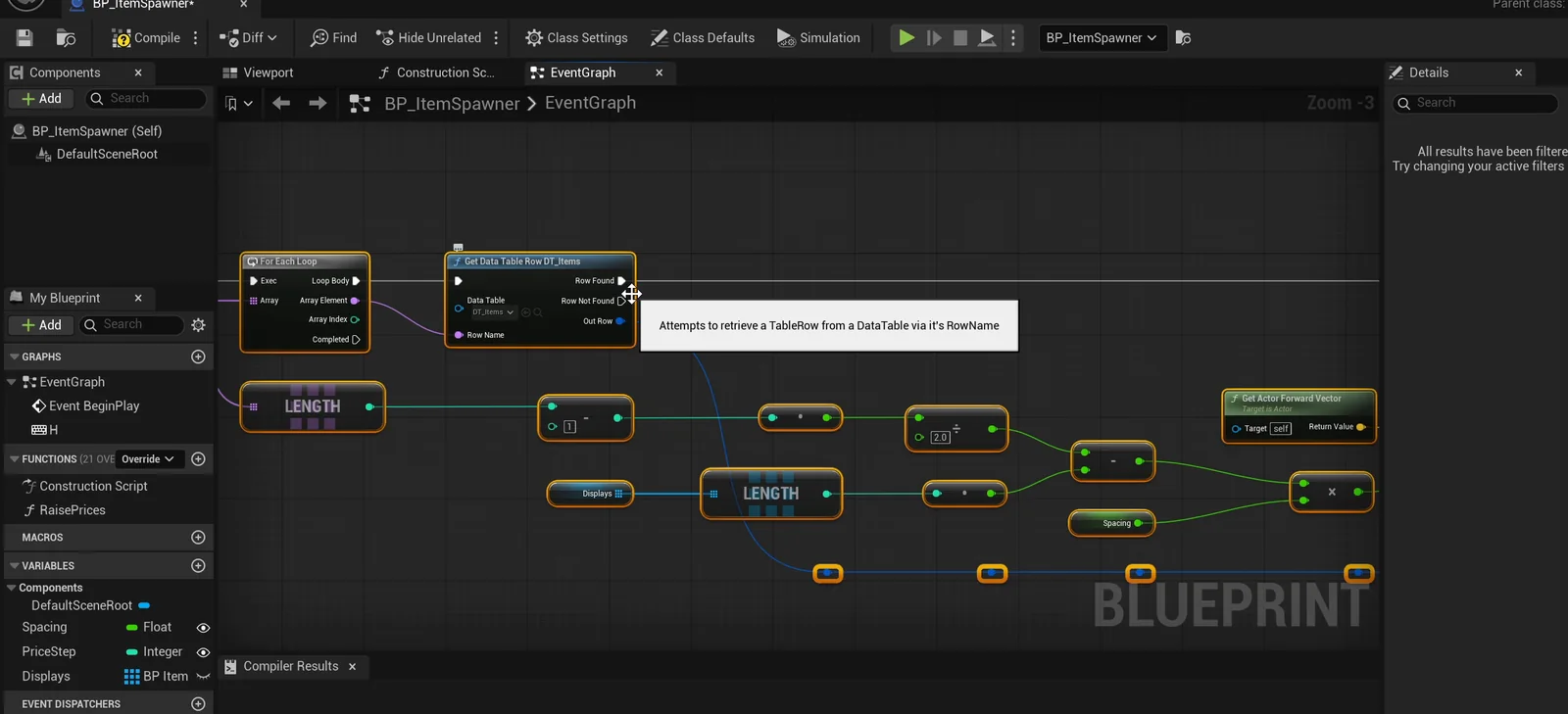
The spawner graph: get the row names, loop and spawn a display for each.
Two visual problems
The data passes: the names, the prices and the rarities. But the screenshots show two problems.
- The cubes were all grey. The basic cube in this engine uses a grid material with no color parameter. So the AI added a material, M_ItemColor, with a Color parameter, and assigned it to the cube and the plinth.
- The plinths floated. The spawner first sat 128 units above the ground, and the terrain slopes by about 50 units along the row. The AI moved the spawner to ground height and gave each display a downward trace that drops it onto the terrain when it spawns.
The report
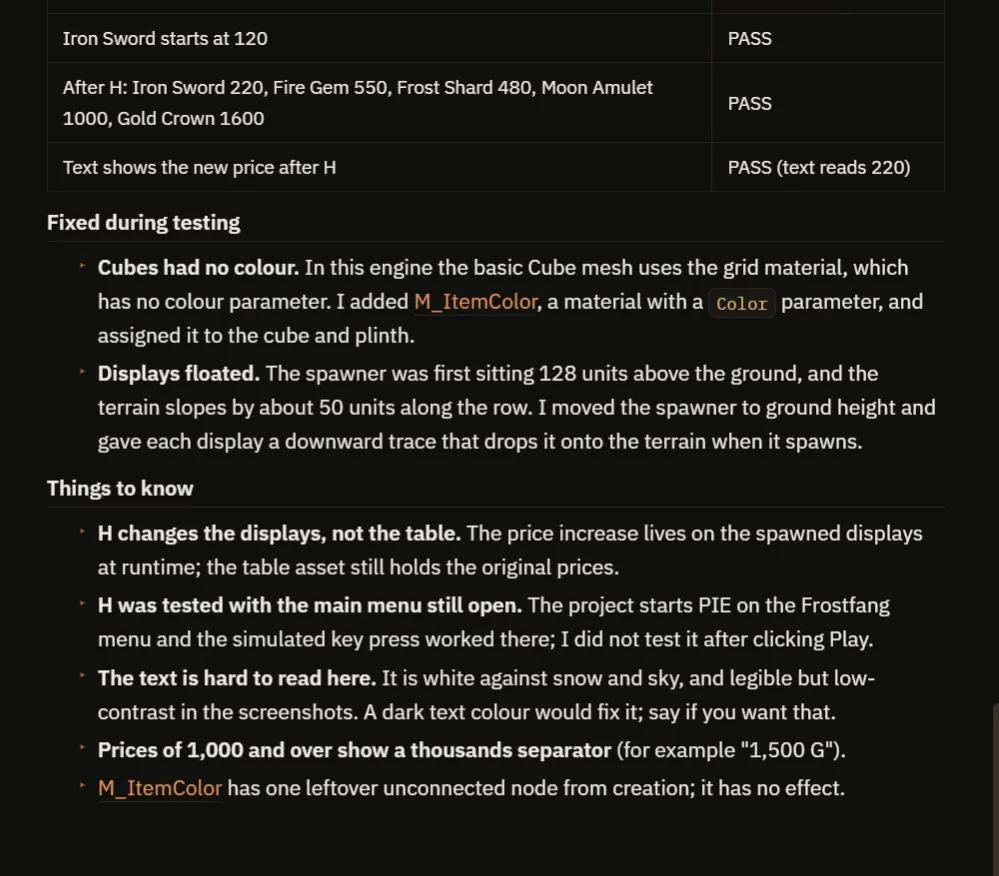
The checks and the notes.
The report confirms that the Iron Sword starts at 120, and after H it is 220, with every other price up by 100 and the text refreshed. It also tells you what to know:
- H changes the displays, not the table. The price increase lives on the spawned displays at runtime, and the table asset still holds the original prices.
- H was tested with the main menu still open. The project starts on the Frostfang menu and the simulated key press worked there, but the AI did not test it after clicking Play.
- The text is white against the snow and sky, so it is hard to read. A dark text color would fix it.
- Prices of 1000 and over show a thousands separator, for example “1,500 G”.
- M_ItemColor has one leftover unconnected node from creation. It has no effect.
How a data table works, in plain words
A data table is a map from a row name to a struct. The spawner calls Get Data Table Row Names, which gives it a list. Then a For Each loop runs once per row, and inside it, Get Data Table Row with that name gives it the struct: name, price, color and rarity. Then it spawns a display and passes the struct to it. The display only shows what it receives.
Add a sixth row in the table, and the spawner builds a sixth display, with no change in the graph. That is why designers love tables: they can balance a whole game in a spreadsheet. Because the spacing and the price step are variables, you can lay it out as a shelf, a circle or a long street.
Ideas to extend it
- A column with an icon or a mesh for each item.
- A buy key that subtracts the price from the player’s coins. The coin collection article builds a coin counter.
- A table that is filled from a CSV file.
Four tips for data table prompts
- Describe the struct field by field.
- Give every row with its values.
- Say that the Blueprint must read the table and never hold the data.
- Ask the AI to check the data and the visuals, both.
Frequently asked questions
What is a data table in Unreal Engine?
A spreadsheet inside the engine. A struct defines the columns and each row holds one item’s values, which Blueprints read by row name.
How do I spawn actors from a data table?
Get the row names, loop over them, get each row’s struct, spawn an actor and pass the struct to it. Adding a row adds an actor with no graph change.
Why did the cubes come out grey at first?
The basic cube uses a grid material with no color parameter. The AI added its own material with a Color parameter and assigned it.
Try it in your project
See what Ultimate Engine CoPilot can build on the product page, or get it on Fab. See how the AI Blueprint generator works.
More builds from this series: the Unreal Engine gameplay tags, the Unreal Engine inventory system and the Unreal Engine item bar.