Unreal Engine Time of Day Clock: Build a Day and Night Clock Using AI
How to build an Unreal Engine time of day clock: a panel that reads the time from the sun light, shows a sun or moon icon and skips 3 hours on N, built and tested by an AI.

A time of day clock in Unreal Engine is three ideas: the sun, a directional light that rotates around the world; a rule that turns its angle into hours and minutes, noon when it is highest and midnight when it is lowest; and a widget that shows the time with a sun by day and a moon by night. If the sun’s angle is the truth, the clock is only a reading. The easiest way to build one is to give an AI the rule and the day length in a single request.
In this walkthrough, Ultimate Engine CoPilot builds a day and night clock at the top right of the screen. You get the exact prompt, how the AI tested the time against the sun, one failed check that was the AI’s own and a plain explanation of how a clock can read the rotation of a directional light.
What the finished clock does
At the top right of the screen, below the shard and core counters, there is a small dark panel with a time and an icon. At night it shows a pale moon and the snow world is dark. The time runs and the light runs with it. Then the sun comes up, the icon turns into a yellow sun with rays and the snow is bright again. You can also press N, and the time jumps three hours.
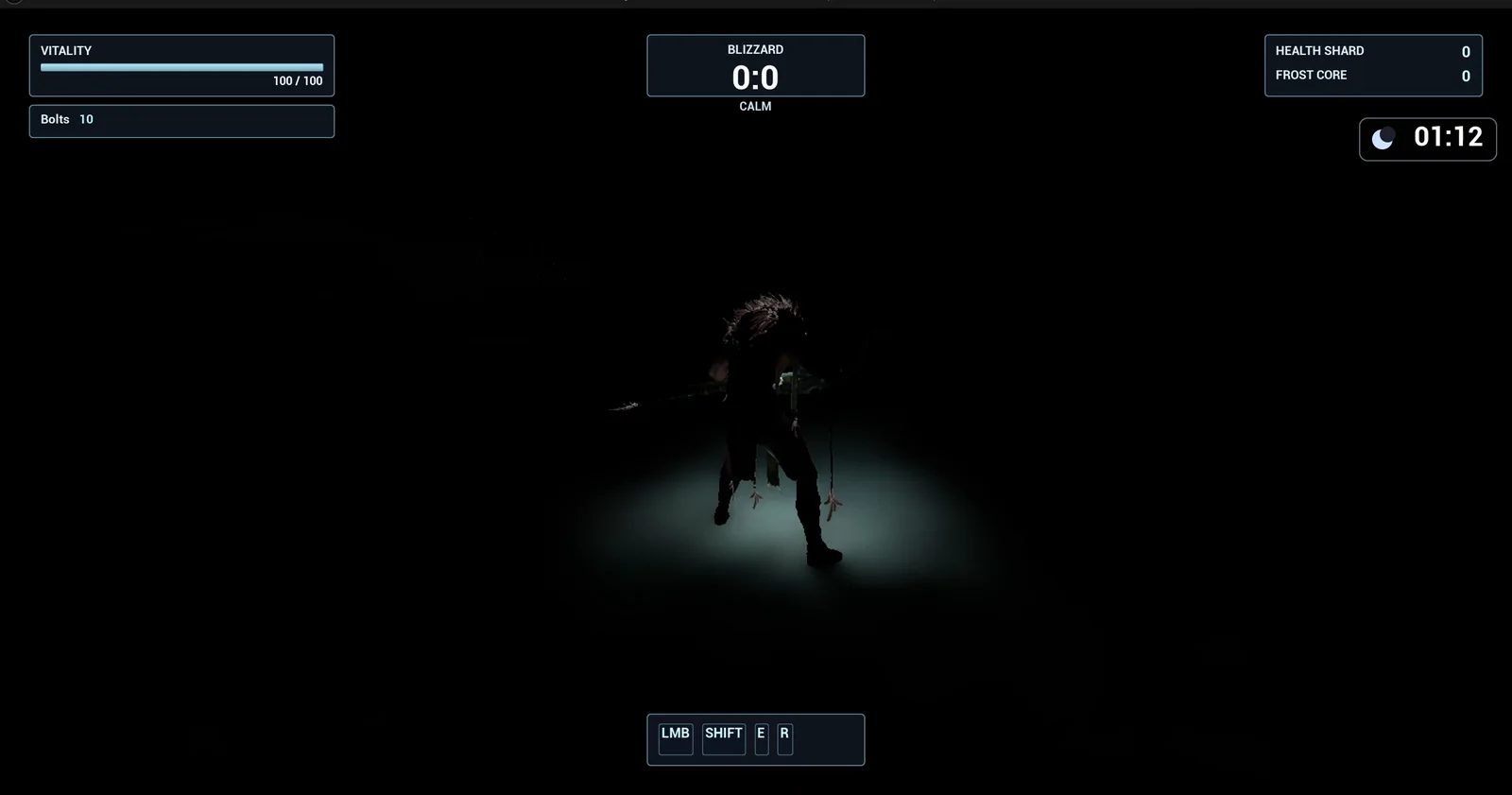
Night: the clock reads 01:12 with the moon icon, and the world is dark.
The prompt
Copy this, change the day length or the skip, and see what the AI builds:
Make an in-game clock that follows the day night cycle of the sky. Create WBP_DayClock in /Game/Series/EP63_Clock, a dark rounded panel 190 pixels wide and 60 high on the right edge of the screen at y 150 to 210, below the existing top right counters, with the time as HH:MM in large white text and an icon built from shapes: a yellow circle with short ray bars by day, and a pale blue circle with a smaller dark circle overlapping it as a crescent at night. Create BP_DayClockController in the same folder, an actor that I place once in the level, that adds the widget on BeginPlay and finds the directional light acting as the sun. If that light is not already animated, the controller rotates it so one full day takes 120 seconds (variable DayLengthSeconds). Compute the time from the sun pitch, 12:00 with the sun highest and 00:00 lowest, and show the sun icon from 06:00 to 18:00 and the moon otherwise. The N key skips 3 hours by turning the sun 45 degrees. Keep the skip hours as a variable. Place the controller anywhere near the player start. Then play test it: read the clock, wait 10 seconds and check the time moves and matches the sun pitch, press N and check the time jumps 3 hours, skip until 20:00 and check the moon icon shows, and fix anything that does not work.Look at the first rule: “If that light is not already animated”. A world may already have a sun that moves, and two things fighting over one light is a classic bug, so the prompt tells the AI to check first. And look at the time rule, based on the pitch of the sun. There is one source of truth, the light.
How the AI builds it
The AI creates the two assets, the widget and the controller, and they appear in the Content Browser. The panel is dark and rounded, 20 pixels from the right edge. The sun is a circle with eight small ray bars, and the moon is a pale circle with a dark circle on top. The day length and the skip hours are variables on the controller.
On begin play, the controller picks the directional light flagged as the atmosphere sun, and falls back to the first directional light. For 0.3 seconds it watches whether the rotation changes by itself. If it does not, the controller takes over and turns the light on every tick. In this level nothing else animated the light, so the controller took over. It converts the pitch to hours and updates the text and the icons.
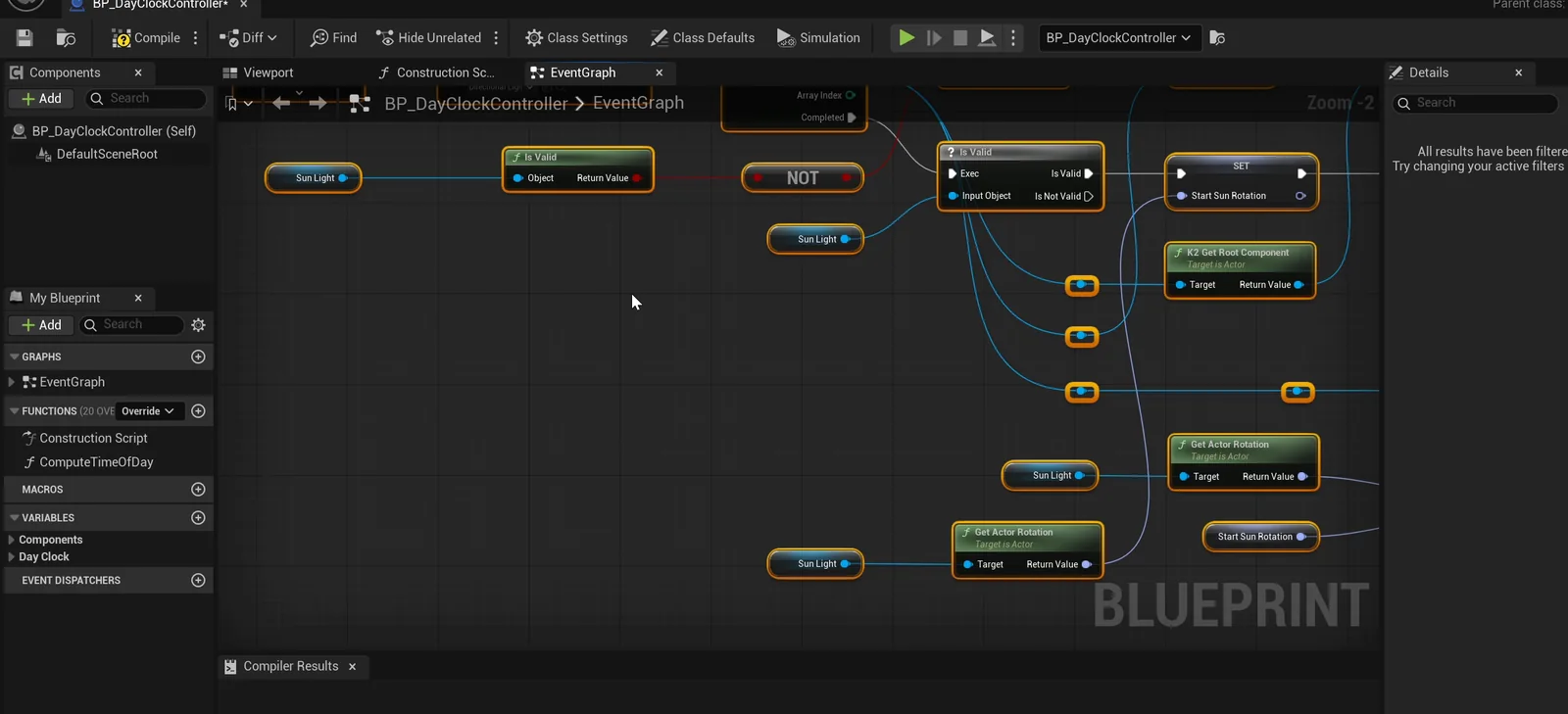
The controller graph: find the sun, remember its start rotation and read it back.
The play test
The play test passes with no fixes to the Blueprints:
- The clock reads 17:43 at the start. Ten seconds later it reads 19:44, two hours later, which is what a 120 second day should give.
- The pitch of the light matches the time at every check: a pitch of minus 4.2 gives 17:43, 26 gives 19:44 and 72 gives 22:48.
- N jumps three hours, and the sun turns 45 degrees.
- The moon shows past 20:00, and the sun comes back at 06:45.
One failed check that was the AI’s own
One assert failed, and it was the AI’s own extra check. It tested for wrapping into daytime, read 05:57, just before sunrise, and failed. The widget a few seconds later read 06:45 with the sun icon, so the clock was right and the check was too early.
The report
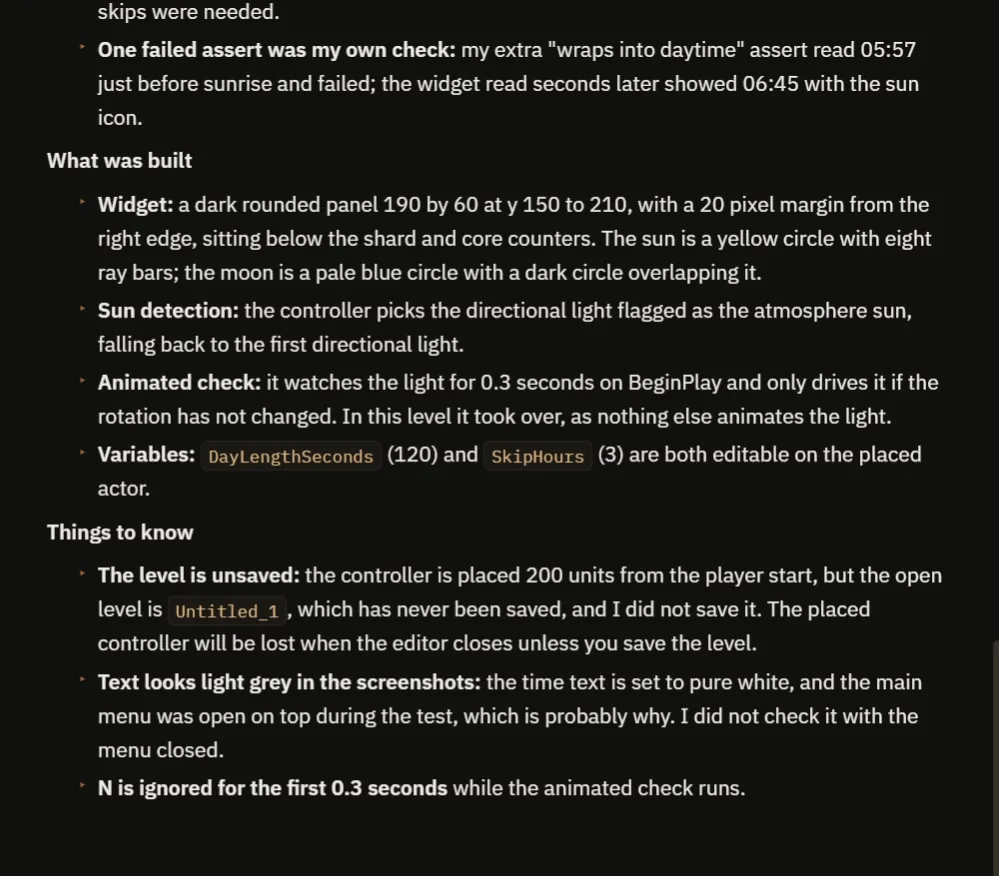
The failed assert, what was built and the notes to know.
The report also tells you what to know:
- The level is unsaved. The controller is placed 200 units from the player start, but the open level is Untitled_1, which has never been saved, so the placed controller is lost when the editor closes unless you save the level.
- The time text looks light grey in the screenshots. It is set to pure white, and the main menu was open on top during the test, which is probably why. The AI did not check it with the menu closed.
- N is ignored for the first 0.3 seconds, while the animated check runs.
That is why the video also shows a real run: the clock at night, N jumping the time, and the day coming.
How a day clock works, in plain words
A directional light has a pitch, an angle that changes as the sun moves. The controller turns the pitch into a fraction of the day, with noon when the sun is highest and midnight when it is lowest, and multiplies by 24 to get hours. Then it formats the hours and the minutes and compares the hour with the day and night limits to choose the icon. The skip is the same maths in reverse: 45 degrees is three hours.
Because the day length is a variable, you can make a day last two minutes or twenty with one number.
Ideas to extend it
- A date, with days that count up.
- Lamps that turn on in the evening. See the Unreal Engine day night cycle.
- A short sound at dawn.
Four tips for clock prompts
- Say where the time comes from: the light.
- Tell the AI to check whether something already animates the sun.
- Give the day length as a number.
- Ask for a skip key, so you can test a whole day in seconds.
Frequently asked questions
How do I make a day night clock in Unreal Engine 5?
Read the time from the sun. Find the directional light, convert its pitch into a fraction of the day and show it as hours and minutes in a widget, with a sun or moon icon chosen from the hour.
What if my sun already moves on its own?
Do not fight it. The controller here watches the light for 0.3 seconds and only rotates it if nothing else does. Two things driving one light is a classic bug, so say “if it is not already animated” in your request.
How do I test a whole day quickly?
Add a skip key. Here N turns the sun 45 degrees, which jumps the clock 3 hours, so you can reach the evening in a few presses.
Try it in your project
See what Ultimate Engine CoPilot can build on the product page, or get it on Fab. See how the AI Blueprint generator works.
More builds from this series: the Unreal Engine day night cycle, the Unreal Engine weather system and the Unreal Engine minimap.