Unreal Engine Key Door: Build a Door That Needs Two Keys With AI
How to build an Unreal Engine key door: a red key and a blue key, a Keys 0/2 counter and a stone door that slides up 400 units once you hold both, built from one AI request.

A key door in Unreal Engine is three small ideas: a key that can be picked up, a counter that remembers which keys you have, and a door that asks one question when you touch it. Do I have both? If yes, open. If not, say so. The easiest way to build one is to ask an AI for the whole system in a single request, with its keys, door and on-screen text.
In this walkthrough, Ultimate Engine CoPilot builds a stone door that opens only when you hold a red key and a blue key. You get the exact prompt, a bug the AI found on the screen and a plain explanation of how a two key door works.
What the finished door does
There is a stone door in the snow, and two keys, a red one and a blue one. At the top of the screen, a small text reads “Keys 0/2”. You touch the door and it says “Door locked, you need two keys”. You pick up the first key: “Keys 1/2”. The second key: “Keys 2/2”. Now you touch the door, and it slides up.
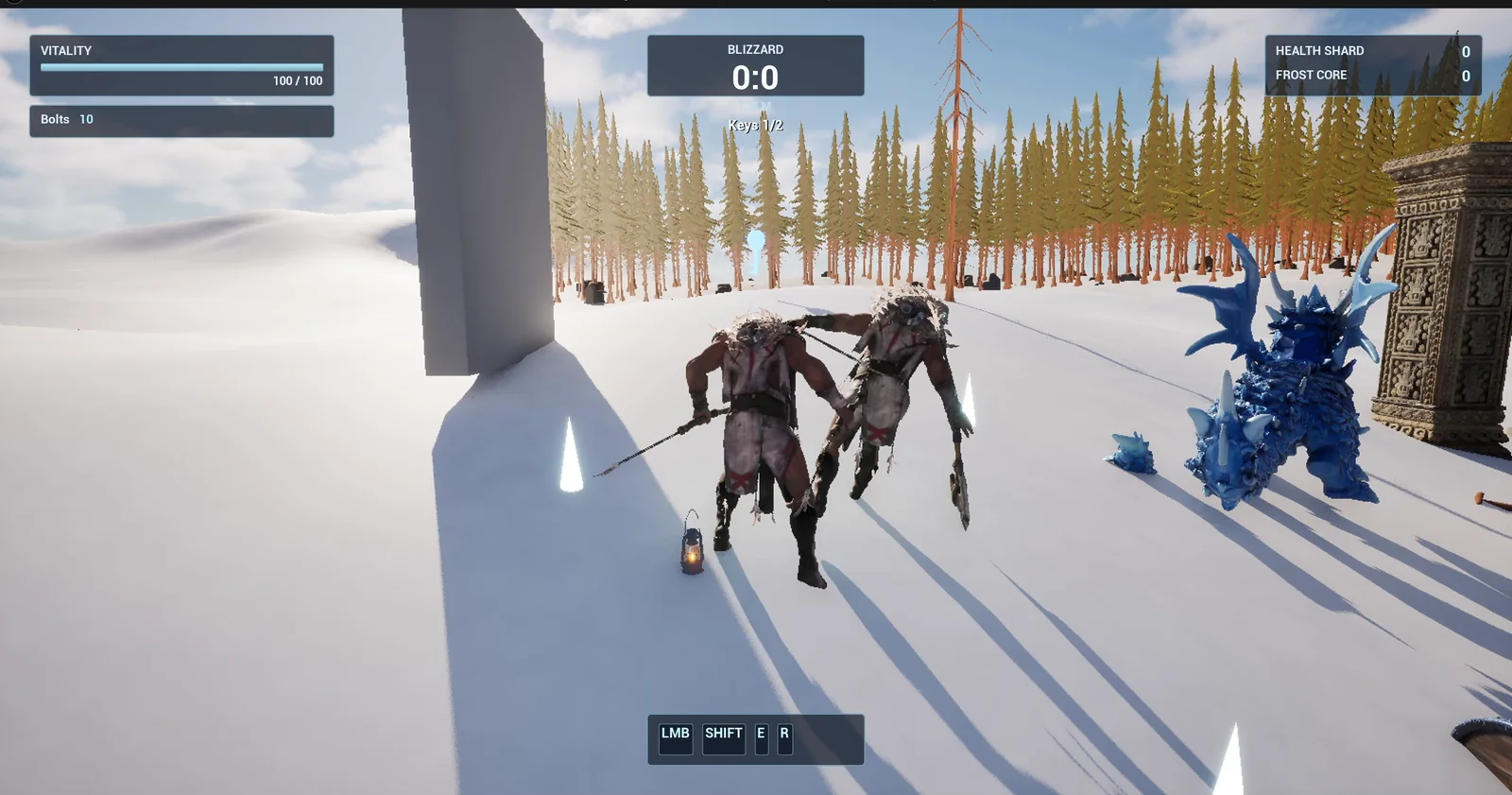
The stone door at the left and the player on the snow.
The prompt
Copy this, change the colors or the slide time, and see what the AI builds:
Make a door that needs two keys. Create BP_KeyPickup in /Game/Series/EP41_TwoKeyDoor, a floating spinning key with a Color variable, red or blue, that is collected when the player touches it, with a small pop of particles replaced by a quick scale-down. Create BP_TwoKeyDoor in the same folder, a stone door 300 units wide and 400 high that slides up 400 units over 1.5 seconds once the player has collected both a red and a blue key. Show a small text in the top centre below the existing Blizzard box: Keys 0/2, Keys 1/2, Keys 2/2, and Door opened. If the player touches the door with fewer than two keys, show Door locked, you need two keys for 2 seconds. Keep the slide height and time as variables. Place the door near the player start, a red key 800 units to its left and a blue key 800 units to its right. Then play test it: touch the door with no keys and check the locked text, collect the red key and check Keys 1/2, collect the blue key and check Keys 2/2, touch the door and check it opens, and fix anything that does not work.Look at how the request tells a small story. No keys: locked. One key: still locked. Two keys: open. Every state has its own text, and the AI builds and tests every one of them. And look at the numbers: 400 units, 1.5 seconds and 2 seconds. They become variables you can change.
How the AI builds it
The AI starts by reading the project. It finds the Blizzard box in the HUD and where it ends, so the keys text can sit right under it. It also checks an older door from another episode, to reuse the stone material.
Then the assets appear: a color enum with Red and Blue, two key materials, the key Blueprint, the door Blueprint and the small HUD widget for the text. The materials are applied in the construction script, so the key shows the right color in the editor before you press Play. The door gets its slide with a timeline. When you touch a key, it tells the door, shrinks to nothing in 0.2 seconds and removes itself.
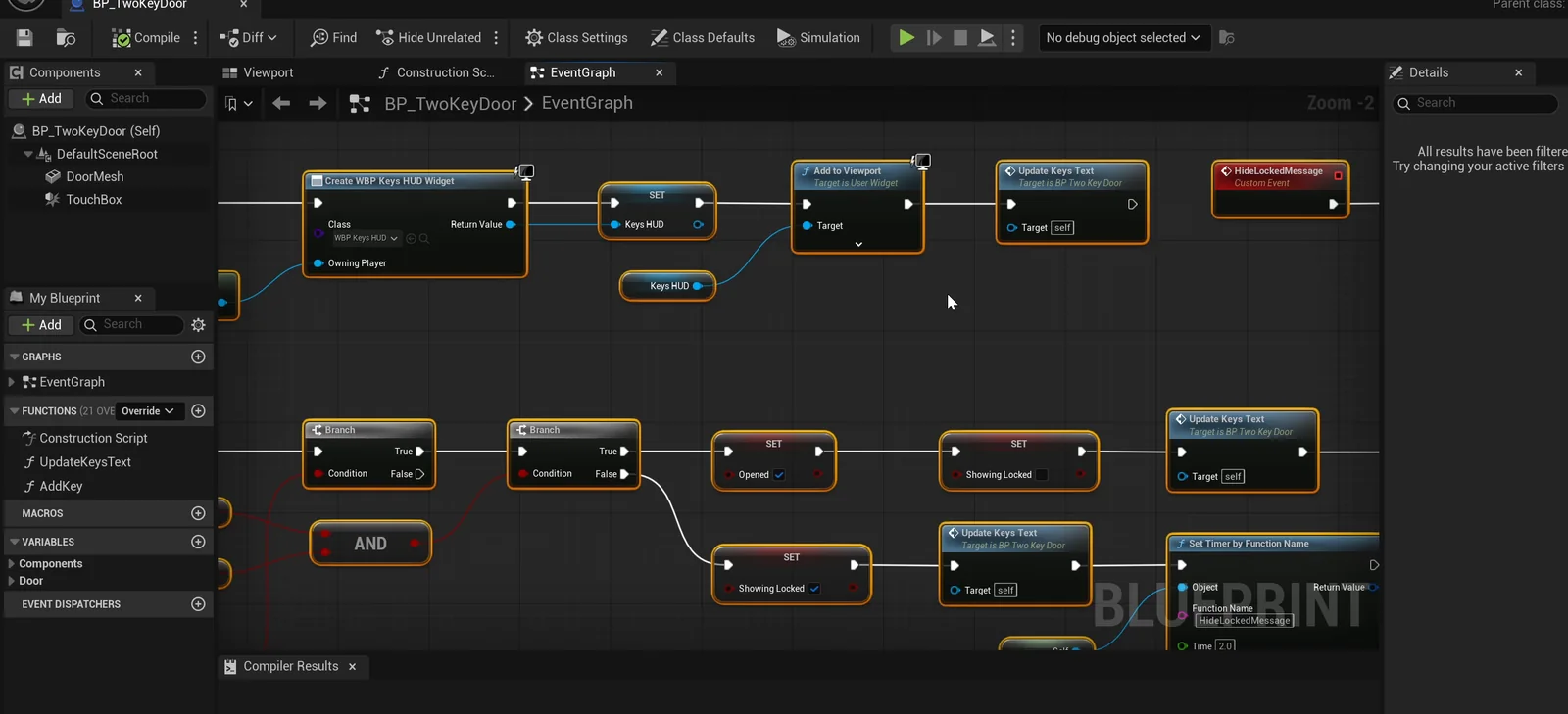
The door graph: the touch checks both keys, then the timeline slides the door up.
The play test and one bug
Twelve checks, and all of them pass: “Keys 0/2” at the start, the locked message, then “Keys 1/2” after the red key and “Keys 2/2” after the blue key. The door slides, about 200 units at the middle of the slide, and ends exactly 400 units up.
Then the AI looks at a screenshot and finds one real bug. The keys text was anchored to the top left, so it sat half off the screen. It re-anchored the text to the top center, moved it a little lower, below the Blizzard box, and checked again.
The report
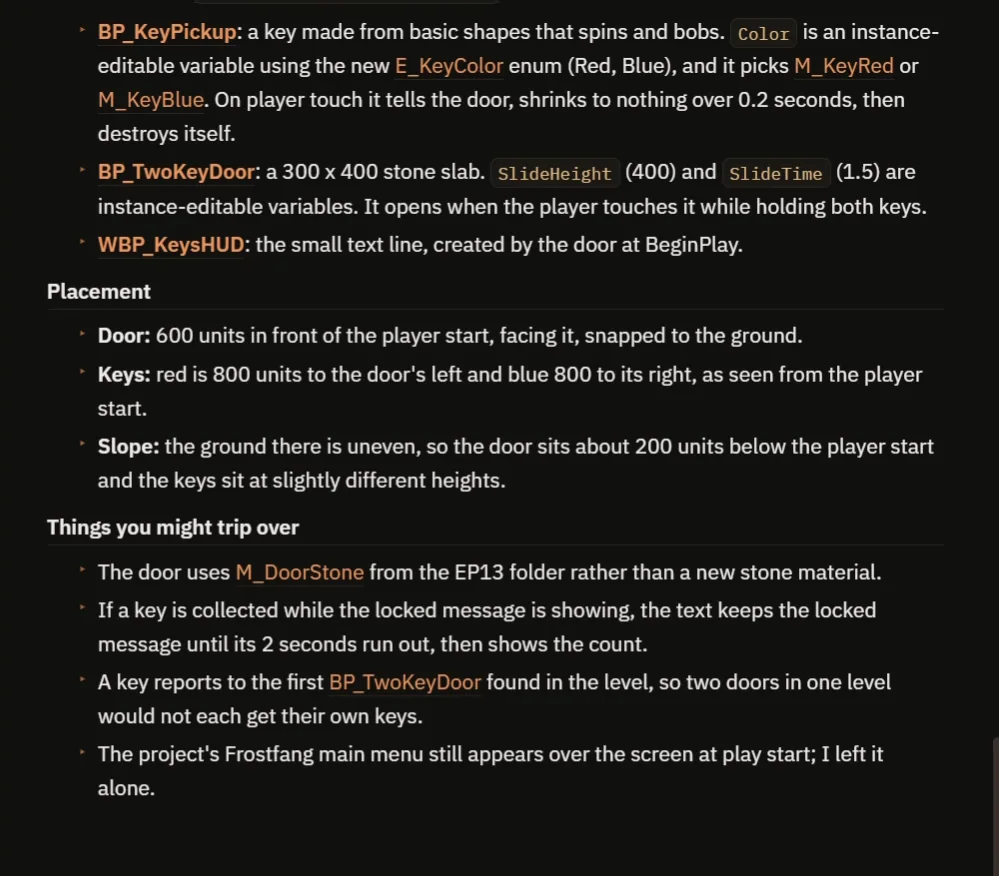
What was built, where it sits and what to watch for.
The report lists the variables: SlideHeight (400) and SlideTime (1.5) on the door, and the key color on each key. It tells you what to watch for:
- A key reports to the first door it finds in the level, so two doors in one level would need a little more work.
- The door borrows the stone material, M_DoorStone, from the older episode.
- If a key is collected while the locked message is showing, the text keeps the locked message until its 2 seconds run out, then shows the count.
- The ground there is uneven, so the door sits about 200 units below the player start and the keys sit at slightly different heights.
- The project’s main menu still appears over the screen at play start.
The test also teleported the player to each place. That is why the video shows a real run.
How a two key door works, in plain words
Each key has a color. When the player touches a key, the key tells the door: I am the red one, or I am the blue one. The door stores two answers, have red and have blue, and updates the text with the count of how many are true.
When the player touches the door, one branch checks both answers together. If both are true, the timeline plays, and the door moves up by the slide height over the slide time, and the text says “Door opened”. If not, the text says “Door locked”, and a two second timer removes it. Because the slide height and the slide time are variables, you can make a heavy gate or a fast trapdoor with two numbers.
Ideas to extend it
- A third key, a gold one.
- A small sound when a key is collected, and a heavy stone sound when the door opens.
- Keys that show as icons on the screen, instead of text.
Four tips for key door prompts
- Describe every state with its own text.
- Give the slide height and time as numbers.
- Say where every piece goes, relative to the player start.
- Ask the AI to test the locked case, not only the open one.
Frequently asked questions
How do I make a door that needs two keys in Unreal Engine 5?
Give each key a color. When a key is touched, the door records that color and updates a counter. When the player touches the door, open it only if both answers are true.
How do I show how many keys the player has?
Use a small text widget that the door updates after each pickup: Keys 0/2, 1/2 and 2/2, then “Door opened”.
Can I put two doors in one level?
Not as built. A key reports to the first door it finds in the level, so two doors would need a little more work.
Try it in your project
See what Ultimate Engine CoPilot can build on the product page, or get it on Fab. See how the AI Blueprint generator works.
More builds from this series: the Unreal Engine pressure plate, the Unreal Engine lever and bridge and the Unreal Engine interaction prompt.