Unreal Engine Camera Shake: Build a Hit Flash, Screen Shake and Explosion With AI
How to add camera shake in Unreal Engine: a hit flash with a light shake and a quick zoom punch on T, and an orange explosion with a strong shake on Z, built by an AI.

Camera shake in Unreal Engine is small and fast, and it is what makes a hit feel real. A hit effect is four ideas started on the same frame: a flash on the thing that was hit, a camera shake with a scale for how strong it is, a quick field of view punch and, for big impacts, a burst of shapes. The easiest way to build all of it is to give an AI the scales, the punch and the burst in a single request.
In this walkthrough, Ultimate Engine CoPilot builds a hit flash with a light shake and a quick zoom on the T key, and an orange explosion with a strong shake on the Z key. You get the exact prompt, four problems the AI found in its own work and a plain explanation of how camera shake and the field of view punch work.
What the finished effects do
Two stone blocks stand in the snow. You press T next to one: the nearest block flashes orange, the camera gives a little jolt and the view punches in with a quick zoom. You press Z: an orange explosion bursts in front of you, small orange cubes fly outward and the shake is much stronger. A small text under the top left bars says which shake was used.
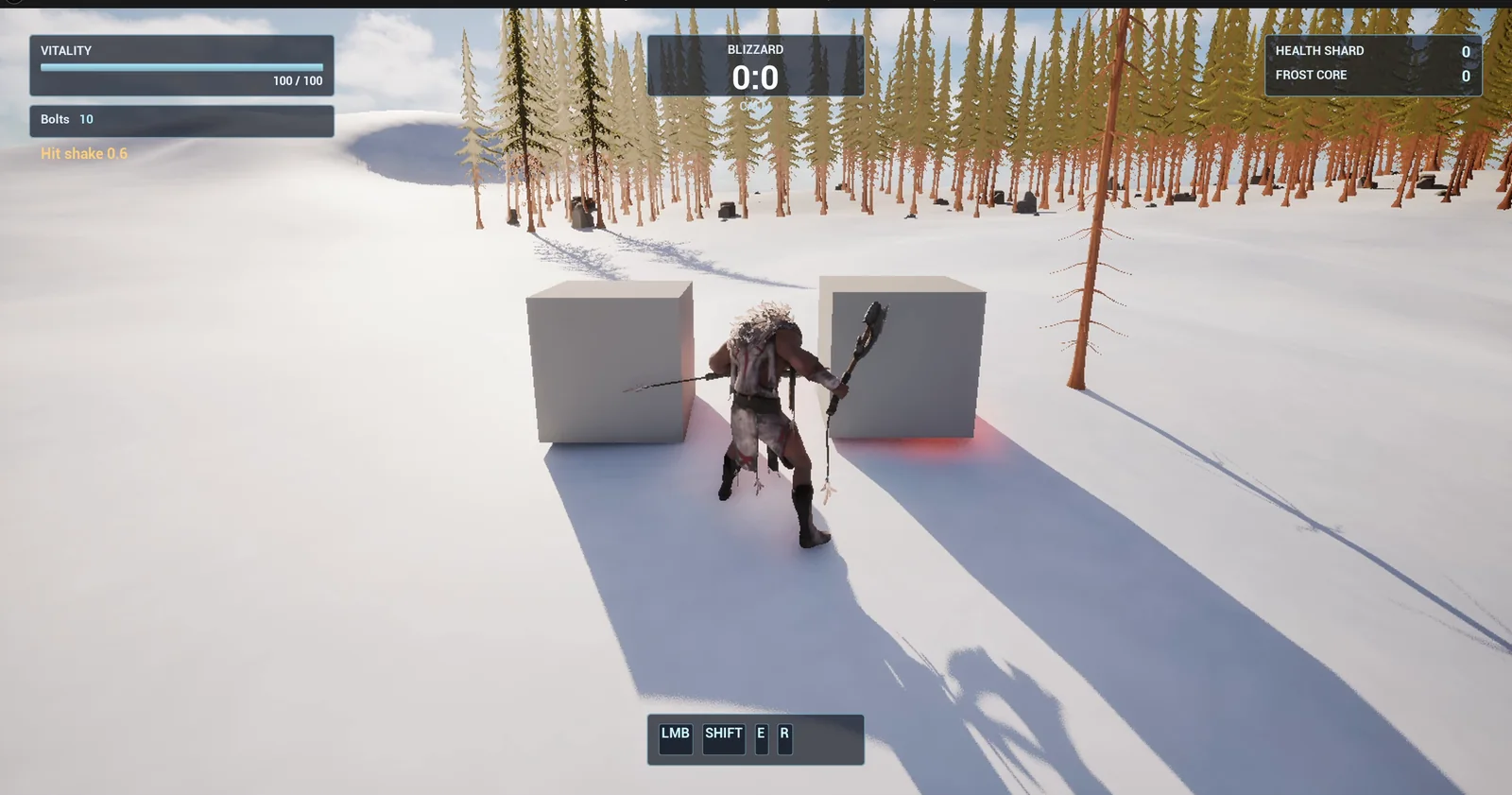
The two blocks, and the text under the top left bars that reads Hit shake 0.6.
The prompt
Copy this, change the shake scales or the punch, and see what the AI builds:
Make a hit feel with camera shake and a screen punch. Create BP_ShakeTarget in /Game/Series/EP61_HitShake, a stone block 150 units wide that flashes orange for 0.15 seconds when hit. Create BP_ShakeController in the same folder, an actor that I place once in the level, that listens for two keys. T hits the nearest target within 500 units and shakes the camera lightly. Z sets off a small explosion 400 units in front of the player, a bright orange sphere that grows to 300 units and fades in 0.4 seconds with 12 small orange cubes thrown outward, and shakes the camera strongly. Make the shake a Blueprint camera shake class, CS_HitShake, in the same folder, played with a scale, plus a screen punch: the camera field of view dips by 6 degrees for 0.1 seconds and eases back over 0.2 seconds. Keep as variables: HitShakeScale 0.6, ExplosionShakeScale 1.5, duration 0.35 seconds, FOV punch 6. Show the last effect as a small text under the existing top left bars, such as Hit shake 0.6 or Explosion shake 1.5. Place two targets on the open snow about 600 units east of the player start, 300 units apart. Then play test it: teleport the player next to a target, press T and check the text, the flash and that the shake and field of view change fire, press Z and check the explosion and stronger scale, set HitShakeScale to 0.2 and check the next hit uses it, and fix anything that does not work.Look at the variables: the shake scale for a hit, the scale for an explosion, the duration and the punch. Game feel is all about tuning, and you cannot tune what is hard coded. And look at the two keys, one light and one strong. The same shake class, played at two scales, gives two different feelings.
How the AI builds it
The AI starts with the shake class, the target, the explosion, the debris and the text widget, and then three materials. Many assets appear in the Content Browser, because a small effect needs many small parts. The hit scale, the explosion scale, the duration, the punch, the hit range and the explosion distance are all variables on the controller.
The controller searches for the nearest block, flashes it, starts the shake on the camera manager with a scale and plays a short timeline that dips the field of view and eases it back. For the explosion, it spawns the sphere in front of the player and twelve cubes that fly outward.
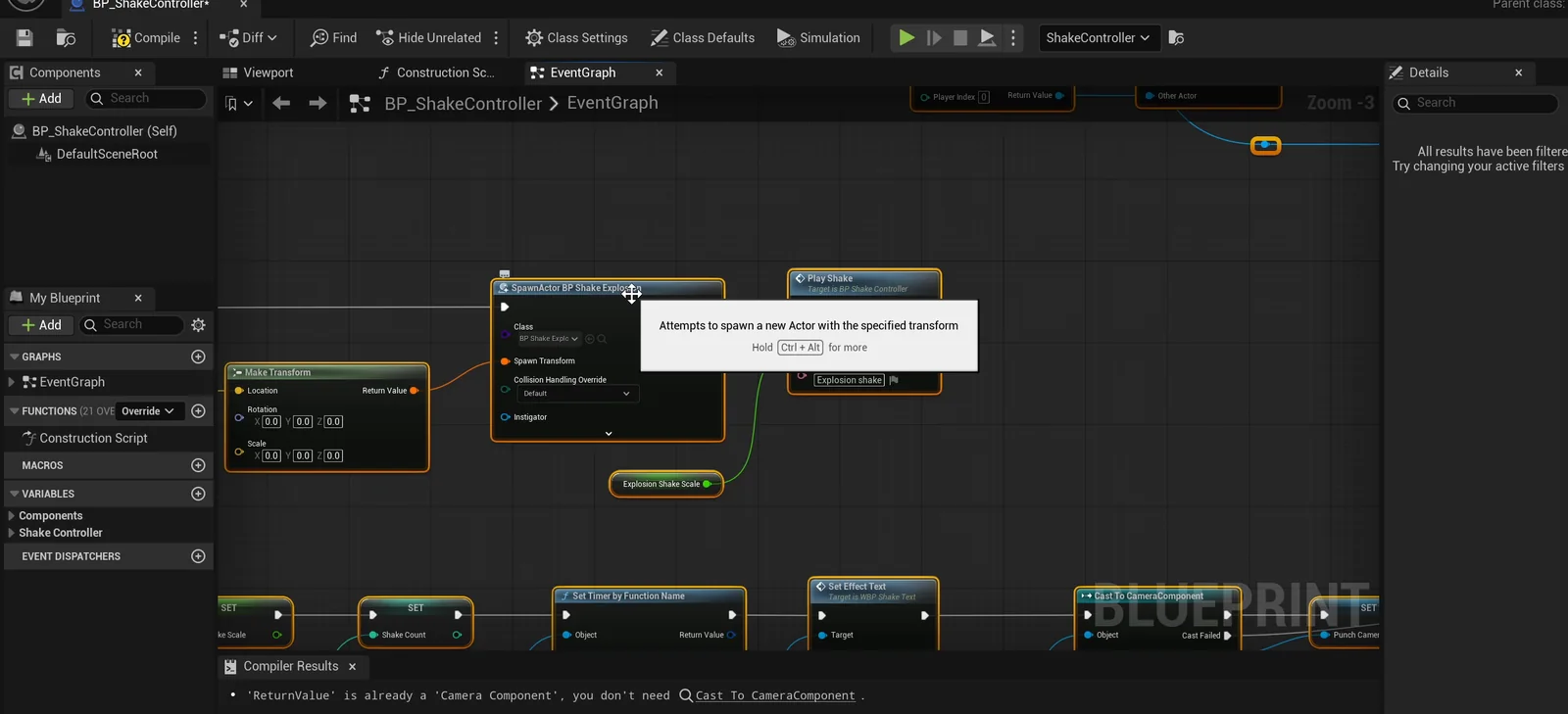
The controller graph: the explosion is spawned, the shake is played and the camera component gets the punch.
Four problems the AI found in its own work
The play test turned up four problems, and the AI fixed each one:
- Debris size. The debris cubes spawned at full size, 100 units, instead of small.
- Target size. The block was really 100 units wide, not 150. It now sits under a proper root and measures 150.
- Colors. The flash, the sphere and the cubes rendered yellow. The AI retuned them until they read orange on screen.
- Camera yank. The debris was blocking the follow camera and pulling it in. It now ignores the camera.
The play test
A camera shake cannot be seen in a still frame, so the AI checked the numbers:
- The nearest block flashes and the other does not, and the flash turns off after a fraction of a second.
- The shake starts at scale 0.6.
- The field of view dips from 90 to 85.8 and returns to exactly 90.
- With no block near, T does nothing.
- Z spawns the explosion 400 units ahead with twelve cubes, and plays the strong shake.
The report
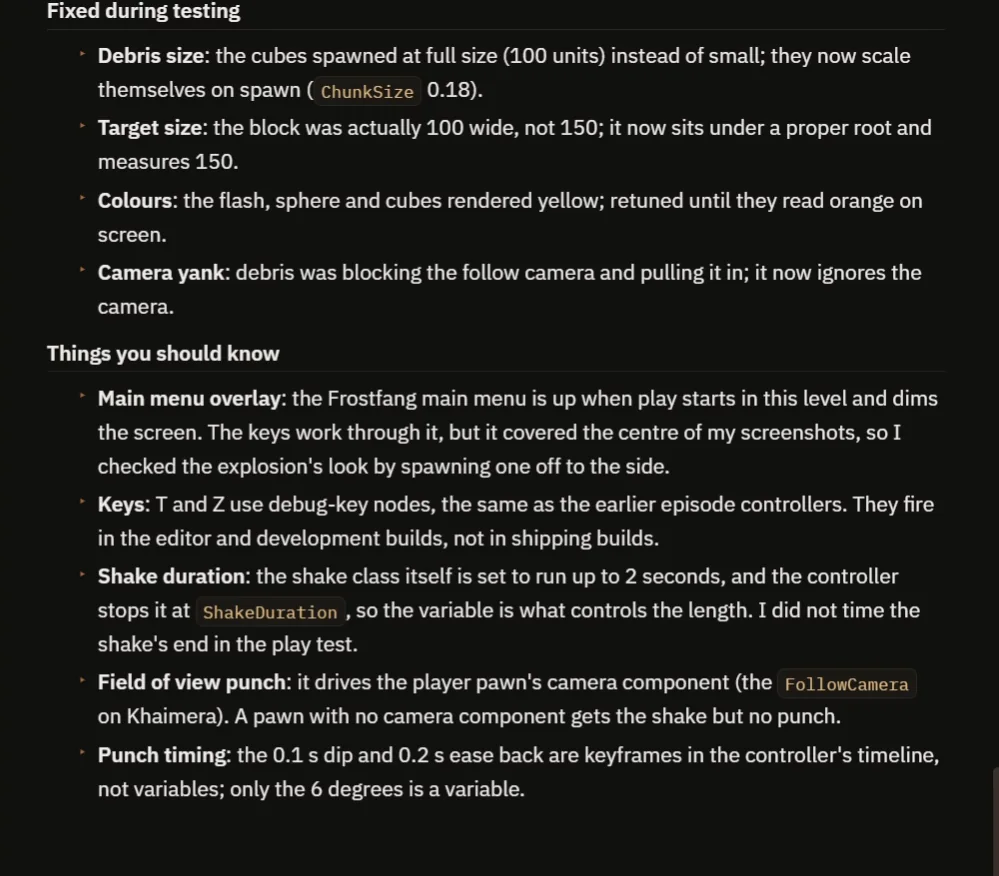
The four fixes, and the notes about the keys, the shake duration and the field of view punch.
The report also tells you what to know:
- The Frostfang main menu is up when play starts in this level and dims the screen. The keys work through it, but it covered the center of the screenshots, so the AI checked the explosion by spawning one off to the side.
- T and Z are debug keys, like the controllers in earlier episodes. They work in the editor and in development builds, but not in shipping builds.
- The shake class is set to run for up to 2 seconds, and the controller stops it at ShakeDuration, so that variable controls the length. The AI did not time the end of the shake in the play test.
- The field of view punch drives the player pawn’s camera component. A pawn with no camera component gets the shake but no punch.
- The 0.1 second dip and the 0.2 second ease back are keyframes in the controller’s timeline, not variables. Only the 6 degrees is a variable.
That is why the video also shows a real run: the block flashes, the camera jolts, and then the burst and the bigger shake.
How camera shake works, in plain words
A camera shake is a small asset that moves the camera a little, in a pattern, for a short time. You start it on the player’s camera manager and give it a scale. A scale of 0.6 is a light jolt, and 1.5 is a hit by something heavy.
The field of view punch is a timeline. In a tenth of a second the field of view goes down by 6 degrees, and then it eases back in two tenths, so the camera seems to flinch. Because the scales and the punch are variables, you can tune the feel of every weapon in your game with a few numbers.
Ideas to extend it
- A shake that gets stronger the closer the explosion is.
- A short slow motion on a heavy hit. See the Unreal Engine slow motion.
- A controller rumble with the same scale.
Four tips for hit effect prompts
- Give the scales for a light hit and a strong hit.
- Say the field of view punch in degrees.
- Describe every part of the burst: size, time and number.
- Ask the AI to test the quiet case too, with nothing in range.
Frequently asked questions
How do I add camera shake in Unreal Engine 5?
Create a camera shake class and play it on the player’s camera manager with a scale. Use a small scale for a light hit and a bigger one for an explosion.
How do I make a field of view punch?
Play a short timeline that lowers the field of view by a few degrees and then eases it back. Here it is 6 degrees in 0.1 seconds and back in 0.2. It needs a camera component on the pawn.
Why did the debris pull the camera in?
The debris cubes were blocking the follow camera. The AI made them ignore the camera, so the camera is no longer pulled in when the explosion goes off.
Try it in your project
See what Ultimate Engine CoPilot can build on the product page, or get it on Fab. See how the AI Blueprint generator works.
More builds from this series: the Unreal Engine explosive barrel, the Unreal Engine melee combat with hit reactions, the Unreal Engine knockback and the Unreal Engine slow motion.