Unreal Engine Zoom: Build a Hold to Zoom Camera With AI (and Fix It)
How to build an Unreal Engine hold to zoom camera: a Z key that eases field of view from 90 to 50 with a crosshair, plus what happened when the test passed and the real game did not.

A zoom in Unreal Engine is three small ideas: the camera has a field of view, where a smaller number means a closer view; while the key is held, the field of view moves toward the zoom value, and when it is released it moves back; and a crosshair fades in and out with the zoom. The easiest way to build one is to ask an AI for the whole effect in a single request.
This article is a little different, because it covers something very useful: a test that passed, and a real game where it did not. You get the exact prompt, what the AI tested, what happened when the real run showed nothing and how the AI looked for the cause.
What the finished zoom does
You stand in the snow and hold Z. The camera slowly zooms in, the character fills the screen and a small text appears at the top: “Zoom”. You let go, and the view eases back out.
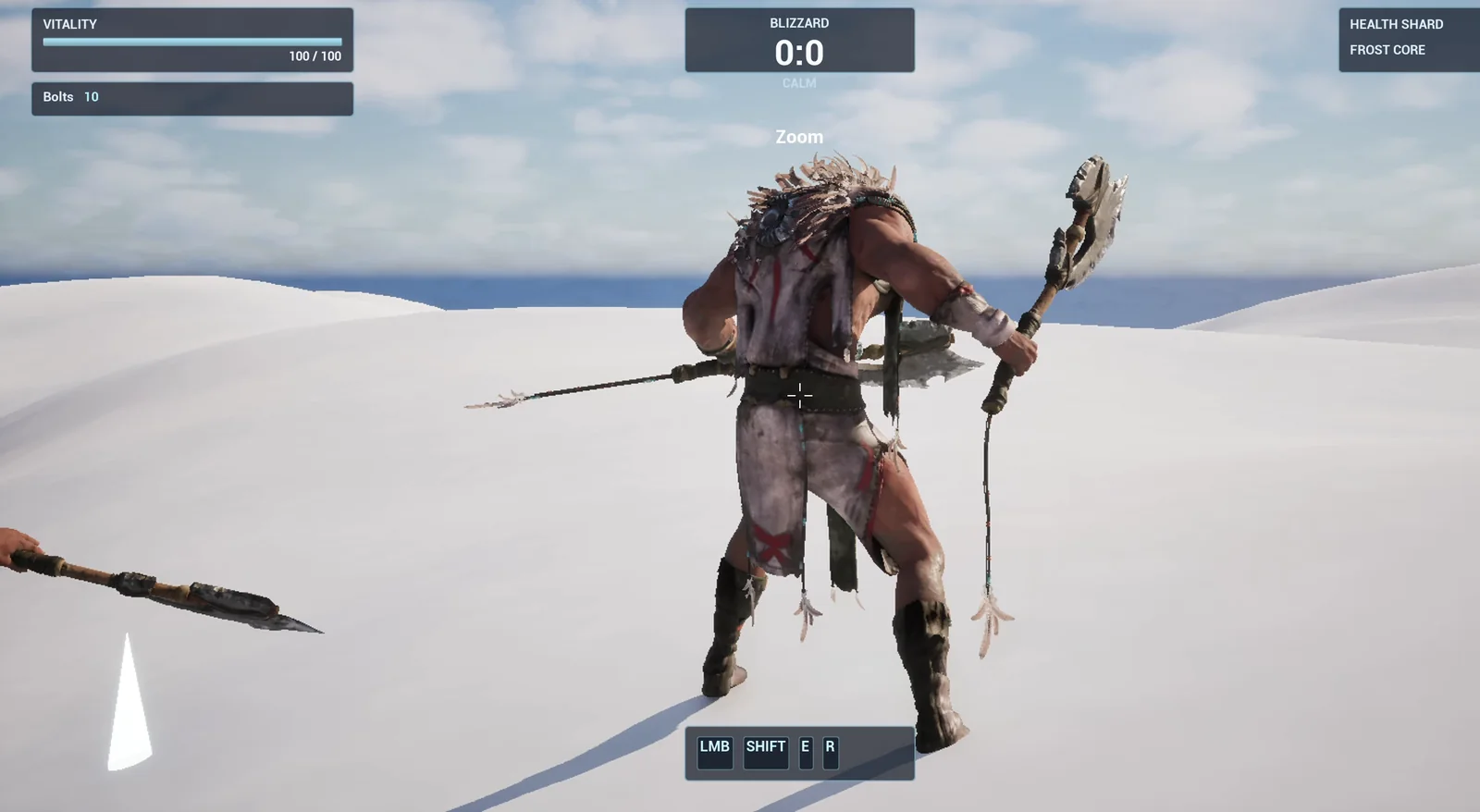
The second real run: holding Z zooms in and the Zoom text shows.
The prompt
Copy this, change the zoom to 30 degrees, and see what the AI builds:
Make a zoom view. Create BP_ZoomView in /Game/Series/EP35_Zoom, an actor that I place once in the level, that listens for the Z key. While Z is held, the player's camera zooms in: the camera field of view eases from its normal value to 50 degrees over 0.25 seconds, and a thin white crosshair made from four small bars with a gap in the middle fades in at the centre of the screen. When Z is released, the field of view eases back to the normal value over 0.25 seconds and the crosshair fades out. The actor must read the camera's normal field of view when the game starts and restore exactly that value. Create the crosshair as a widget called WBP_Crosshair. Show the text Zoom in the top centre below the existing Blizzard box while zoomed. Keep the zoom field of view and the blend time as variables. Place the actor near the player start. Then play test it: record the camera field of view before, hold Z and check it reaches 50, check the crosshair is on screen, release Z and check the field of view returns to the recorded value and the crosshair is gone, and fix anything that does not work.Look at the sentence about the normal field of view: the actor must read it and restore exactly that. It is the same rule as the ice patch: never restore a number that you made up. Always put back what you read.
How the AI builds it
The AI starts by creating the two assets, the zoom Blueprint and the crosshair widget, and by reading how widgets and graphs are built in the project. One blend value, from 0 to 1, drives everything. It goes up while Z is held and down when it is released.
The AI notes that the camera manager has no Blueprint-callable function to set the field of view, so it drives the camera component of the player directly. Then it compiles, reads the graph back and places the actor.
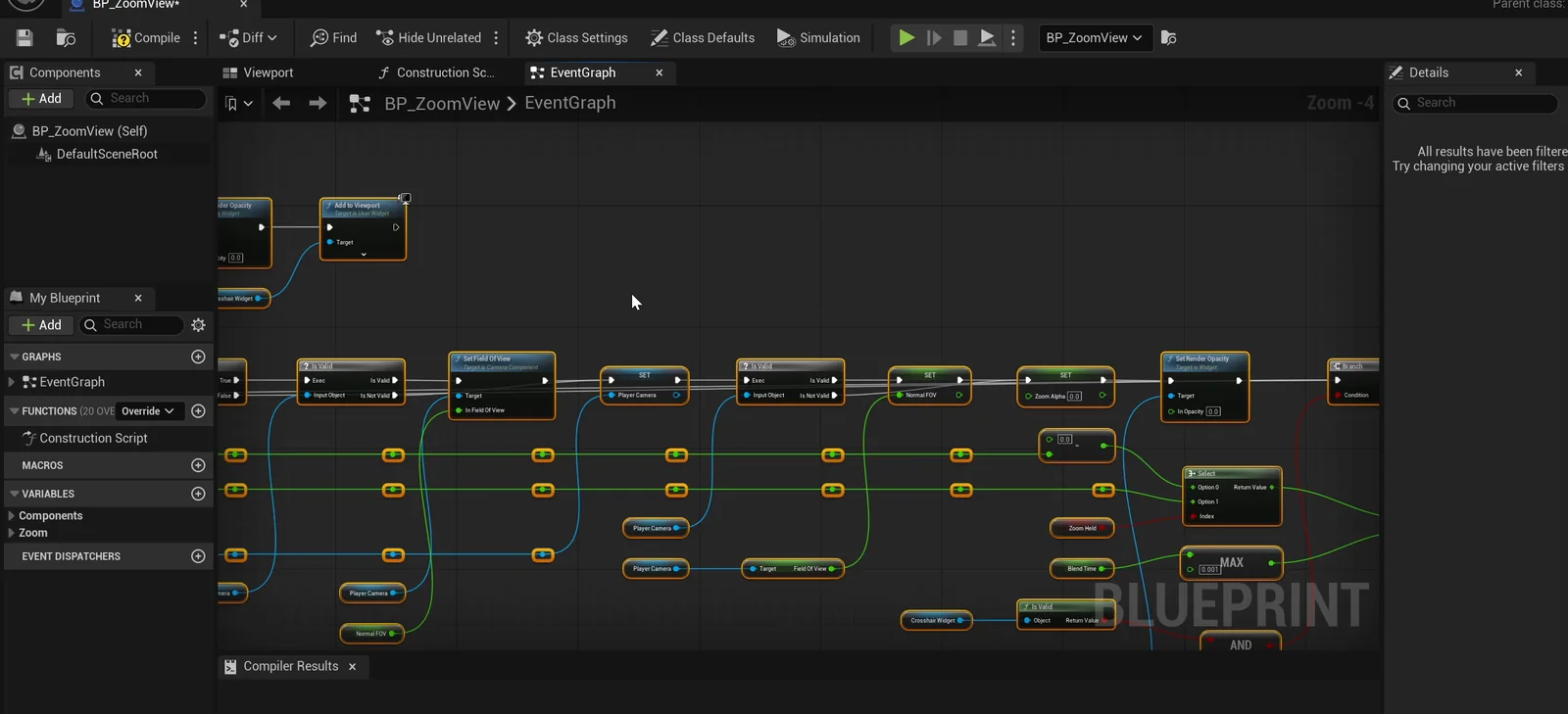
The zoom graph: one blend value drives the field of view and the crosshair.
The test passes
The actor first recorded the starting field of view, 90. With Z held, the field of view reads 62.6 after a fraction of a second, so it eases and does not snap. Then it reaches 50. The crosshair is at full opacity with all four bars, and the text shows. After releasing Z, the value is 72.9 on the way back, and then exactly 90. The crosshair is gone. Seven checks, all passing.
The report
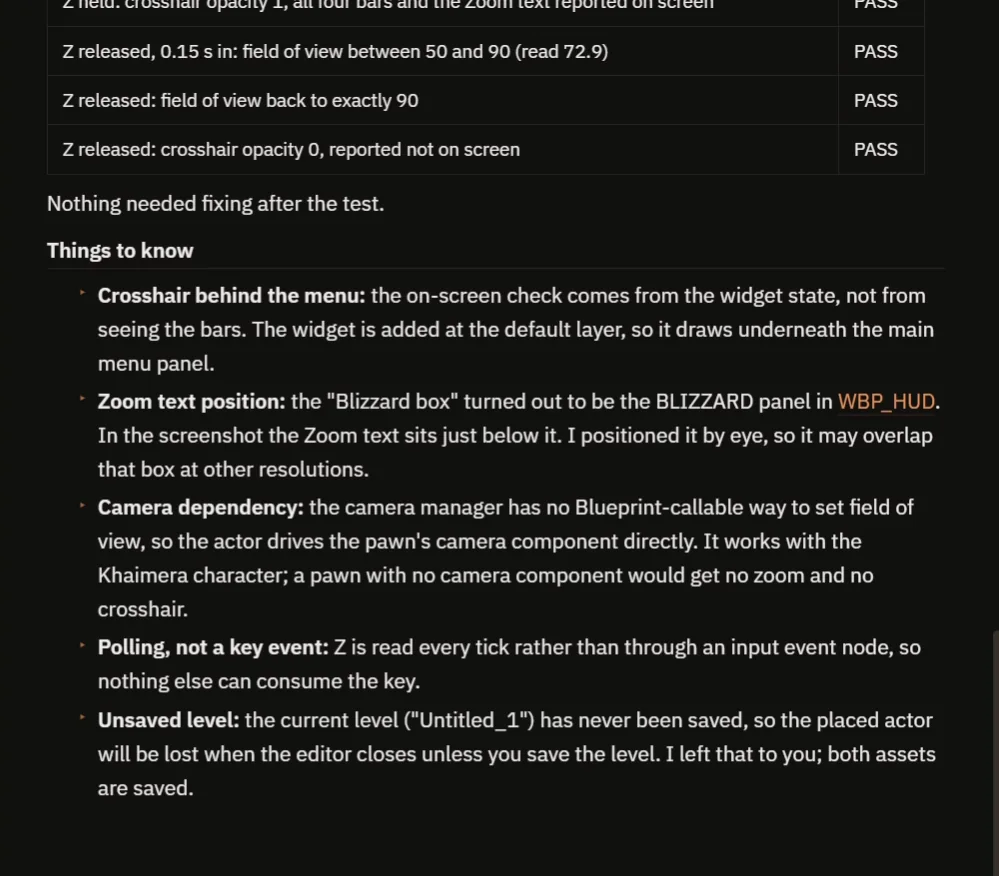
The first report: nothing needed fixing, and the notes list the limits.
The report says nothing needed fixing after the test. It also notes that the AI never saw the four bars in a screenshot, because the main menu covered the center of the screen, so that check came from the state of the widget. It says the actor drives the pawn’s camera component directly, reads Z every frame instead of through an input event, and exists only in the unsaved level.
The real game showed nothing
Then the real run. After clicking Play on the main menu and the hero appears, holding Z does nothing. The camera does not move and there is no crosshair. The test passed and the real game did not.
So the next message to the AI says exactly that, in the same chat: after clicking Play on the main menu and the hero spawns, holding Z does nothing. Find out why, fix it and test again the way a player would.
How the AI looked for the cause
The AI starts by reproducing the path of a player: click Play on the menu, then hold Z. It finds that the actor itself looks healthy, and that the menu does nothing strange. It only switches the input mode and removes itself, and it does not respawn the hero.
But it finds one real weakness. The first version looked up the hero’s camera one time, a fifth of a second after the start, and never again. If the hero did not exist yet at that moment, or was replaced later, the zoom would do nothing for the rest of the session. That matches what was seen.
So the AI rebuilt the actor. Now it finds the hero’s current camera on every frame. When the camera changes, it restores the old camera’s field of view, records the new camera’s normal value and resets the crosshair. Then it tested again the player’s way, with a menu click first and then Z.
An honest report
The follow-up report is worth reading. The AI says it could not reproduce the failure, so it cannot say for certain why it happened or promise that it is fixed. In the editor, the zoom works both before and after the change. It lists the limits of its test: Z was injected directly and a real held key was not tested, and the actor only exists in the unsaved level, so if you ran another map you would see nothing at all. Then it asks two questions: how did you launch, and does it still fail?
After the change, the second real run works: click Play, the hero appears, hold Z, the camera zooms in and the Zoom text shows. Release, and it eases back. Hold again, and it works again.
How a zoom works, in plain words
Every frame, the actor asks: is Z held? If yes, a blend value moves toward 1, and if no, toward 0, over the blend time. That one value is smoothed. The camera field of view is a mix between the normal value and the zoom value, using that blend. The crosshair opacity uses the same blend. In the new version, the actor finds the player’s current camera on every frame instead of once.
Because the zoom value and the blend time are variables, you can make a gentle zoom or a sniper zoom with two numbers.
Ideas to extend it
- A zoom that slows the mouse look, so aiming feels precise.
- A scope overlay with a dark border.
- The zoom on the right mouse button, as a hold or a toggle.
Copy the prompt, change the zoom to 30 degrees, and see what the AI builds.
Four tips for zoom prompts
- Ask the AI to read and restore the original value.
- Ask it to find the camera again, if the character can change.
- Test the way a player plays, with the menu first.
- When a real run fails, tell the AI exactly what you saw.
Frequently asked questions
How do I make a zoom in Unreal Engine 5?
Ease the camera’s field of view from its normal value to a smaller one while a key is held, and back when it is released. Read the normal value at the start and restore exactly that.
Why did the zoom work in the AI’s test but not in the real game?
The first version looked up the hero’s camera once, 0.2 seconds after the start. If the hero was not there yet, or was replaced, the zoom did nothing. The AI rebuilt it to find the camera every frame, but it also said it could not reproduce the failure, so it could not promise that was the cause.
What should I do when a real run fails?
Tell the AI exactly what you saw, in the same chat, and ask it to test the way a player plays, with the menu first.
Try it in your project
See what Ultimate Engine CoPilot can build on the product page, or get it on Fab. See how the AI Blueprint generator works.
More builds from this series: the Unreal Engine slow motion, the Unreal Engine compass bar and the Unreal Engine ranged weapon.