Unreal Engine MCP Server: Connect Claude Code, Cursor and Codex to Your Editor
How to turn your Unreal Engine editor into an MCP server and connect Claude Code, Claude Desktop, Cursor and Codex, with a demo that places eight lights from a terminal.

An Unreal Engine MCP server lets an AI tool that runs outside the editor, such as Claude Code, Claude Desktop, Cursor or Codex, work directly on your open project. Ultimate Engine CoPilot turns the editor itself into that server. You turn it on in one screen, copy a ready setup snippet for your client and then ask the client for what you want.
This article follows the video and shows where to turn it on, how to connect each client and what it looks like when it works: Claude Code in a normal terminal placing eight lights in an open level.
What MCP is
MCP stands for Model Context Protocol. It is a standard way for an AI tool to use another program’s abilities. Ultimate Engine CoPilot turns your Unreal Engine editor into an MCP server, so any MCP client can use the CoPilot’s tools on your open project.
That means you are not locked into one chat window. You can keep working in the AI tool you already like, and it can reach into the editor.
The MCP screen
Open the MCP screen in the CoPilot rail. At the top it says Server running and shows the address of your editor. The token is hidden, and there is a Copy button for it, so you never have to type it.
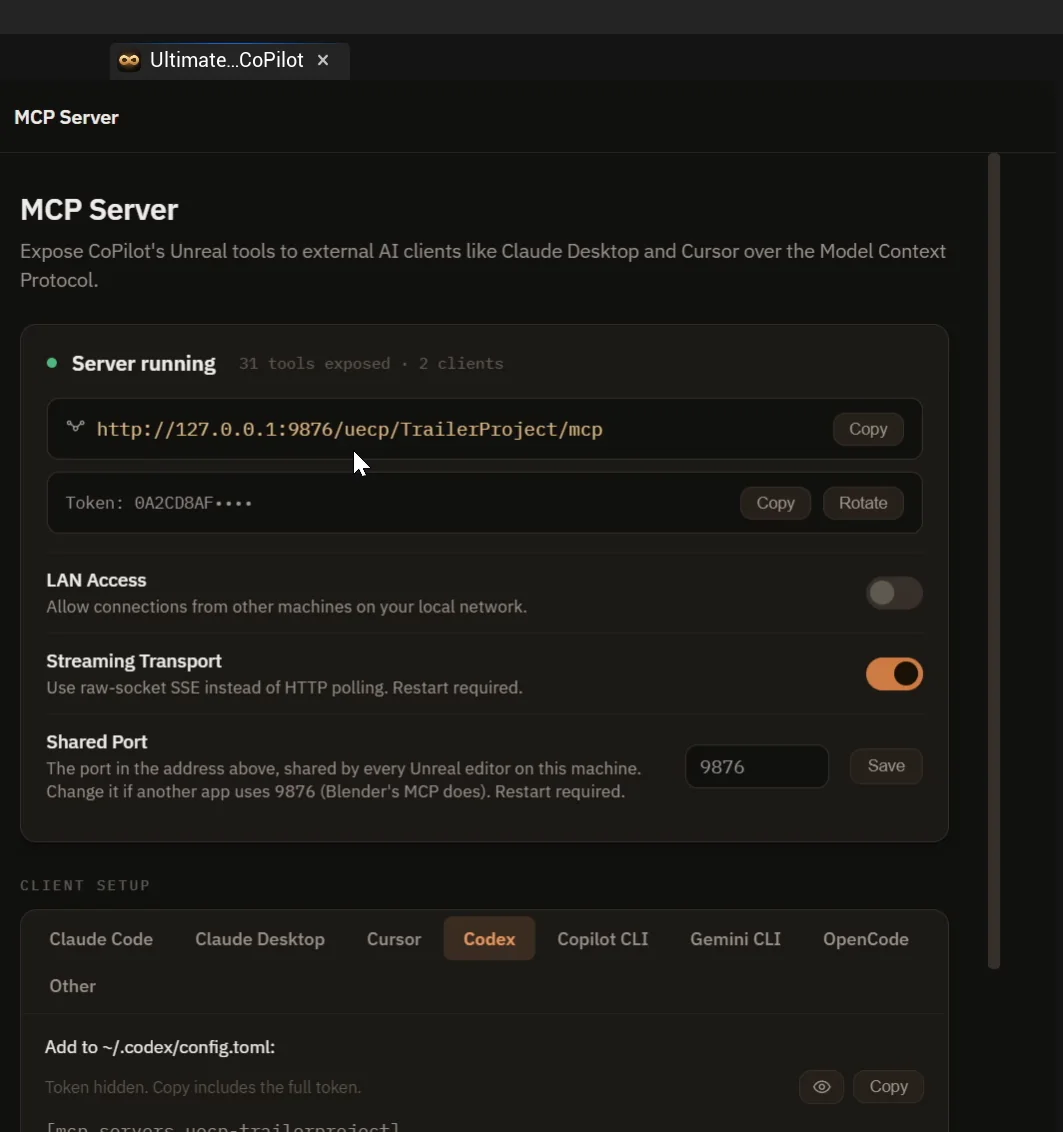
The MCP screen: the server is running, the address is shown and the token sits behind a Copy button.
Below that are a few settings:
- LAN access is off by default, so only your own computer can connect.
- Shared port: you can change it if another program already uses the default.
Pick your client
Under client setup you pick the tool you use, and each one gets a ready snippet.
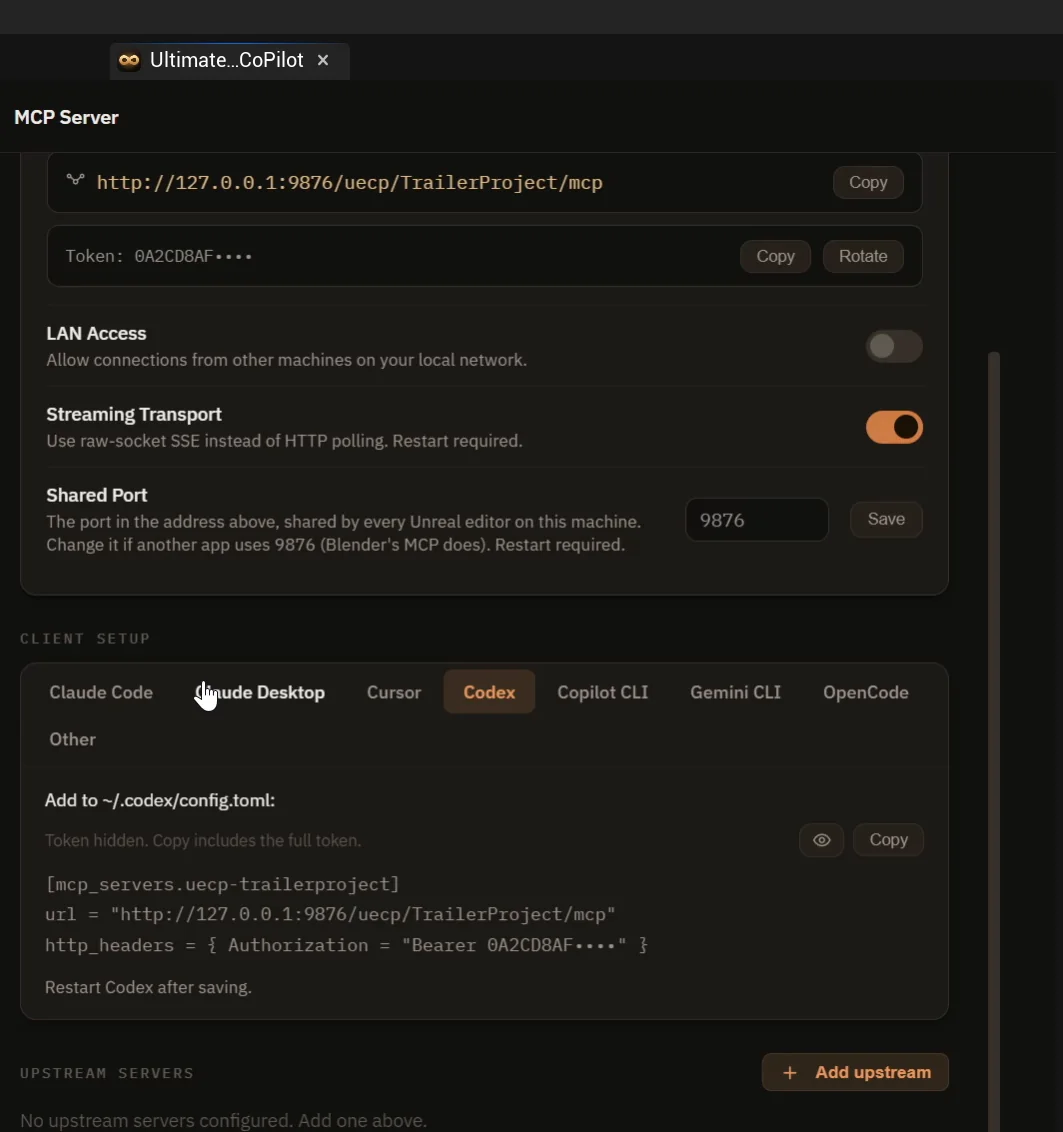
One tab per client. Here the Codex tab shows the config block to paste.
- Claude Code: one command to run once in a terminal. It already has your address in it.
- Claude Desktop: install a small extension bundle with a double click.
- Cursor and Codex: a short config block to paste into their settings file.
- Copilot CLI, Gemini CLI and OpenCode have their own tabs too.
Watch it work
In a normal terminal outside Unreal Engine, a Claude Code command points at the editor. The request is one sentence:
Using the unreal MCP server, place eight warm amber point lights in a ring of radius 400 units around the player start, 150 units above the ground. Name them Torch_1 to Torch_8, then reply with one short line.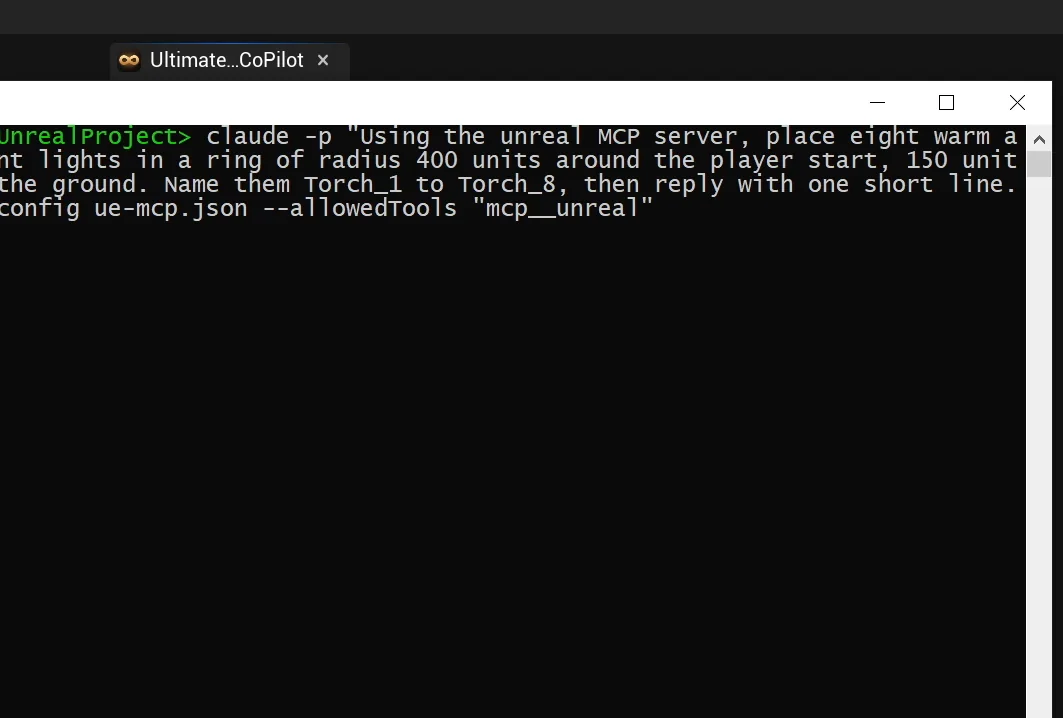
Claude Code, running in a terminal outside the editor, with the request and the MCP config.
Claude Code looks up the player start, calculates the ring and calls the editor’s tools one by one. This takes about a minute, because it is a full agent working through its steps. Then the eight warm lights are in the open level, and the editor stayed open the whole time.
Claude Code reports back in one line, and it also reminds you that the level has never been saved, so the lights would be lost if you closed the editor. It is working with real project state, not guessing.
MCP in plain words
Think of MCP as a universal power socket. Without one, every AI tool would need its own special plug for every program. MCP is the shared socket shape. Ultimate Engine CoPilot puts that socket on your Unreal Engine editor, with its tools behind it, like placing lights or reading your level. So Claude Code, running in a terminal outside Unreal, can use the same tools as the chat inside the editor.
How does the editor know who to trust? That is the token. It is a long secret string, like the key to your front door. A client presents it before the editor does anything for it. The MCP screen keeps it hidden and gives you a Copy button. And by default only your own computer can connect, because LAN access is off. Other machines on your network stay out unless you choose otherwise, which is a good default to keep.
Ideas to try next
- Twelve lights instead of eight, or a ring of 600 units instead of 400.
- Cool blue light instead of amber.
- Putting all the Torch lights in one folder in the Outliner, so the level stays tidy.
- Saving the level when it finishes.
- A gentle flickering effect. Ask the client what it suggests.
Copy the request, change one number and watch how the ring changes.
Four steps to remember
- Open the MCP screen and check that the server is running.
- Pick your client.
- Copy the setup snippet it shows.
- Ask the client to work in your open editor.
If you would rather use an agent inside the editor, read Claude Code in Unreal Engine 5. For an overview of the MCP setup, see the Unreal Engine MCP page.
Frequently asked questions
What is an MCP server in Unreal Engine?
It is a local server that exposes the editor’s tools over the Model Context Protocol, so an outside AI client can create and change things in your open project.
Which AI tools can connect?
The MCP screen has setup tabs for Claude Code, Claude Desktop, Cursor and Codex, plus Copilot CLI, Gemini CLI and OpenCode.
Is it safe to leave on?
By default only your own computer can connect, because LAN access is off, and a client has to present the token before the editor does anything. Keep the token private and turn LAN access on only if you need it.
Try it in your project
See what Ultimate Engine CoPilot does on the product page, or get it on Fab.
More from this series: Claude Code in Unreal Engine 5 and How to Write AI Prompts for Unreal Engine.