Voxel Plugin
Build procedural terrain in Voxel Plugin 2 by asking: rolling hills, mountains, caves, floating islands, painted surfaces, scattered trees and blocky Minecraft-style worlds.
Voxel Plugin 2 is a procedural terrain system for Unreal Engine. You describe the ground with graphs and shapes. It builds the terrain live in the editor, with caves, overhangs and floating rock that a heightmap landscape cannot do.
With the Voxel Plugin extension, Ultimate Engine CoPilot builds those setups for you. Ask for rolling hills, taller mountains, a cave or a floating island.
The AI creates the Voxel World, the graphs and the stamps. It paints the surface, scatters trees and checks the result.
It was tested with Voxel Plugin 2.0p8 on Unreal Engine 5.6 and 5.7. The terrain pictures on this page are from 5.7.
What “voxel” means here
“Voxel” is how Voxel Plugin stores the terrain, not how it looks. By default the terrain is smooth. The plugin keeps a grid of density values and draws a smooth surface through it.
If you were expecting Minecraft cubes, that is a setting you can ask for. See Blocky terrain.
Four words come up in every answer the AI gives:
- Voxel World. The actor that draws the terrain. There is one per level, and it makes no terrain by itself.
- Stamps. Instructions the World draws, placed in the level as actors. A stamp says “add this here”: a graph, a sphere, a heightmap, a mesh or a spline.
- Graphs. Node networks that make the terrain, such as noise feeding an Output Height node. Many stamps can run the same graph.
- Layers and the layer stack. They decide what writes where and in what order, so you can build a world in passes.
A height stamp gives one height per spot: fast, no overhangs. A volume stamp is a 3D shape: caves, arches and floating rocks.
What you need
- Voxel Plugin 2, installed and enabled in your project.
- Ultimate Engine CoPilot with the Voxel Plugin extension switched on.
- A level with a sky and a light. A new level has neither, so terrain draws black until they exist. Just ask for “a sky, sun and fog” in the same prompt.
Without Voxel Plugin the extension does nothing harmful. Every Voxel tool answers with one message that says what to install.
One setup step belongs to Voxel, not to us. Voxel adds a small shader hook to the engine so painted surfaces can draw their materials. Until it is applied, the terrain shows Voxel’s default grid instead of your materials.
Apply it with Voxel’s own tool, following Voxel’s setup guide. It edits the engine’s shader files, so every project on that engine recompiles shaders the next time it opens.
Ask the AI to “check the Voxel status” and it tells you whether the hook is applied.
Turn it on
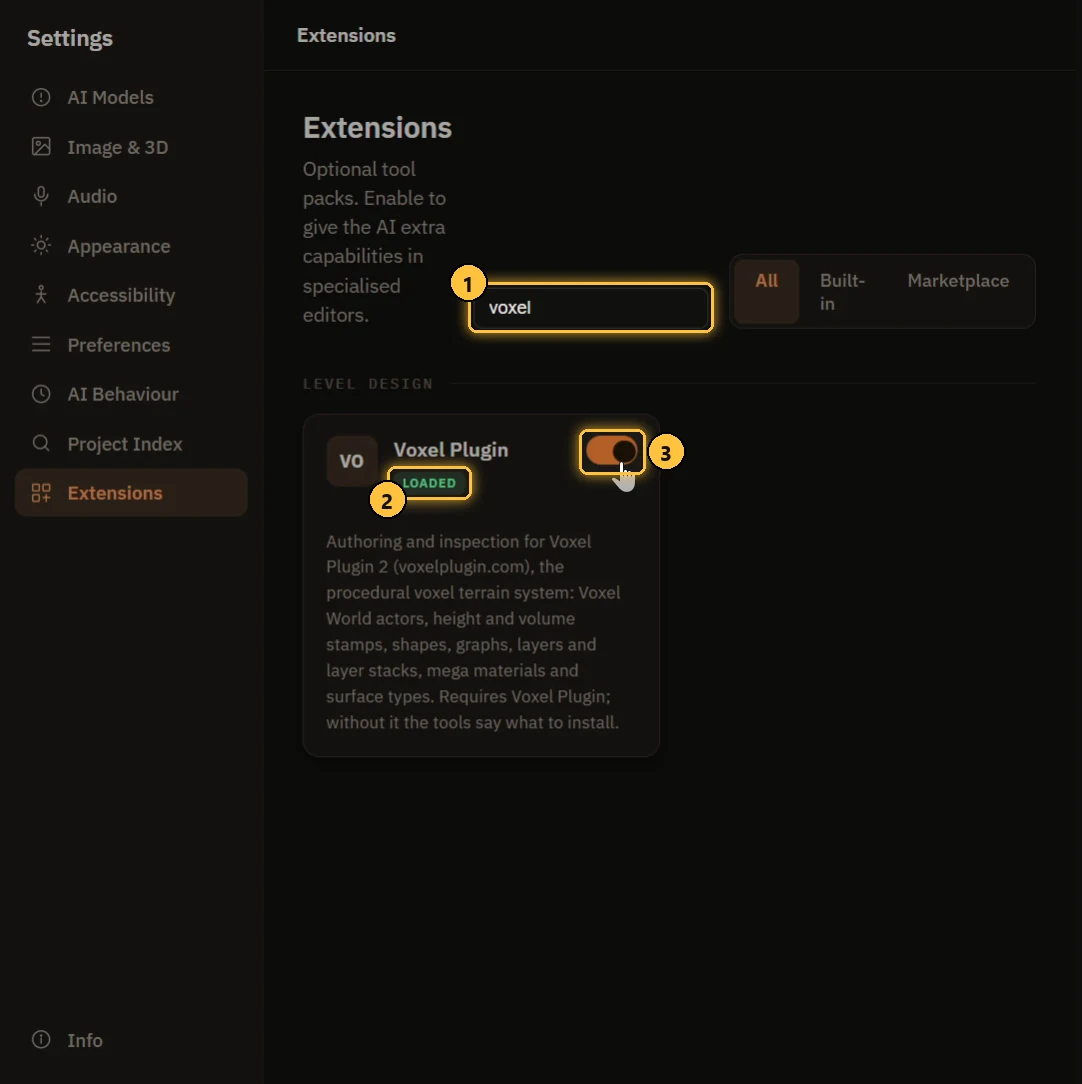
- Search. Open Settings > Extensions and search for “voxel”.
- LOADED. The card reads LOADED once the extension is running.
- The switch. Turn it on. It is off by default.
Then ask the AI to “check the Voxel status”. It reports whether Voxel Plugin was found, what is in the level and whether the shader hook is applied.
Build terrain from a prompt
Describe the look, not the settings. This prompt made the terrain in the next picture:
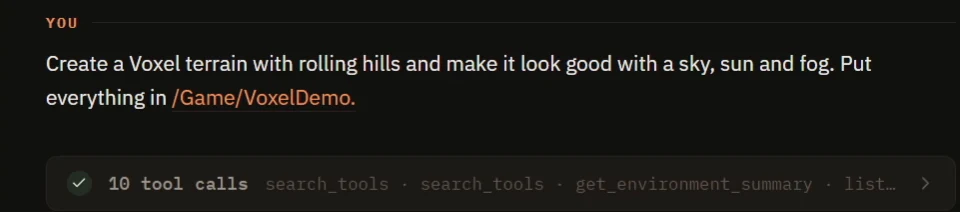
Create a Voxel terrain with rolling hills and make it look good with a sky,
sun and fog. Put everything in /Game/VoxelDemo.
The AI made a Voxel World, a height graph for the hills, a stamp that uses it, a grass surface and the sky, sun, clouds and fog. Here is what came back:
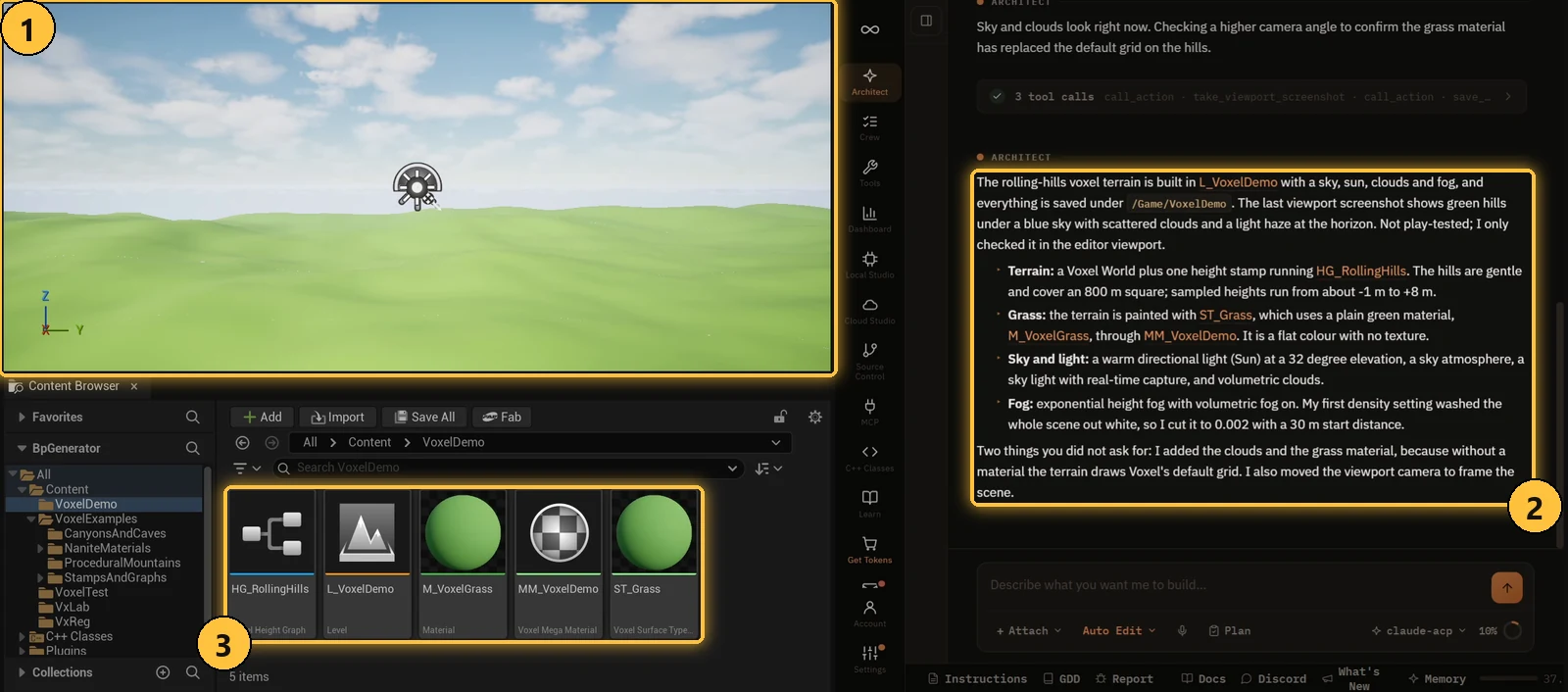
- The terrain, drawn live in the viewport.
- The summary. It says what it built, what it measured and what it added that you did not ask for. Here that was the clouds and a grass material, because without a material the terrain draws Voxel’s default grid.
- The assets, saved in the folder you named: the graph, the grass materials and the level.
Change the shape
Ask for the change in plain words.
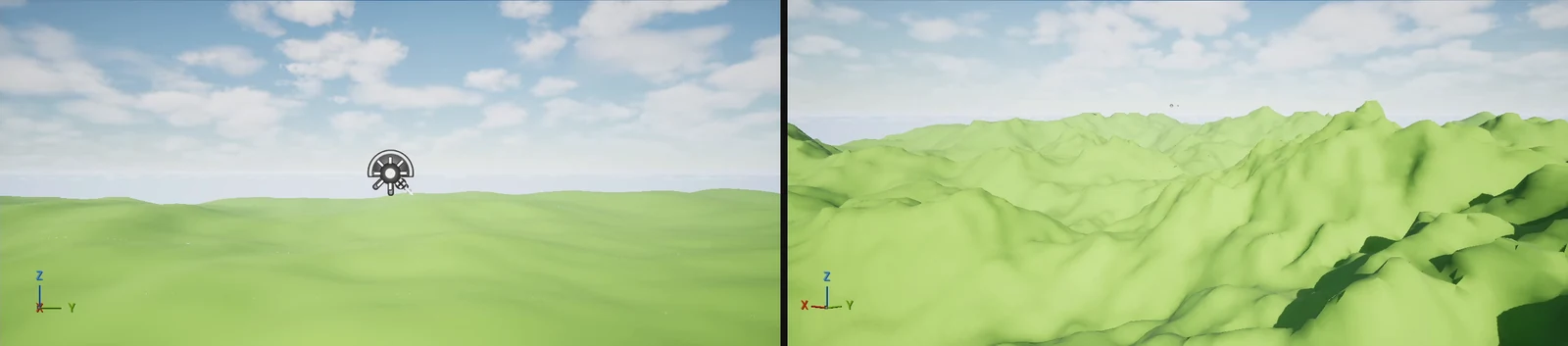
Make the hills taller and more rugged, with fine detail on the peaks.The AI edits the height graph. In this run it changed the base noise, added octaves and added a second noise that only works on the peaks. The viewport is the same camera before (left) and after (right):
The graph is a normal Voxel graph. Open it from the Content Browser to see or change what the AI built.
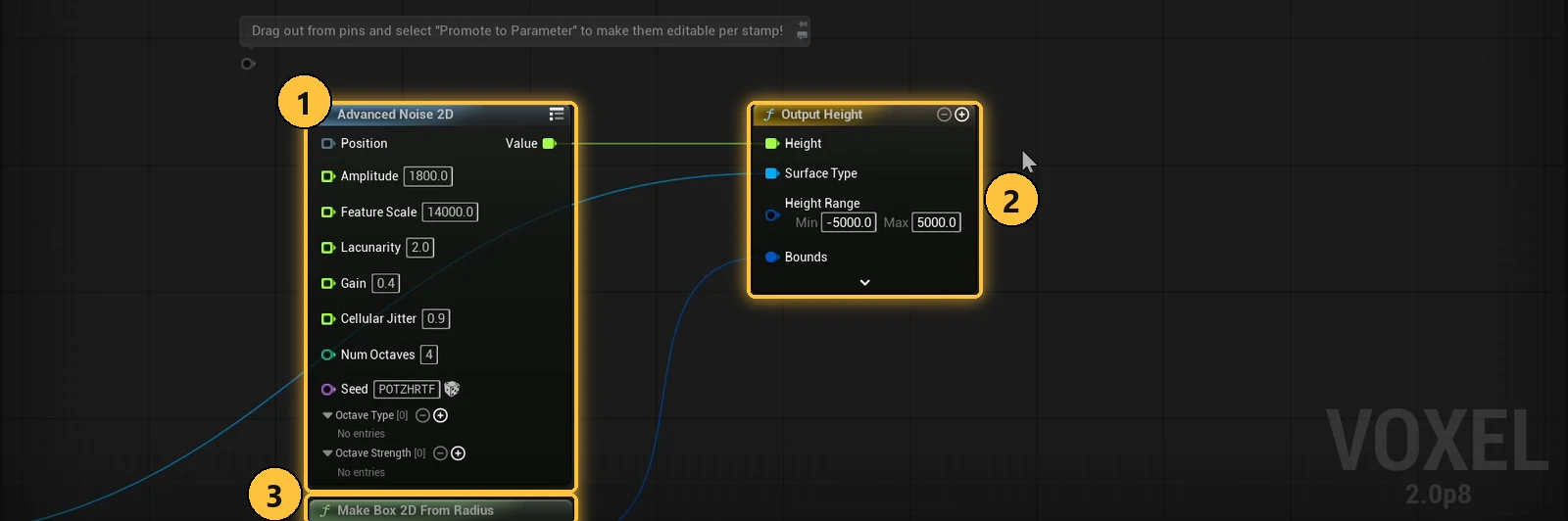
- Advanced Noise 2D. The noise that makes the hills, with its amplitude, feature scale and octaves.
- Output Height. The node the terrain reads. The height range keeps tall peaks from being cut off.
- Make Box 2D From Radius. The area the graph covers.
To tune a graph per stamp, ask for parameters: “Add parameters for the height and the feature size so I can tune each stamp.”
The same graph can then make a gentle meadow in one place and tall peaks in another. A parameter with no value is 0, so the AI always gives each one a starting value.
Paint, scatter and carve
Painting and scattering are the steps that make the terrain look like a place.
Paint the terrain with the textured materials from the Voxel examples: cliff
rock on the steep slopes and muddy leaves on the flatter ground.
Scatter trees across the hills, thicker on the flatter ground, using the three
sample trees from the PCG plugin.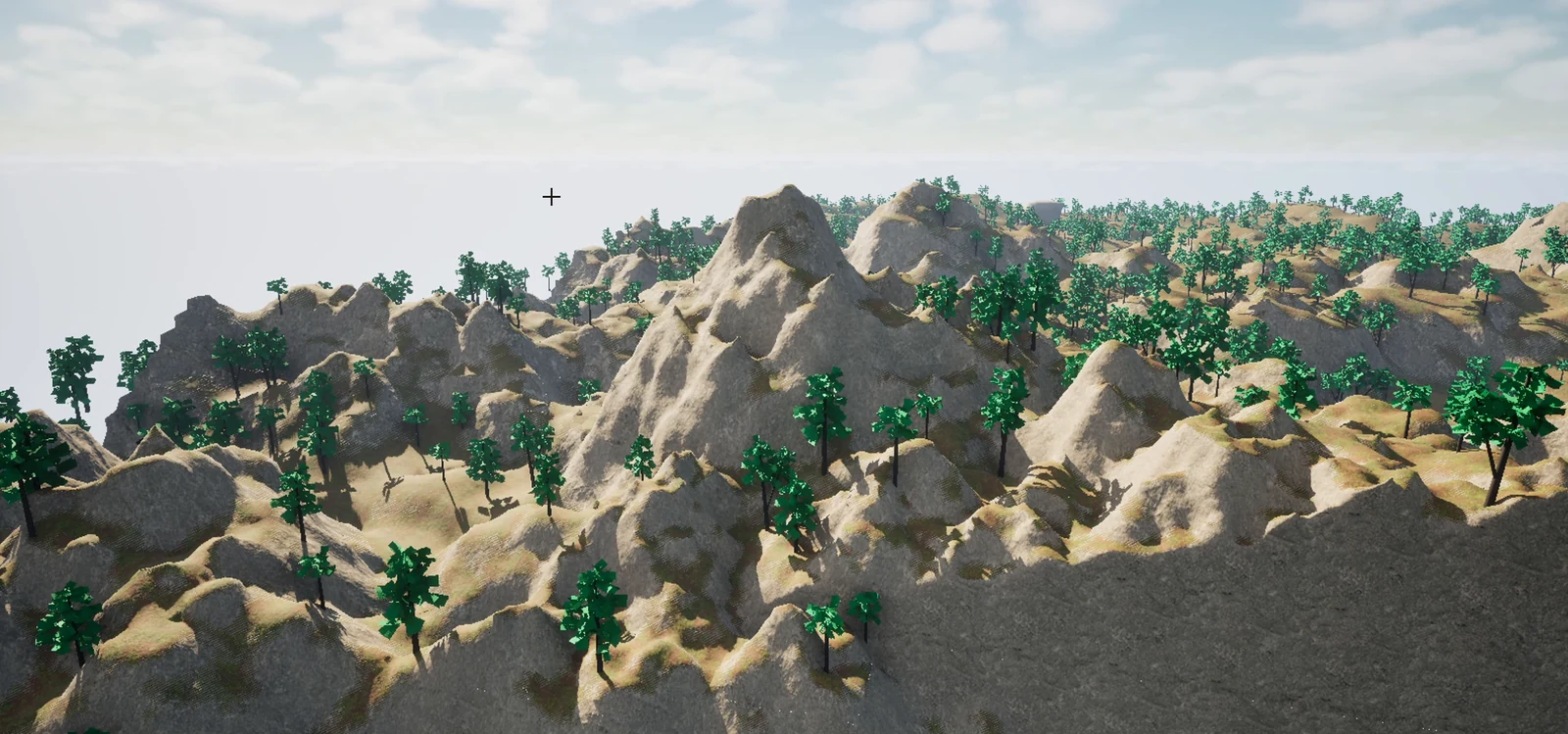
The AI paints through the graph, so rock lands on steep slopes and leaves on flat ground. The trees come from a scatter graph that puts the meshes on the terrain surface.
It checks the paint by sampling the terrain at points and reading back which surface is there, not only by looking.
Volume stamps do the parts a height stamp cannot.
Add a floating rock island above the valley.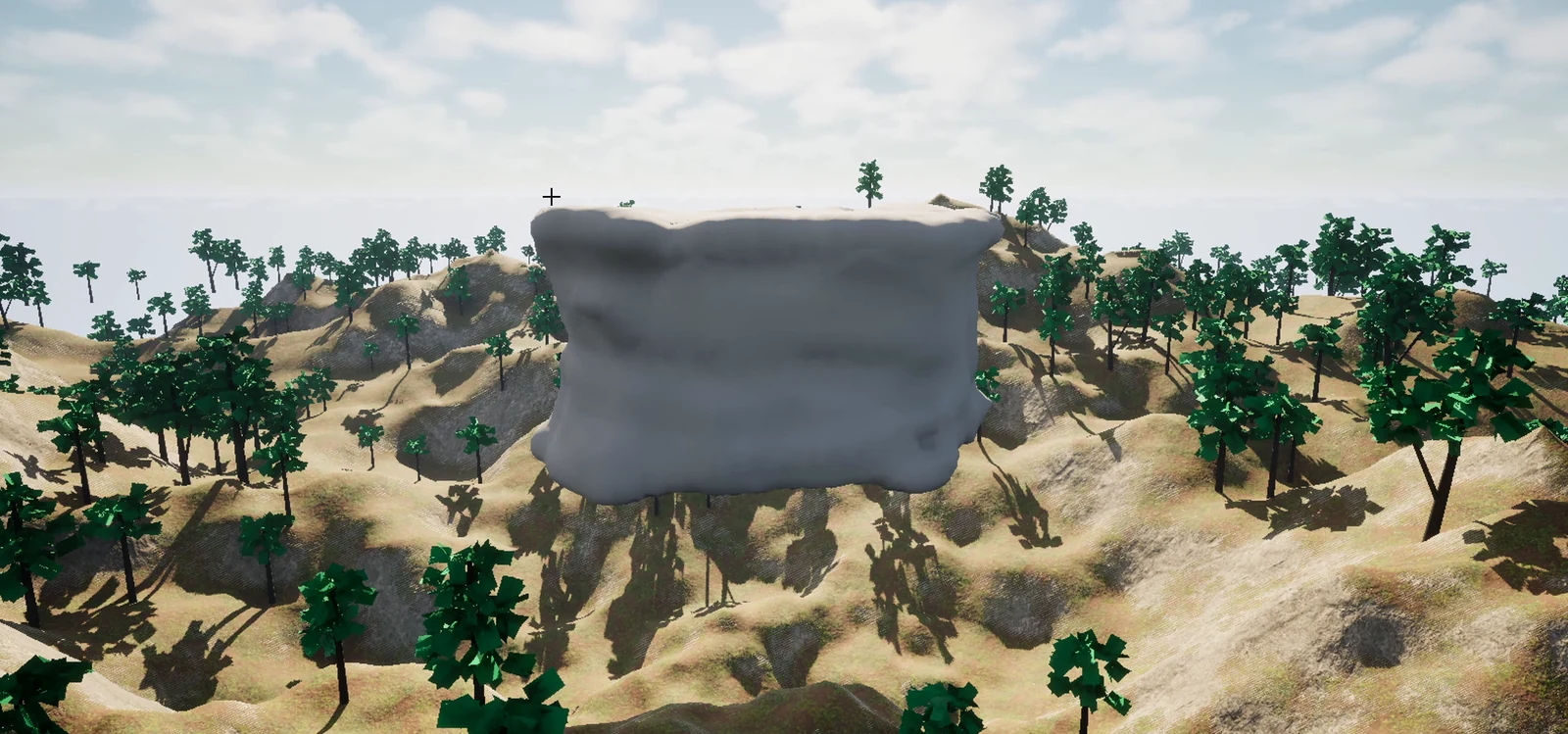
Carve a cave into the tallest mountain.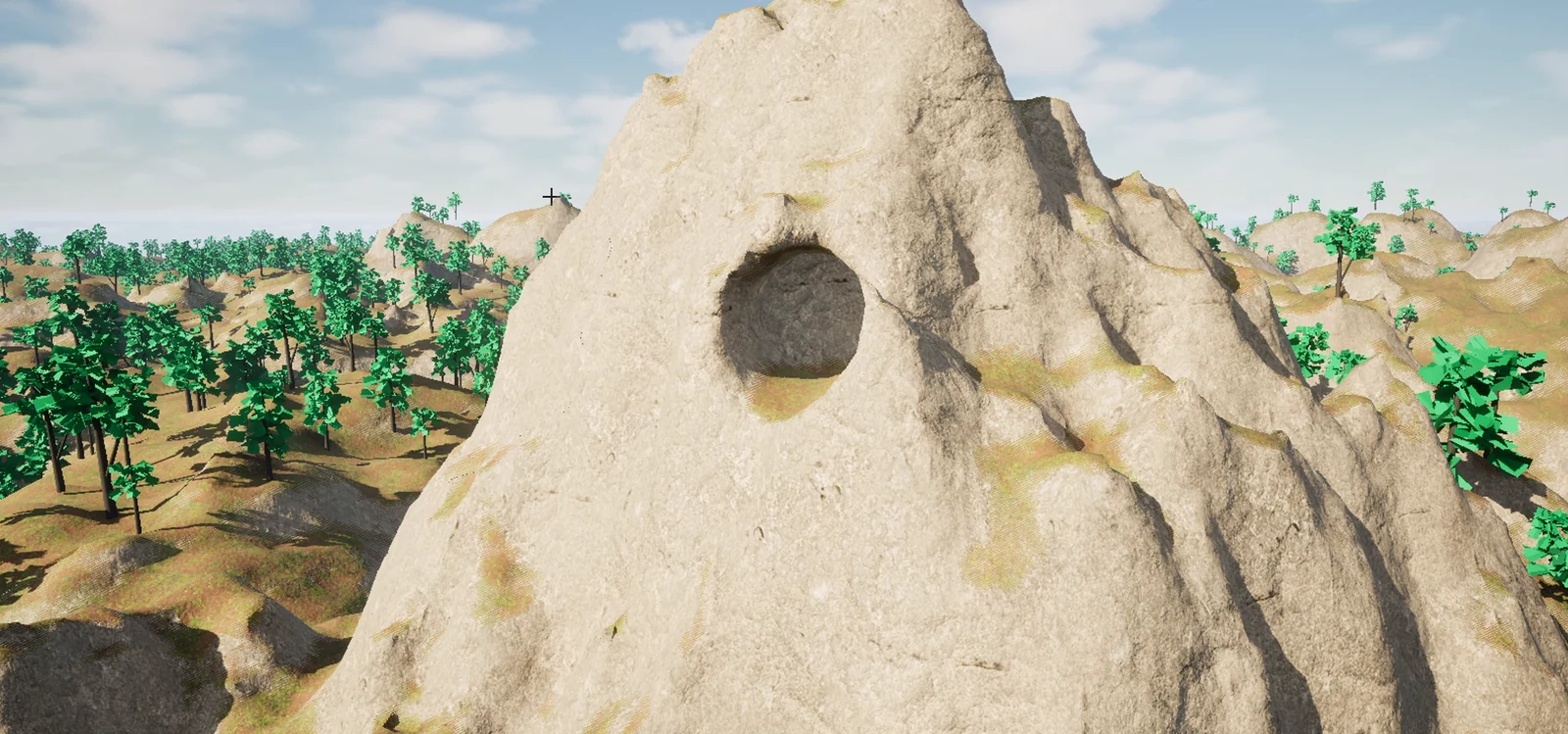
The island is a stamp that uses a rock mesh as terrain.
The cave is made from overlapping sphere stamps that subtract from the mountain: a mouth, tunnels and a chamber. Its walls are smooth and slightly scalloped where the spheres meet.
Blocky terrain
Ask “make this terrain blocky” and the same stamps draw as stepped cubes. Left is the smooth terrain, right is the same camera after the change:
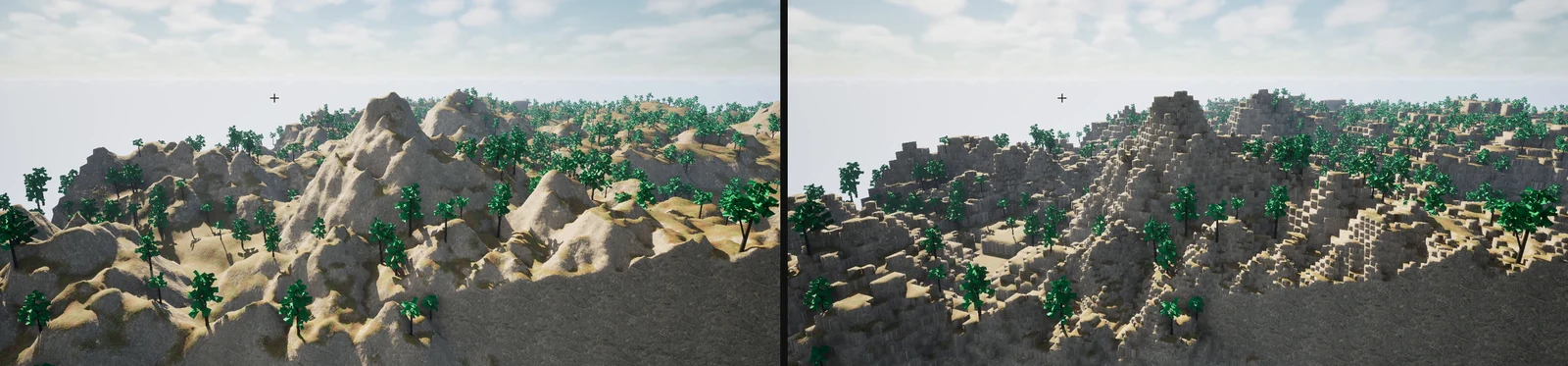
The AI does three things. It creates a blockiness value, points the World at it, and sets the value on each stamp that should be blocky. The first two alone change nothing.
A value of 1 is full cubes, 0 is smooth, and values between snap partly. A cube is one voxel wide, which is 1 m at the default voxel size.
The cube faces are still shaded smooth. Hard-edged faces need flat normals in the material, which is something you set up in the material yourself.
What you can ask for
- “Create a Voxel terrain with rolling hills and a sky, sun and fog.”
- “Make the hills taller and more rugged.”
- “Add a second stamp for a mountain range to the east, with its own height.”
- “Add a river along these points” (a spline stamp follows the points you give).
- “Use this heightmap texture as terrain.”
- “Use this rock mesh as a stamp.”
- “Put grass on the flat ground and rock on the steep slopes.”
- “Scatter trees across the hills.”
- “Put these trees and rocks on the ground.” The editor has no collision for voxel terrain, so a normal line trace misses it. The AI asks the terrain itself where the ground is.
- “Why is nothing drawing?” The AI reads Voxel’s log, because Voxel reports many graph and stamp errors there and nowhere else.
Behind those requests the extension has 23 tools:
- Status and assets. Check Voxel, list assets, create and edit graphs, layers, layer stacks, mega materials, surface types, heightmaps and mesh assets.
- The World. Create it, read it and change its settings, including navigation and collision.
- Stamps. List the stamp types, then add, read and change stamps of every kind.
- Graphs. List the node types, read a graph, then add, connect, set and remove nodes, and add parameters.
- Actors. Add, read and change scatter and sculpt actors.
- Ground queries. Read the height, slope and surface at points, and place actors on the terrain.
- Messages. Read what Voxel logged.
Tips
- Describe the look and name the folder. “Put everything in /Game/VoxelDemo” keeps the graph, materials and surfaces together.
- One step per message. Terrain first, then the shape, then paint, then trees. Each result is visible, and you can undo the last step alone.
- Ask for a sky and light in the first prompt. The terrain draws black without them.
- Use the example surfaces. Voxel’s own example content has ready textured materials. Name them in the prompt, as above.
- Save the level. The AI saves the graphs and materials it creates, but the stamps live in the level, so ask it to save the level or press Ctrl+S before you close.
- Read the “things to know” part of the summary. The AI lists what it could not see in the viewport, for example that the island is out of frame.
Limits
- Interactive sculpting and the saved sculpt data are not covered.
- Voxel’s PCG nodes can be added and connected, but a full PCG run against a Voxel World has not been exercised.
- Runtime edits and multiplayer are not covered.
- Navmesh and collision invokers beyond the World’s own settings are not covered.
- The Voxel material editor and function library graphs are not covered. Use the general property tools for those.
- Terrain with painted surfaces needs Voxel’s shader hook, and a Voxel graph can only be built from node types Voxel offers, which the AI looks up for you.
- The AI never links Voxel into your project. If Voxel renames something in an update, the tool names the missing field instead of guessing.
Permissions
Reading is free: checking the status, reading a graph or sampling the terrain never asks. Changes follow your Ask Before Edit or Auto Edit setting, the same as every other tool.
How it works
- No link between the plugins. The extension reaches Voxel Plugin by reflection only, so Ultimate Engine CoPilot builds and runs the same with or without Voxel installed, and the extension keeps working across Voxel versions of the same design.
- Everywhere at once. The tools work in the CoPilot’s chat, in external MCP clients like Claude Code and Cursor, and in coding agents. See MCP Integration.
- Changes show live. Voxel updates the terrain as the AI edits, and the graphs open in Voxel’s own editor.
See Extensions for how extensions work, and Play Testing for how the AI checks a running game.