Getting Started
Install the plugin, activate your license and send your first prompt. About 10 minutes from download to your first Blueprint.
Ten minutes. That’s how long it takes to go from a downloaded zip to the AI building Blueprints in your project.
- Download the plugin
- Install it in your project
- Start the editor and activate
- Open the panel
- Send your first prompt
Stuck somewhere? Jump to Troubleshooting at the bottom.
What you need
| Thing | Why |
|---|---|
| Unreal Engine 5.5, 5.6, 5.7 or 5.8, installed from the Epic Games Launcher | The plugin runs inside the editor. Source-built engines work too |
| Windows 10 or 11 (64-bit), or macOS on Apple Silicon or Intel | Version 2 ships for both. One Mac build runs on Apple Silicon and Intel |
| A license key from gamedevcore.com, or your Fab order ID and email | Activates the plugin |
You don’t need an API key or Python. The AI runs on tokens from a plan or a pack, your own key, or a local model. See Where the AI comes from.
Step 1: Download
- Sign in at gamedevcore.com.
- Open Downloads.
- Pick the build for your engine version and download the zip.
Bought the plugin on Fab? Version 2 is a free update for you. Link your Fab order to your website account first: open Account on gamedevcore.com and use Link a FAB order under your purchases. Downloads unlock once the order is verified.
Step 2: Install
The zip holds one folder, BpGeneratorUltimate. It goes in your project, not in the engine.
- Close the Unreal Editor.
- Open your project folder. Create a
Pluginsfolder next to your.uprojectfile if there isn’t one. - Unzip the download into
Plugins.
You should end up with this:
YourProject/
  YourProject.uproject
  Plugins/
    BpGeneratorUltimate/
      BpGeneratorUltimate.uplugin
      ...
Blueprint-only projects are fine. The plugin ships compiled, so there’s nothing to build.
It works with the engines the Epic Games Launcher installs, and with an engine you built yourself from source.
On a Mac: the Mac plugin isn’t notarized by Apple yet, so macOS blocks a zip downloaded through a browser until you clear the download mark once. After unzipping, run once in Terminal:
xattr -dr com.apple.quarantine "/path/to/YourProject/Plugins/BpGeneratorUltimate"Without it, macOS shows “libUnrealEditor-UECPCore.dylib Not Opened” and the editor hangs at startup. If that message appears, click Done, never Move to Trash, which deletes part of the plugin. In-editor updates and Fab installs don’t need this step.
Step 3: Start the editor and activate
Open your project. On the very first start you’ll see a few windows, in this order.
1. Before you start. This is our Terms window. It lists what the plugin sends to our servers and what stays on your machine. Pick one:
- Accept and continue turns usage data on. It powers your stats and Learn lessons and helps us fix things.
- Continue without usage data keeps it off.
Both accept the Terms of Service. You can change your mind later in Settings > Preferences > Share usage data.
2. Welcome to Version 2.0. A page about what changed. The language picker in its top right corner switches the whole plugin, so pick your language here. You can replay this page later from Settings > Info.
3. Activation. It appears inside the CoPilot panel the first time you open it. There are two tabs.
Website Purchase
- Paste your license key. It looks like
XXXXX-XXXXX-XXXXX-XXXXXand it’s in your purchase email. - Click Activate License.
FAB Marketplace
- Type the email you used on Fab.
- Type your FAB Order ID. It’s an
Afollowed by 16 digits, likeA1234567890123456, and it’s in Fab’s purchase email. - Click Submit Order.
A Fab order is checked with Fab before it activates. That usually takes a few minutes. The plugin re-checks on its own every 5 minutes, so you can close the panel and come back.
Activation covers every project on this computer. It also survives plugin updates.
Step 4: Open the panel
Click the gold ∞ button on the level editor toolbar (1). You can also use Window (2) > Ultimate Engine CoPilot.

The panel opens as an editor tab. Dock it wherever you like. It works well next to the Outliner. The screens are on its left rail. Architect is the chat, Settings is at the bottom.
New to the layout? The Interface Tour walks through every screen.
Step 5: Your first prompt
You’re on Architect. Type this into the message box:
Create a third person character with movement and a health systemPress Enter.
You’ll see the AI plan, then call tools one after another. When it finishes, a bar under its reply lists every Blueprint it changed, with a Review button for each one.
That’s it. You’re running.
A few more to try:
Make a pickup that heals the player 25 HP and respawns after 10 secondsCreate a Niagara fire effect with sparks and smokeWhat does BP_PlayerCharacter do? Explain its main events.Where the AI comes from
Out of the box the AI runs on BpLabs Standard, our hosted model. For more tokens, or another model:
- Buy a token pack from Get Tokens in the rail. Packs never expire. See Tokens and BpLabs Premium.
- Use your own API key from OpenAI, Anthropic, Google or DeepSeek. See AI Providers.
- Run a local model with Ollama or LM Studio. Free, and nothing leaves your PC. See Local LLM Setup.
- Run a coding agent like Claude Code or Codex on your own subscription. See AI Agents.
Updating the plugin
The plugin updates itself.
It checks about 20 seconds after the editor starts. When a new version is out, a notice pops up with an Update button.
You can also check by hand: Settings > Info, then the UPDATES card.

- Click Check now (1).
- Click Get update. The download is verified before anything changes.
- Click Restart now.
Didn’t like a release? Go back returns you to the version you had before. Update channel switches between Stable and Beta.
In-editor updates work on Windows and macOS.
Uninstalling
- Close the Unreal Editor.
- Delete
YourProject/Plugins/BpGeneratorUltimate.
Your settings, chats and activation live outside the plugin folder, so a reinstall picks up where you left off. To remove those too, delete:
%LOCALAPPDATA%\UltimateCoPilot\for per-machine data: settings, activation, API keys, agentsYourProject/Saved/UltimateCoPilot/for per-project data: chats, AI Memory, game design docs, the project index
What the plugin changes in your project
Two things, both small.
- It adds an
[HTTP]block toConfig/DefaultEngine.iniwith longer network timeouts. Local models can think for minutes without sending a byte, and the default timeouts would cut them off. - The
UECPSteamRuntimemodule is a runtime module. Everything else is editor-only and never ships in your game.
Troubleshooting
The toolbar button isn’t there.
Check that the folder is YourProject/Plugins/BpGeneratorUltimate and not one level deeper. Then open Edit > Plugins, search “CoPilot” and make sure it’s enabled.
“Invalid key format.” The key has four groups of five characters, separated by dashes. Copy it straight from the email.
The Fab order says it’s pending. That’s normal for a few minutes. Leave the panel open or come back later. It re-checks every 5 minutes. Still pending after an hour? Ask on Discord with your order ID.
Activation says the license is in use on another computer. Free the old machine first. See Account, License and Devices.
The AI stopped answering on BpLabs Standard. You’ve used your tokens. Buy a pack, add your own key or switch to a local model. See Tokens and BpLabs Premium.
“The following modules are missing or built with a different engine version”, then “could not be compiled”. The engine isn’t one the plugin was built for, usually a source build. Switch to the Epic Games Launcher engine:
- Close the editor.
- Delete
YourProject/Plugins/BpGeneratorUltimateand unzip the download there again. - C++ projects only: delete your project’s
BinariesandIntermediatefolders (the project’s, not the plugin’s). - Right-click your
.uproject, choose Switch Unreal Engine version and pick the Launcher engine. - C++ projects only: right-click the
.uprojectagain, choose Generate Visual Studio project files, and build Development Editor. - Open the project.
Something else broke. Click Report in the panel footer.
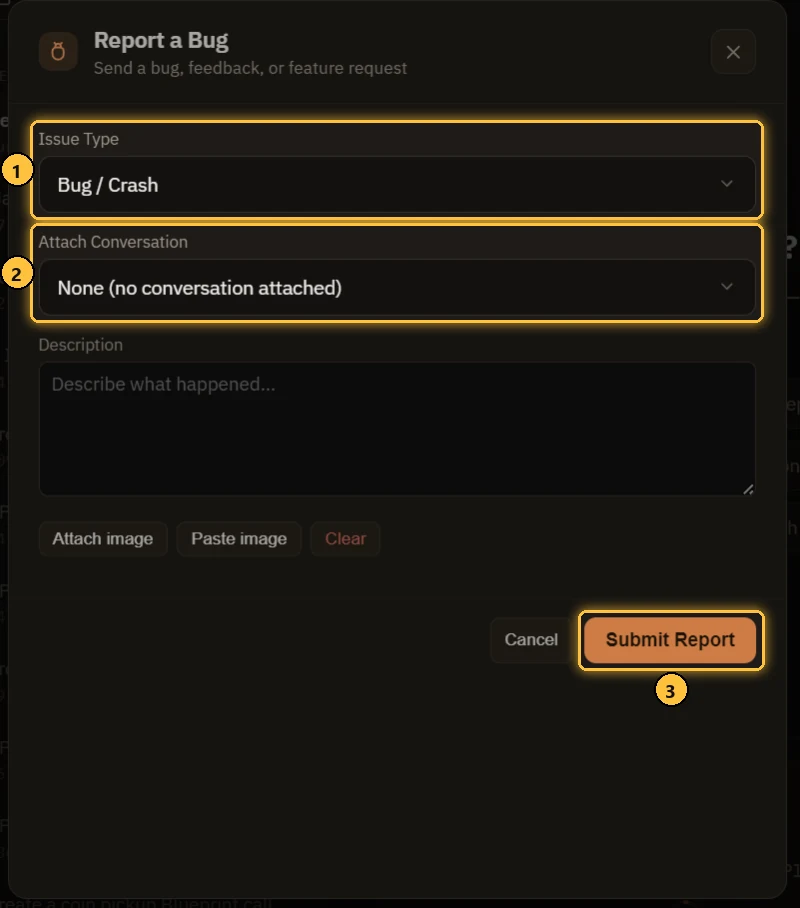
- Pick an Issue Type.
- Tick Attach Conversation if the chat shows the problem.
- Submit Report.
Replies arrive in your Inbox, and Discord is always open.