Interface Tour
A map of the CoPilot panel: the rail of screens, the chat list, the composer and the footer strip.
Interface Tour
The whole plugin lives in one panel. Five areas, and you’ll use all of them.
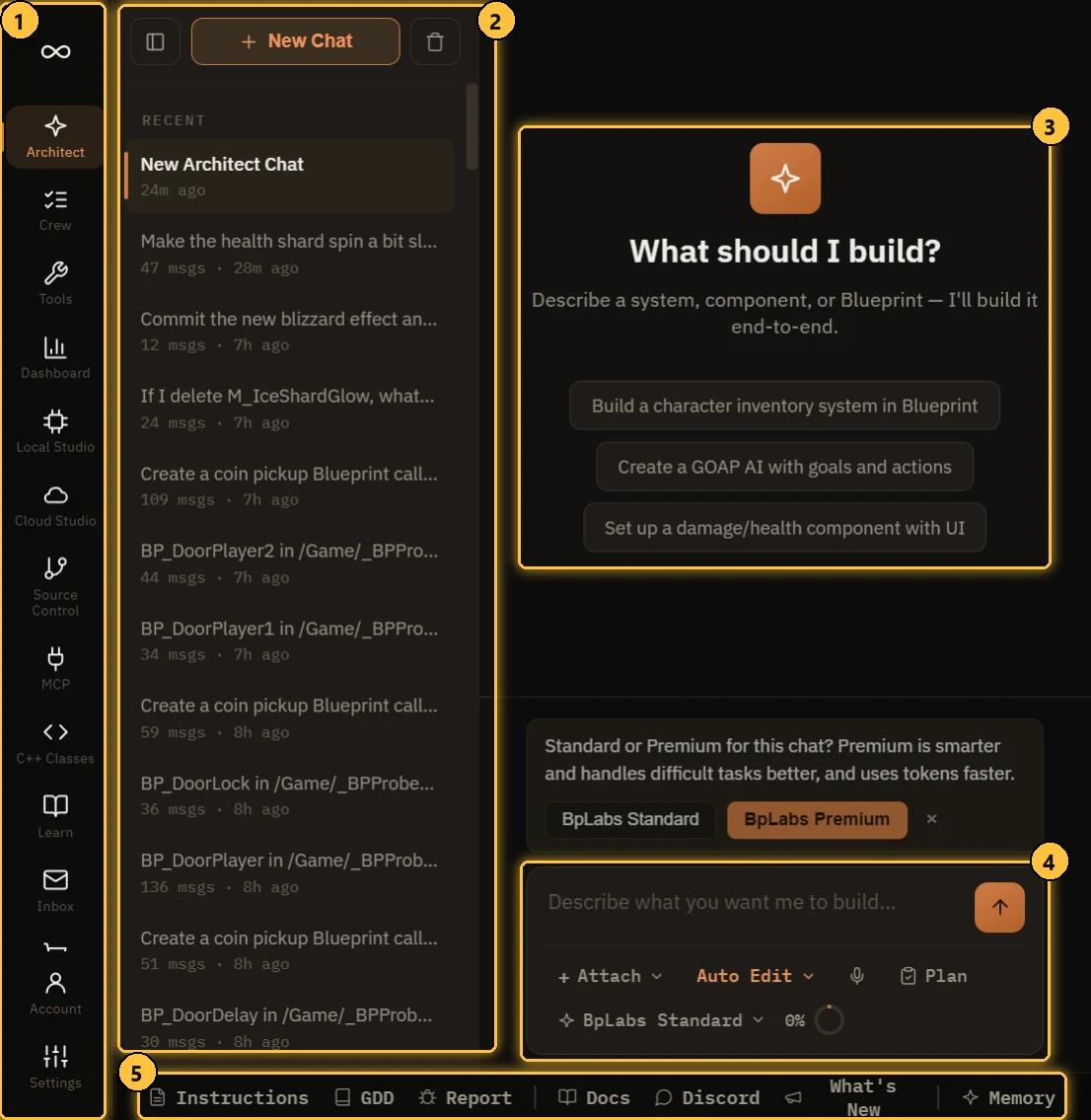
- The rail. Every screen, top to bottom. Account and Settings sit at the bottom.
- The chat list. Your conversations. Only on Architect.
- The chat. Where the AI answers and works.
- The composer. Where you type, attach files and pick the mode and model.
- The footer strip. Shortcuts to panels you’ll open from any screen.
The rail
| Screen | What it’s for |
|---|---|
| ∞ (the logo) | Opens the Dashboard |
| Architect | The main AI chat. See Architect |
| Crew | Plans split into checkpoints, built and reviewed one by one. See Crew |
| Tools | Four utilities: Mesh Splitter, Mesh Merger, Retarget Studio, Performance Profiler. See Tools Screen |
| Dashboard | Your project at a glance: assets, dependencies, complexity, performance. See Project Index and Dashboard |
| Local Studio | AI that runs on your own PC, with no key and no cost per call. See Local LLM Setup |
| Cloud Studio | Images, sound, video and 3D from paid cloud providers. See Asset Generation |
| Source Control | Commit, sync, shelve and branch with Git, Perforce or Diversion. See Source Control |
| MCP | Connect Claude Desktop, Claude Code or Cursor to your editor. See MCP Integration |
| C++ Classes | Browse your project’s C++ headers and source. See Blueprint to C++ |
| Learn | Courses that teach the plugin inside the editor. See Learn |
| Get Tokens | Token packs for BpLabs models and hosted generation. See Tokens and BpLabs Premium |
| Inbox | Messages from us, including replies to your bug reports |
| Account | Your plan, your usage and the license you’re signed in with. See Account, License and Devices |
| Settings | Everything else. See Settings |
The chat list
Only on the Architect screen.
- New Chat starts a fresh conversation.
- Chats are grouped into PINNED, RECENT and ARCHIVED.
- Right-click a chat to Pin, Rename, Export .md, Export .txt or Delete it.
- The trash icon at the top clears every chat.
- The sidebar icon collapses the list when you want more room.
Each chat keeps its own model. You can have several working at the same time.
The composer
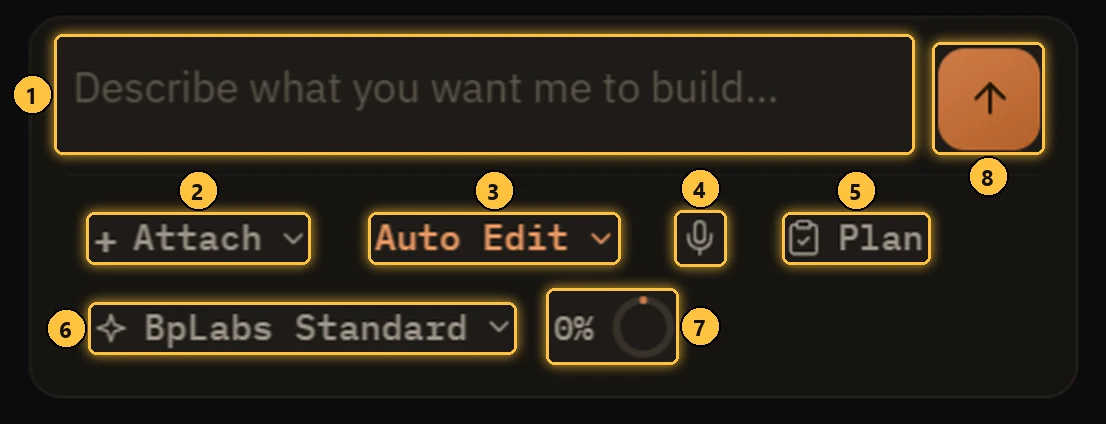
- Message box. Type here. Enter sends, Shift+Enter adds a line. Type
@to mention an asset or a C++ file. - Attach. Add an image, a file or a whole plugin. You can also paste an image straight in.
- Interaction mode. Just Chat, Ask Before Edit, Auto Edit or Plan.
- Mic. Dictate instead of typing. It only shows when voice is on in Settings > Audio.
- Plan. Opens the plan for this chat.
- Model. Which AI answers this chat.
- Token ring. How full the model’s context is. Click it to compact.
- Send.
Every control is covered in detail on the Architect page.
The footer strip
These open on top of whatever screen you’re on.

- Instructions. Standing rules the AI reads in every chat. “Always use Blueprint Interfaces”, that kind of thing. See Best Practices.
- GDD. Your game design docs. See Game Design Docs.
- Report. Send us a bug report, with the conversation and a screenshot if you want.
- Docs. Opens these docs in your browser.
- Discord. Opens our Discord.
- What’s New. Release notes, newest first.
- Memory. What the AI remembers about your project. See AI Memory.
The token counter in the footer shows how many tokens you have left. Click it for details.
Tours
Each screen shows a short guided tour the first time you open it. Want them again? Settings > Preferences > Reset Tutorials.
Find in chat
Press Ctrl+F in a chat to search it.